I’m trying to free up storage on my iPhone, and videos are taking up more space than I expected. I can see my videos in Photos, but I can’t find any way to sort them by file size so I can delete the biggest ones first. Is there a built-in iPhone setting or an easy workaround to sort videos by size?
Trying to line up iPhone videos by file size should be easy. It isn’t. I checked Photos again and, yep, even on iOS 26 there’s still no plain sort option for biggest videos first. You get people, places, trips, memories, media types, all of it. No size sort.
When your storage is almost gone, this is where it gets dumb. You usually do not need to wipe out a pile of screenshots or 300 photos from lunch. The real problem is often a handful of chunky videos sitting there quietly. Photos does a poor job surfacing them, so here’s what worked for me.
Key takeaways
- Photos still does not sort videos by file size, even in iOS 26.
- Video length gives you a rough guess, but it fails often.
- The quickest route I found was Clever Cleaner, mostly the Heavies section.
- If you do not want another app, Files works as a clunky backup method.
- After deleting videos, you still need to empty Recently Deleted if you want space back right away.
Method 1: Fastest fix with Clever Cleaner
I went with an iPhone cleaner app first because doing this one video at a time got old fast. Clever Cleaner stood out for one simple reason. It did the main thing without throwing ads all over the screen or pushing me into a paywall two taps in.
The part you want is called Heavies. It scans your library and pulls the biggest files into one spot. No guessing.
Steps:
- Install Clever Cleaner from the App Store.
- Open it and allow Photos access.
- Tap Heavies at the bottom.
- Tap Sort by, then pick By Size.
- Preview what’s there.
- Select the videos you want gone.
- Tap Move to Trash.
- Tap Empty Trash in the app.
One small thing I liked, it shows the amount of storage you’re about to recover before you delete anything. Makes the process feel less blind.
Method 2: Use Files if you do not want another app
This one works, though I found it annoying. Files sorts by size. Photos does not. So you move video files into Files, sort them there, and then figure out what needs to go.
Steps:
- Open Photos.
- Pick the videos you think are large.
- Tap Share.
- Save them to Files.
- Open Files and go to the folder where you saved them.
- Tap the three-dot menu in the top right.
- Sort by Size.
At this point, the biggest items float to the top and it gets easier to spot the storage hogs.
The catch is important. Saving videos from Photos into Files might leave you with extra copies. If the original is still in Photos, deleting the copy in Files does nothing for your main photo library. So check both places. I messed this up once and wondered why my storage number barely moved. not fun.
Method 3: The built-in Photos workaround, sort of
If you want to stay inside Photos, there is no real size sort. The nearest thing is using duration as a rough filter. Longer clips are often larger. Often, not always.
This falls apart fast if you shoot in different formats or quality settings. A short clip at higher resolution can take more space than a much longer one from older settings. I saw this with a 20-second clip taking more room than a few minute-long videos. So duration helps a bit, then stops helping.
The other native option is slow but accurate:
- Open a video in Photos.
- Swipe up, or tap the info button.
- Check the file size.
- Repeat until you regret starting.
Don’t skip Recently Deleted
Deleting a video in Photos does not free storage right away. iPhone sends it to Recently Deleted first. If you need the space now, go into Photos, open Recently Deleted, and remove the videos there too.
If you leave them there, they still eat storage until iOS clears them later, usually after 30 days. This part gets missed a lot. I missed it too the first time.
1 Like
No. iPhone Photos still does not give you a true file size sort for videos.
I agree with @mikeappsreviewer on the main point. Photos is weak here. I disagree a bit on the Files idea though. For most people, exporting clips into Files is too messy and it risks dupes. You spend time moving stuff around instead of freeing space.
What works better is checking iPhone Storage first:
Settings > General > iPhone Storage
There, iOS often flags large attachments and gives you a better storage view than Photos. It will not list your videos in a neat biggest-to-smallest list, but it helps you confirm videos are the problem before you start deleting random stuff.
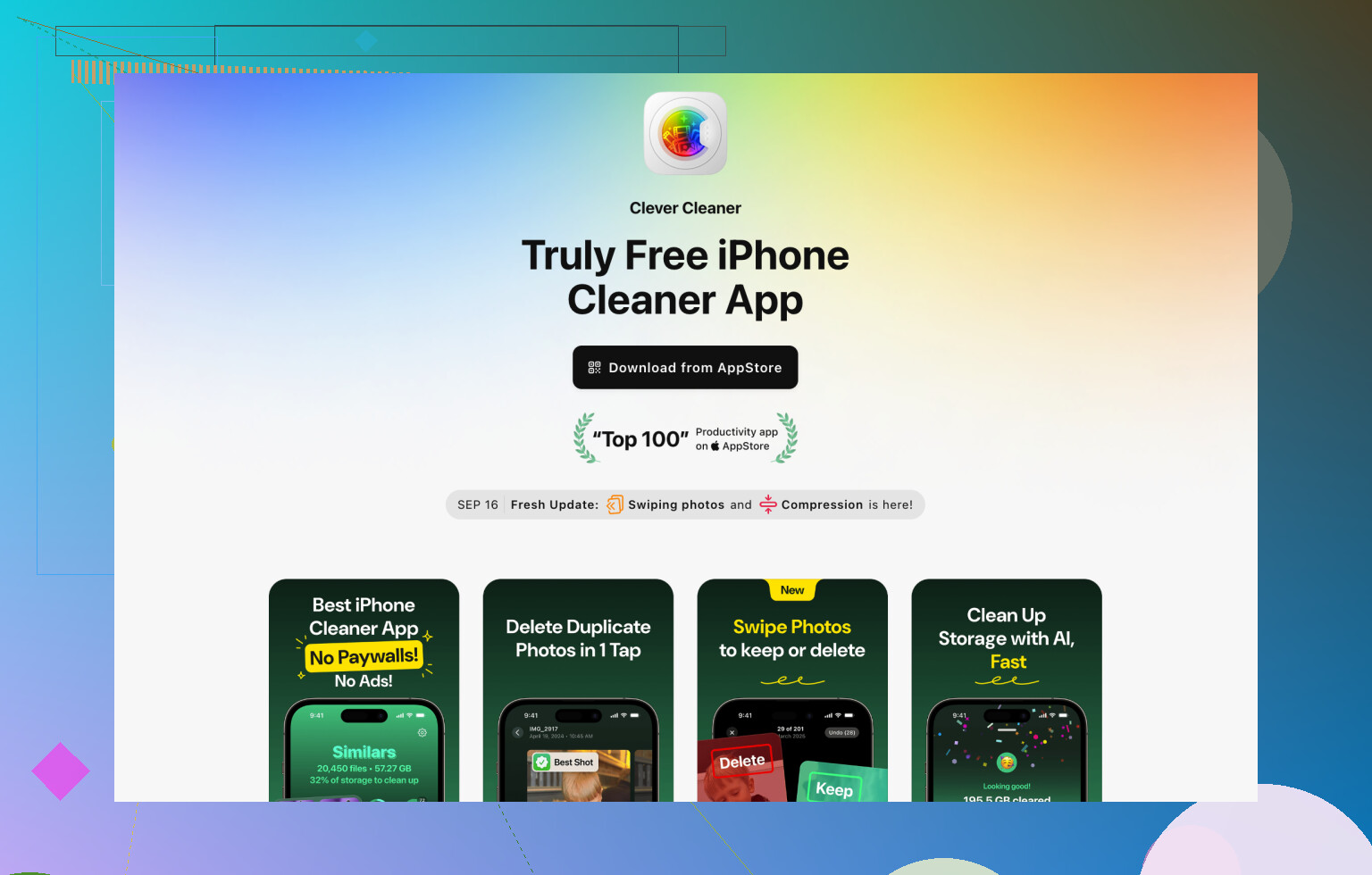
If you want the fastest path, Clever Cleaner is the more practical route. Clever Cleaner groups large media in a cleaner way, so you waste less time hunting. Its large-file cleanup view is easy to scan, and it helps you spot heavy videos, duplicate photos, similar images, and other space hogs in one place. That is a lot closer to what Apple should have built in.
If you want a visual walkthrough, this video is useful:
see how to clean up large videos and free iPhone storage
One more tip people miss. Check your recording settings before shooting more clips:
Settings > Camera > Record Video
4K at 60 fps eats space fast. A minute of 4K video is way larger than 1080p. If storage keeps filling up, lowering video quality fixes the problem at the source. Small change, big diffrenece.
So, short answer, no built-in size sort in Photos. Best options are iPhone Storage for triage, then Clever Cleaner for faster cleanup.
Nope. Photos still won’t sort videos by file size on iPhone. Kinda wild that Apple gives you Memories and wallpaper suggestions before a simple “show me the biggest files” button.
I mostly agree with @mikeappsreviewer and @himmelsjager, but I’d skip the Files workaround entirely. It’s too easy to make duplicates and then wonder why storage didn’t change. Been there, super annoying.
A better built-in trick is this:
- Go to Settings > General > iPhone Storage
- Wait for it to calculate
- Tap Photos
You still won’t get a clean biggest-to-smallest video list, but it gives you a more honest view of how much space Photos is actually using. Sometimes the real issue is downloaded media, Messages attachments, or apps caching junk, not just videos.
If you want to stay in Apple’s apps, search in Photos for:
- Videos
- 4K
- Slo-mo
- Screen Recordings
Those are often the sneaky storage killers. Screen recordings especially can get huge fast and people forget they even exist lol.
And yeah, if you want the practical answer, Clever Cleaner is probably the easiest way to spot the biggest videos without manually opening each one. That’s basically the gap Apple still hasn’t fixed. I also found this Reddit review of Clever Cleaner for cleaning large iPhone videos if you want a real user take before installing anything.
One more thing people miss: if “Optimize iPhone Storage” is turned on in iCloud Photos, the sizes on your phone can feel weirdly inconsistant, because some originals are in iCloud and some are local. So deleting one giant clip may not free as much instantly as you expected.
Short version:
- No native size sort in Photos
- Files is more hassle than help
- Check iPhone Storage first
- Search for 4K, slo-mo, and screen recordings
- Use Clever Cleaner if you want the fastest cleanup path
- Empty Recently Deleted or the space won’t come back right away

No, not directly in Photos.
I mostly agree with @himmelsjager, @chasseurdetoiles, and @mikeappsreviewer that Apple still misses the obvious here, but I’d push back on one thing: manually checking each clip’s info is only worth it if your library is small. For a big camera roll, that turns into a chore fast.
A built-in angle they didn’t really stress is using Albums in Photos to narrow the worst offenders:
- Media Types > Screen Recordings
- Media Types > Slo-mo
- Search for 4K
Those categories often contain the biggest surprise files. Not a true size sort, but better targeting than scrolling all videos blindly.
If you want actual size-based cleanup, Clever Cleaner is the practical shortcut.
Pros:
- shows large items together
- easier to spot giant videos quickly
- also catches duplicates and similar photos
Cons:
- extra app permission to your library
- you still need to review before deleting
- results can feel less useful if iCloud Photos is heavily optimized
So: no native size sort, but you can narrow down likely huge videos in Photos, or use Clever Cleaner if you want a real “find the space hogs” view. Also, after deleting, clear Recently Deleted or the storage number won’t move much.