My iPhone says there isn’t enough storage to download and install the latest iOS update, even after I deleted some apps and photos. I need help figuring out the best way to clear enough space without losing important data so I can update my iPhone.
Your iPhone falls over before it hits 100 percent full. I learned this the annoying way. Even on normal days, iOS keeps grabbing space for logs, cache files, app junk, indexing, and other background stuff you never see.
Updates make it worse. The phone needs room to download the update file, unpack it, and shuffle data during install. If you’re trying again, I’d leave 15GB to 25GB open first. Less than that gets sketchy fast.
TL;DR
If your iPhone says there isn’t enough room for an update, check two things first: how big the update is, and how much free storage you’ve got. Then cut the biggest storage hogs first. If you still come up short, update with a Mac or PC. Last resort, back up the phone, erase it, install iOS fresh, then restore your backup.
- Check update size and free storage
Don’t start deleting random stuff blind. Look at the numbers first.
- Open Settings.
- Go to General > Software Update.
- Check the update size, if iOS shows it.
- Go back, then open General > iPhone Storage.
- Wait for the storage bar to load.
- See how much free space is left.
- Look at which categories are eating the most storage.
One thing people miss, the update size is not the full amount of space needed. If the update says 15GB, having 15GB free still might fail. The phone needs extra room during install.
Use a cleaner app for photos and videos
For most people, the fastest win is the photo library. I’ve done the manual cleanup route. It sucks. Too slow, too much scrolling, too easy to give up halfway through.
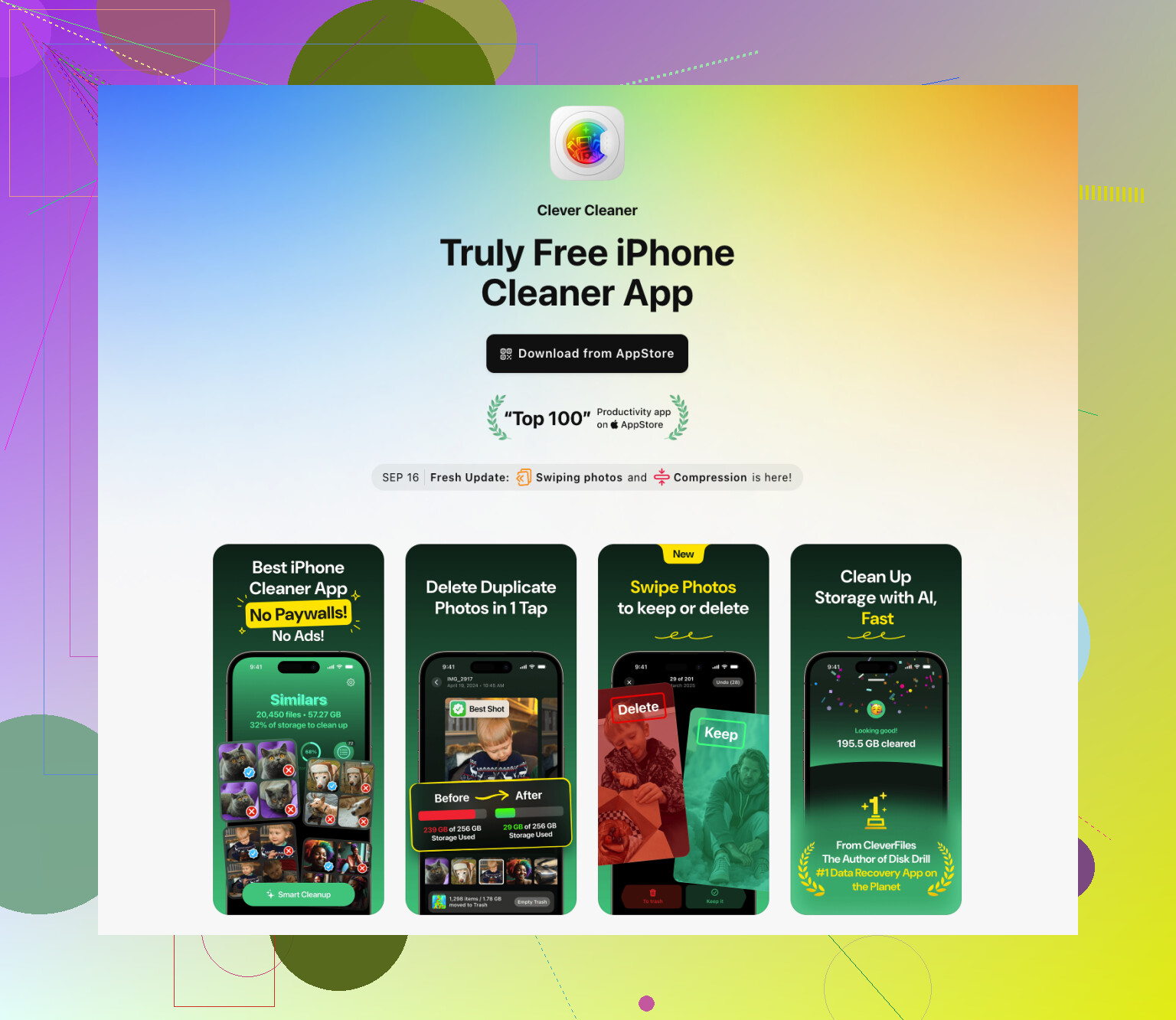
I’d use Clever Cleaner here because it’s free, quick, and it doesn’t wall off basic cleanup behind a subscription.
What I did:
- Install the app and let it scan your library.
- Open Heavies and look for giant videos and other oversized media.
- Delete what you don’t need.
- Open Similars and remove duplicate or near-duplicate shots. If needed, check the app’s other cleanup tools too.
- Then go into Photos > Recently Deleted and hit Delete All.
That last part matters more than people think. If you skip it, iPhone keeps the deleted stuff for 30 days, and your storage won’t come back yet.
Delete apps you don’t use
When I need space for an update, I delete apps. I don’t offload them. Offloading leaves app data behind, and a lot of the bloat sits in Documents & Data anyway.
Do this:
- Open Settings > General > iPhone Storage.
- Scroll through the app list, usually sorted by size.
- Tap the apps you haven’t touched in ages.
- Choose Delete App.
You can always reinstall later.
Check the Files app
This one gets ignored a lot. The Files app ends up holding old downloads, PDFs, ZIP files, saved videos, random docs, all sorts of leftovers.
Steps:
- Open Files.
- Look in On My iPhone > Downloads.
- Delete what you don’t need.
- Check iCloud Drive too, if you save files there.
Clear big message attachments
Messages stores more junk than people expect. Old videos, photos, GIFs, PDFs, years of them.
Here’s the path:
- Go to Settings > General > iPhone Storage.
- Tap Messages.
- Open the attachment or documents sections.
- If Review Large Attachments shows up, use it.
- Delete the biggest files you don’t care about.
Nice part, this clears the heavy files without wiping whole conversations.
Clear Safari website data
Safari sometimes hangs onto more data than you’d guess. Not a huge space saver most of the time, still worth doing if you’re close.
- Open Settings.
- Go to Apps > Safari.
- Tap Clear History and Website Data.
- Confirm it.
Don’t expect 20GB from this. Still, when you’re short by a little, small cuts add up.
If you still don’t have enough space
I’ve seen cases where deleting stuff still wasn’t enough. At that point, you’re into workaround territory.
Update with a Mac or PC
Hook the iPhone up to a computer and update from there.
On a Mac, use Finder.
On Windows, use iTunes.
The computer handles the download and unpacking, so the iPhone usually needs less temporary storage. I’d make a full backup first. No reason to risk it.
Back up, erase, restore
This is the ugly option, but it works.
- Back up your iPhone.
- Erase the device.
- Set it up again.
- Install the newest iOS version.
- Restore your backup.
Bit of a pain, yep. Still one of the few reliable ways through when the phone is packed to the ceiling.
If the update still won’t install, cut harder. Remove anything you won’t miss. Old videos, dead apps, downloads, giant message attachments, all of it. When you’re trying to force through a big iOS update, every gig matters.
1 Like
I’d skip more random app deleting for a minute. @mikeappsreviewer covered the usual big stuff. My take is to target hidden storage first, because iPhone storage reports lag and deleted stuff does not always free space fast.
Try this order.
-
Restart the iPhone.
A plain reboot clears temp files and stalled system caches. It’s small, but I’ve seen 1GB to 3GB come back after a restart. -
Remove the downloaded update file if it failed before.
Settings, General, iPhone Storage.
Look for iOS update in the list.
Delete it.
Then try again later. Failed downloads sit there and eat space. -
Turn off Photos syncing for a bit if it is churning.
If iCloud Photos is syncing, indexing can hold storage hostage. Pause syncing, leave the phone on Wi-Fi and power for a while, then check storage again. Same idea for Music sync and podcast downloads. -
Check offline content.
Netflix, Spotify, YouTube, podcast apps, map apps. Offline downloads get huge fast. People forget about them all the time. I found 12GB in Spotify once. Annoying as hell. -
Mail app.
If you use Apple Mail with big attachments, remove and re-add the account after making sure mail is on the server. That often clears bloated local cache. Not elegant, but it works. -
Give iPhone Storage time to recalc.
Delete stuff, then wait 10 to 30 mins on charger and Wi-Fi. Storage bars are slow. iOS lies first, tells the truth later.
If photos are the problem, Clever Cleaner is worth a look for sorting duplicates and large videos faster. This also helps if you want a full, easy read on its tools and cleanup flow, see how Clever Cleaner handles duplicate photos, large videos, and iPhone cleanup.
One place I slightly disagree with @mikeappsreviewer, offloading apps is not useless. If the app itself is huge and your data is small, offload works fine. Games are hit or miss tho.
If all else fails, update through Finder or iTunes. That route saves people a lot of headaces.

A thing I’d add to what @mikeappsreviewer and @viajantedoceu said: check whether the problem is System Data being bloated, not just apps/photos. iPhone storage can get weirdly sticky, and deleting a few apps sometimes barely moves the needle. Annoying, but normal.
What’s worked for me:
- Change Messages retention to 1 Year or 30 Days if you’ve got years of threads
- Remove old voice memos and GarageBand files, those hide well
- In Photos, make sure “deleted” stuff is actually gone and not still uploading/downloading
- Delete downloaded Apple TV, Books, and Music content. People forget the Apple apps hoard space too
- If you use WhatsApp or Telegram, clean them inside the app. iPhone Storage doesn’t always show the full damage right away
I’ll mildly disagree with the “delete apps instead of offload” take. Sometimes offloading is the smarter move if the app binary is huge and you don’t want to lose local settings. It’s not useless, just situational.
Also, if storage numbers look wrong, connect to power and Wi-Fi overnight. iOS recalculates slooowly.
If photos/videos are the main issue, Clever Cleaner is probly the fastest way to spot large files and duplicates without digging forever.
For more iPhone storage cleanup ideas, this is a solid read: best ways to stop iPhone storage full alerts for good
Honestly, if you can’t free up enough after all that, updating through a computer is usually less of a headache than fighting the phone for 2 hours.