My Windows PC started freezing, and CrystalDiskInfo is warning about bad sectors on my hard drive. I’m trying to recover data and avoid making the HDD worse. Has anyone used hard drive repair software that actually fixed errors or helped recover files safely?
Be a little skeptical of any list claiming to name the “best hard drive repair software.” That phrase gets used for a bunch of totally different problems, and the right tool depends on what actually went wrong.
The useful question is: what is the drive doing?
- If files are gone, the drive was formatted, or it suddenly shows up as RAW, treat it as a data recovery problem first.
- If a partition disappeared or Windows thinks the space is unallocated, you’re probably looking at partition repair.
- If the drive is slow, freezing, or showing bad sectors, check the drive’s health before trying to “fix” anything.
- If it’s clicking, grinding, dropping connection, or only showing up sometimes, stop using it as much as you can and focus on getting the data off.
For a practical toolkit, these are the ones I’d look at:
1. Disk Drill
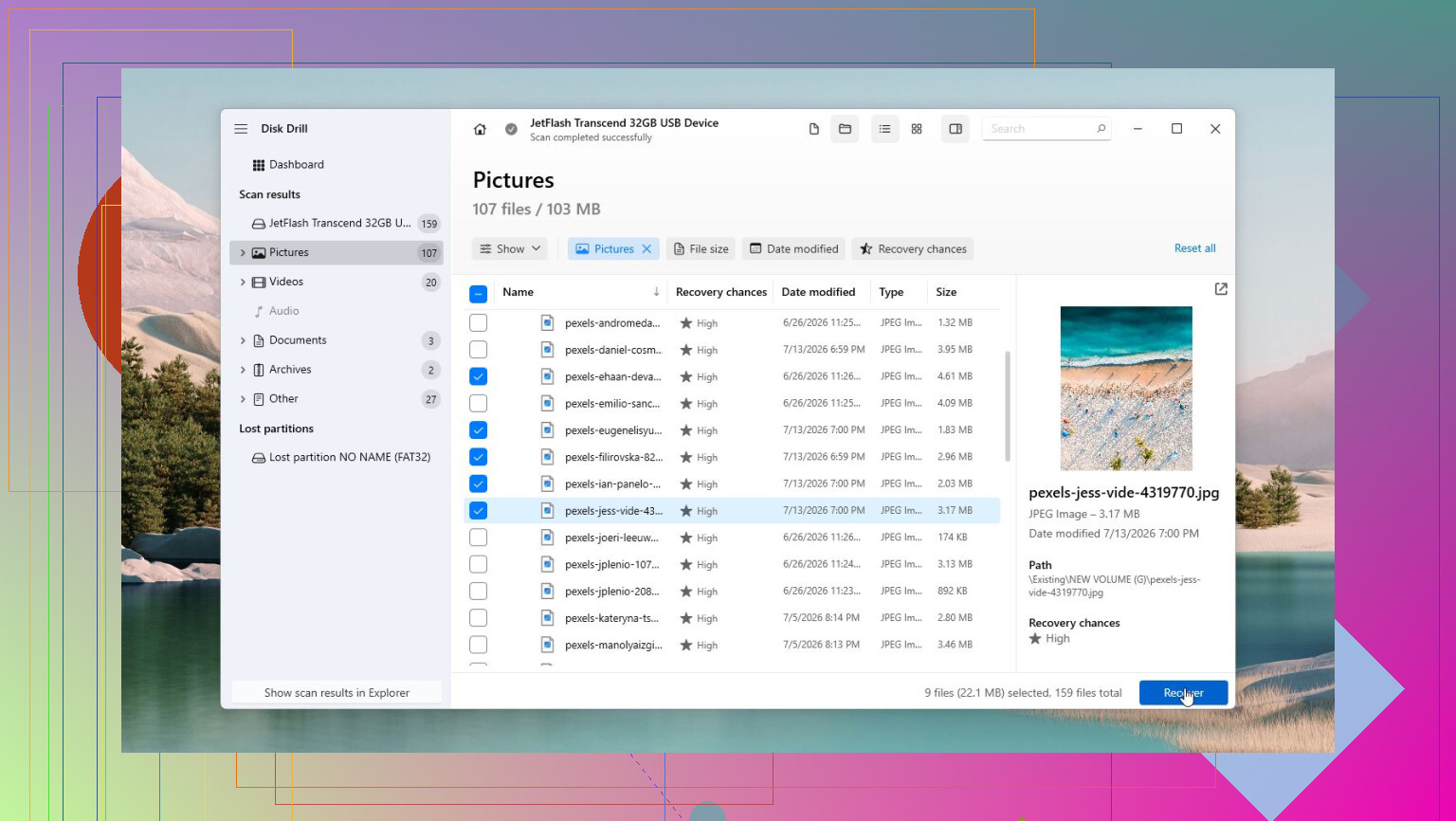
This is the one I’d put first if the files matter. It’s built around recovery, which is usually what you want before attempting repairs. It can help with deleted files, formatted drives, RAW partitions, corrupted file systems, and external hard drives that Windows refuses to open. The S.M.A.R.T. monitoring is useful too, and the byte-to-byte backup feature is a big deal if the drive is unstable, since working from an image is safer than hammering the failing disk directly.
2. SeaTools
Good free option when you’re trying to figure out if the issue is logical corruption or the drive itself failing. The short and long tests can give you a quick read on whether the disk is in bad shape.
3. TestDisk
This is one of the better free tools for partition table and boot sector problems. If a partition vanishes or Windows suddenly shows the whole drive as unallocated, TestDisk is worth considering. Just know that it’s text-based, so it’s not exactly beginner-friendly.
4. Clonezilla
If the drive still reads but seems to be getting worse, cloning it before doing anything else is usually the smarter move. Clonezilla is solid for making a full disk copy or image so you can work from that instead of risking the original drive.
5. CrystalDiskInfo
This is the kind of tool that’s worth keeping installed. It watches S.M.A.R.T. data, drive temperature, and other health indicators, so you may get a warning before Windows starts throwing obvious errors.
6. Victoria HDD/SSD
More advanced, but useful if you want detailed surface scans and bad sector checks. I wouldn’t make it the first recommendation for a beginner, but it can show you a lot about what’s actually happening with the disk.
The main thing is not to waste time running random repair tools on a drive that’s clearly dying. If it clicks, disappears from Windows or BIOS, freezes during transfers, or keeps gaining new bad sectors, back up or recover the data while you still can, then replace the drive. If it isn’t detected at all or it’s making obvious mechanical noises, skip the DIY software route and talk to a professional recovery service. Software can help with logical problems, but it can’t fix bad heads, motors, or platters.
1 Like
Don’t run CHKDSK /r or any “repair bad sectors” tool as your first move on a drive that is already freezing. Those tools can be fine on a healthy disk with file system errors, but on a failing HDD they may spend hours forcing reads and writes while the drive gets worse. Bad sectors are usually a replace-the-drive warning, not something software truly fixes. If the data matters, clone/image the drive first, then recover from the clone with whatever recovery tool you prefer, including Disk Drill if you want a GUI option. After that, toss the HDD or keep it only for experiments. I wouldn’t trust it again even if a scan says it “repaired” something.
The sneaky downside is that some “repair” software makes things worse just by being installed on the same failing drive, because that writes new data while you’re trying to save the old data. If CrystalDiskInfo is already warning about bad sectors and Windows is freezing, I’d stop treating it like a repair job and treat it like a rescue job. Put any recovery tool, Disk Drill included, on a different drive or another PC, recover to a different disk, and grab the most important folders first instead of trying to scan everything for 12 hours. Software can work around unreadable areas or recover files from a damaged file system, but it doesn’t make bad sectors trustworthy again. If the drive starts disconnecting or making noises, skip the software marathon.
Do not let Windows “initialize,” format, or run automatic repair on that drive just because a popup offers it. Same goes for opening the disk in Explorer and casually browsing around while Windows tries to make thumbnails, index files, scan with antivirus, etc. A failing HDD can get hammered by normal background stuff before you even start the recovery tool.
The annoying bit with “bad sector repair” is that the word repair is misleading. If software says it fixed sectors, it usually means one of two things: it marked bad areas so the file system avoids them, or it forced the drive to remap sectors internally. Neither makes the surface healthy again. And forcing remaps can involve writes, which is not what you want before the data is safe.
If this were my decision tree, I’d do the least fancy thing first: stop booting from that drive if it’s the Windows drive, connect it as a secondary drive to another machine, and copy the irreplaceable stuff first. Documents, photos, project folders, password vaults, tax files, whatever actually matters. Don’t start with Steam libraries or a full-disk scan unless you already have the important files.
For a drive with bad sectors, I’d usually prefer imaging it before running recovery software. A tool like ddrescue is ugly compared with GUI apps, but it is made for the “read what you can, skip the bad spots, come back later” approach. Clonezilla is fine for healthy-ish disks, but it can be less forgiving when the source is really sick. After you have an image, then tools like Disk Drill, R-Studio, DMDE, Recuva, etc. make more sense because you’re no longer beating on the original disk for every scan.
Disk Drill is fine if you want a more normal Windows/Mac style interface, especially for deleted files, RAW partitions, or pulling files from a damaged file system. I just wouldn’t treat it, or any other recovery program, as a magic HDD repair tool. Use it to recover data to another drive. Don’t recover back onto the bad HDD, don’t install it there, and don’t keep rerunning deep scans hoping the drive “settles down.”
Small thing people forget: check the boring hardware too. A bad SATA cable, flaky USB enclosure, weak external power supply, or loose connector can look like a dying disk. But CrystalDiskInfo warning about bad sectors plus freezing is enough that I’d assume the drive is untrustworthy until proven otherwise. Get the files off, replace the disk, then experiment with repairs only after you no longer care what happens to it.