My iPhone storage is almost full because I have thousands of photos and videos. I need advice on the safest way to back them up, remove duplicates, and free up space without losing important pictures.
You can usually free up a decent amount of iPhone storage without deleting the photos you care about. The main space hogs tend to be forgotten videos, duplicate shots, old screenshots, and Live Photos that don’t really need the animated version.
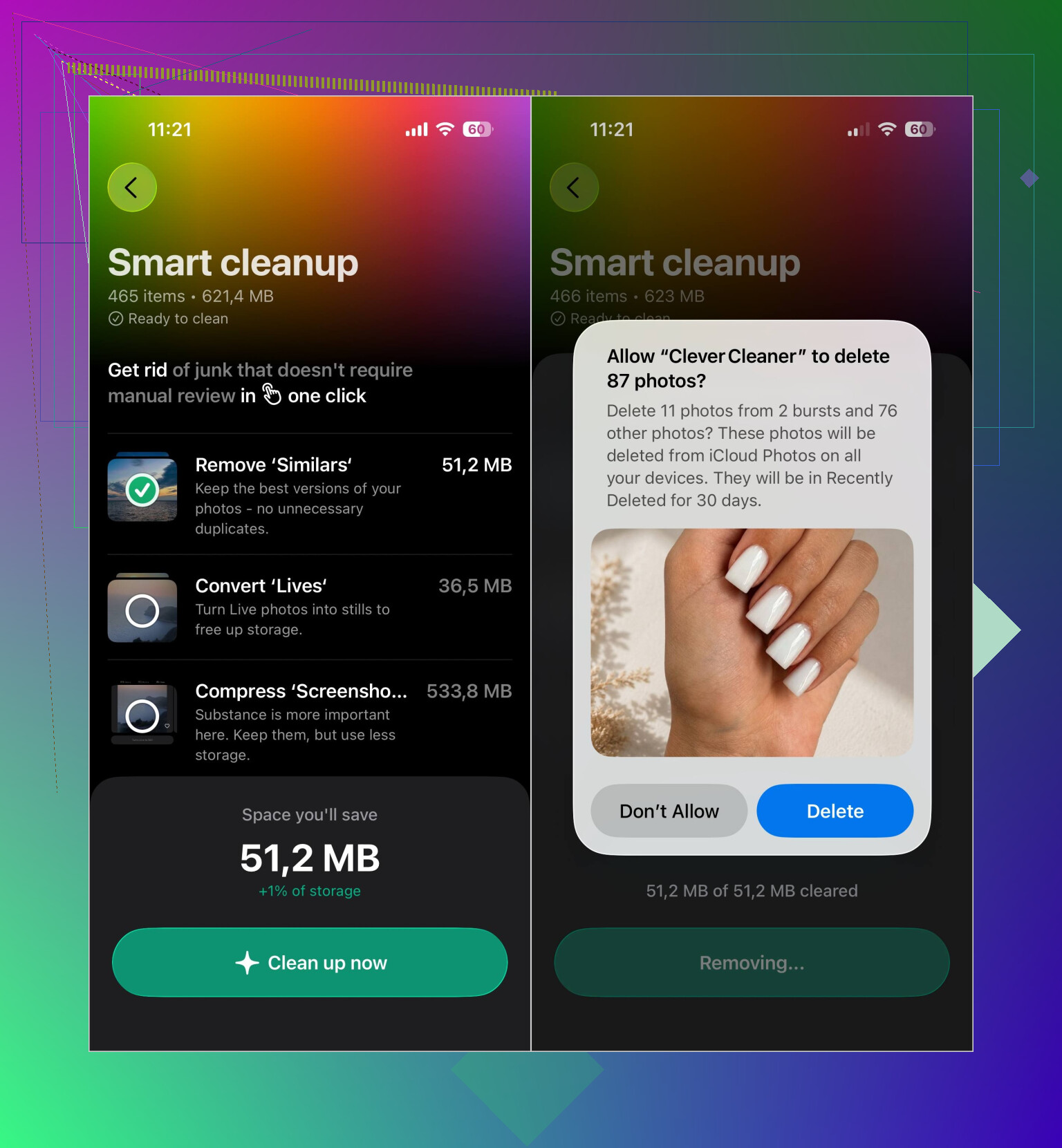
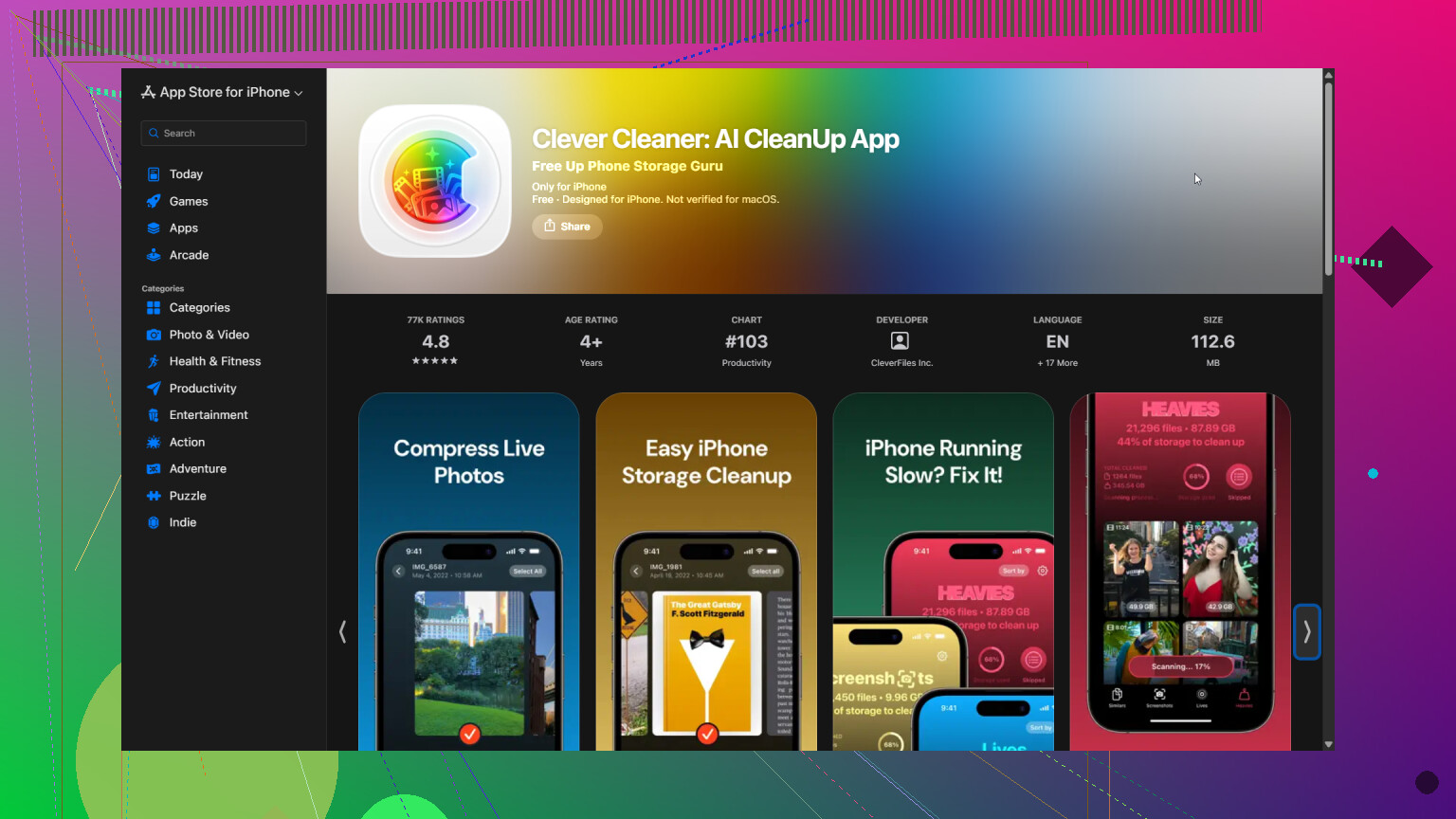
I used Clever Cleaner because scrolling through years of photos manually wasn’t practical. It sorts similar and duplicate photos, duplicate videos, screenshots, Live Photos, and large files into separate groups. That made it easier to clean one type of media at a time instead of going through the whole library by date.
Smart Cleanup worked well for the first pass. It finds similar photos and compresses eligible media in the same workflow. I still checked the individual categories afterward to make sure I wasn’t removing anything worth keeping.
For photos I wanted to keep, I used the Compress tool rather than deleting them. There’s also a Swipe mode if you’d rather review pictures individually whenever you have a few minutes. The app is free to use, has no ads, and doesn’t require a subscription to begin cleaning. Some cleanup features have a fairly generous daily limit for new users.
It’s also worth checking a few places outside the main photo library:
- Empty Recently Deleted if you need the storage immediately. Deleted photos and videos stay there for 30 days otherwise.
- Look through large photo and video attachments in Messages. Old conversations can hold more media than you’d expect.
- If you use iCloud Photos, turn on Optimize iPhone Storage. Your phone will keep smaller local versions while the full-resolution originals remain in iCloud.
In my case, the photo count itself wasn’t the real problem. Most of the wasted space came from duplicate shots, screenshots I no longer needed, and large videos I’d forgotten about. Clearing those was enough to recover plenty of storage without touching the photos I actually wanted.
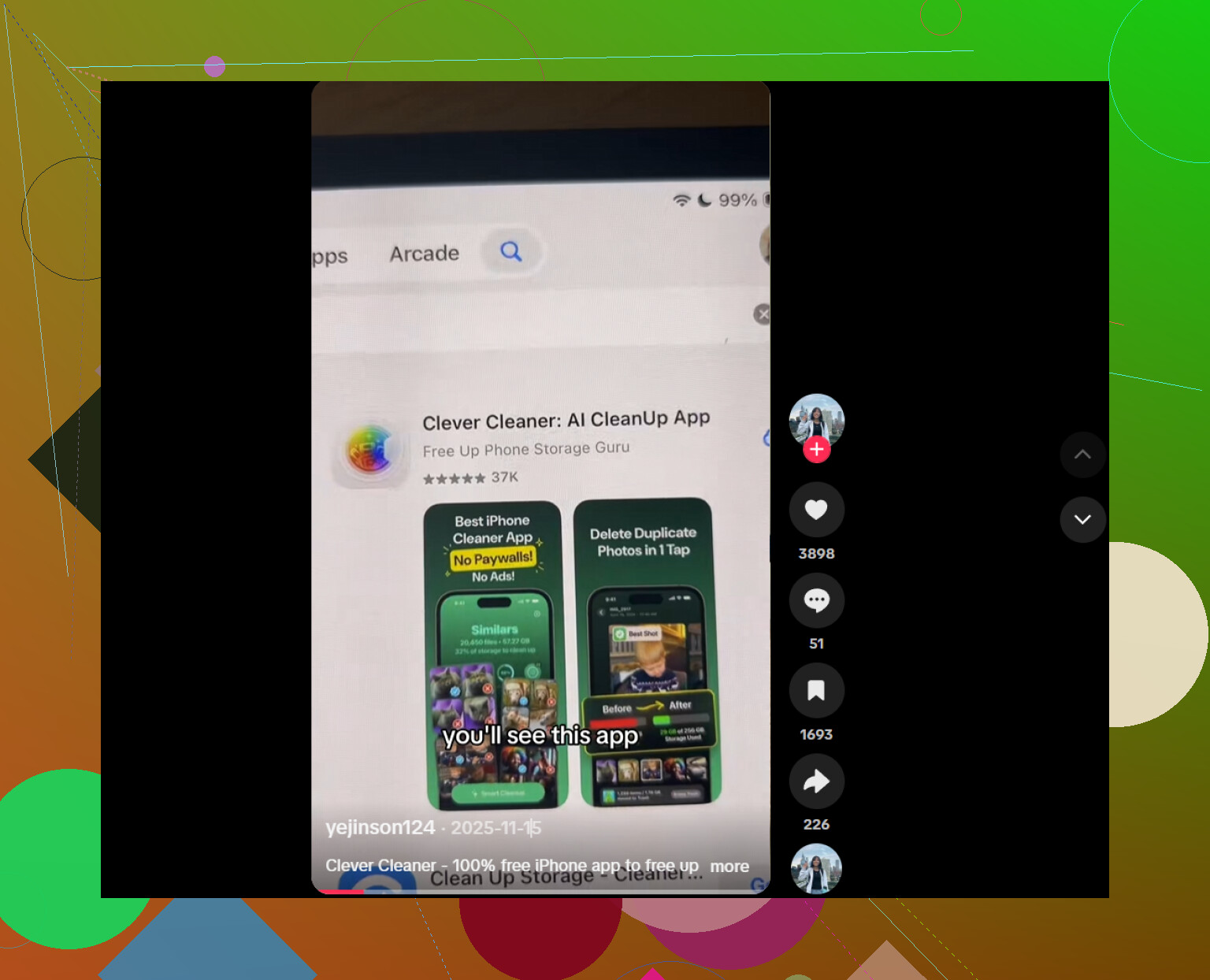
iCloud Photos is sync, not a separate backup. If you delete a photo on the phone, that deletion can sync everywhere, so make an independent copy on a computer or external drive first and open a few photos and videos to verify it. After that, use the built-in Duplicates album or Clever Cleaner, but review “similar” shots manually since they may be different photos you meant to keep.
Two people say they’re out of space. One has forty thousand photos going back years. The other has maybe two hundred clips from their kid’s soccer season. The second person is usually the one in real trouble, because a single 4K video at 60fps can eat what hundreds of stills do. If you sort by photo count you’ll waste an afternoon. Sort by file size and the picture changes fast.
So before touching duplicates or anything clever, go to Settings, General, iPhone Storage and just look at what’s actually taking the room. On most phones I’ve seen described in these threads it’s video, not the photo pile everyone panics about.
@digitalbear5643one is right that iCloud sync is not a backup, and that’s the part people trip on hardest. But I’d add a catch to the Optimize Storage advice from the first reply: it only helps while you have iCloud space to hold the originals. If your iCloud is also full, turning it on does nothing except keep you stuck. You either pay for more iCloud or you pull a full copy onto a computer or drive. There’s no free version of that decision.
On Clever Cleaner, it’s fine for grouping the junk so you’re not scrolling by date, and the point others made about reviewing ‘similar’ manually is the correct instinct. Similar is not the same as duplicate. Burst shots, before-and-after edits, and near-identical frames from a video often land in that bucket, and those are exactly the ones you might actually want. I’d treat any auto-grouped batch as a suggestion, not a verdict, especially on faces and receipts or screenshots you kept for a reason.
One thing nobody’s mentioned that quietly refills your storage: the compress-instead-of-delete route keeps the clutter around forever. Compressing a photo you don’t care about just means you now have a smaller version of something you’ll never open. If you actually don’t want it, delete it and empty Recently Deleted. Compression makes sense for the keepers you can’t bear to lose quality on, not as a way to avoid making decisions.