I’m running really low on storage on my iPhone but I don’t want to delete any of my apps because I use most of them regularly. Photos, messages, and system data seem to be taking up a lot of space, and now my phone is slow and I can’t install updates or take more pictures. What are the most effective ways to clear storage on an iPhone without removing apps, and what settings or hidden options should I check first?
iOS storage is a mess, but you have a few solid moves before deleting apps. Focus on Photos, Messages, and “System Data”.
-
Offload but keep apps
Go to Settings > General > iPhone Storage.
Tap apps you rarely open.
Use “Offload App”.
This removes the app data but keeps icon and documents. When you tap it again, it reinstalls. Your stuff stays. -
Photos cleanup
Photos often eats the most space.
• Turn on iCloud Photos
Settings > [your name] > iCloud > Photos > Sync this iPhone.
Then in Photos > Albums > Recently Deleted, clear it.
You can also enable “Optimize iPhone Storage” so full‑res stays in iCloud and smaller versions stay on device.
• Delete junk screenshots and duplicates
In Photos > Albums > Media Types, open Screenshots and delete old ones.
Check blurred pics, old downloads, WhatsApp image spam, etc.
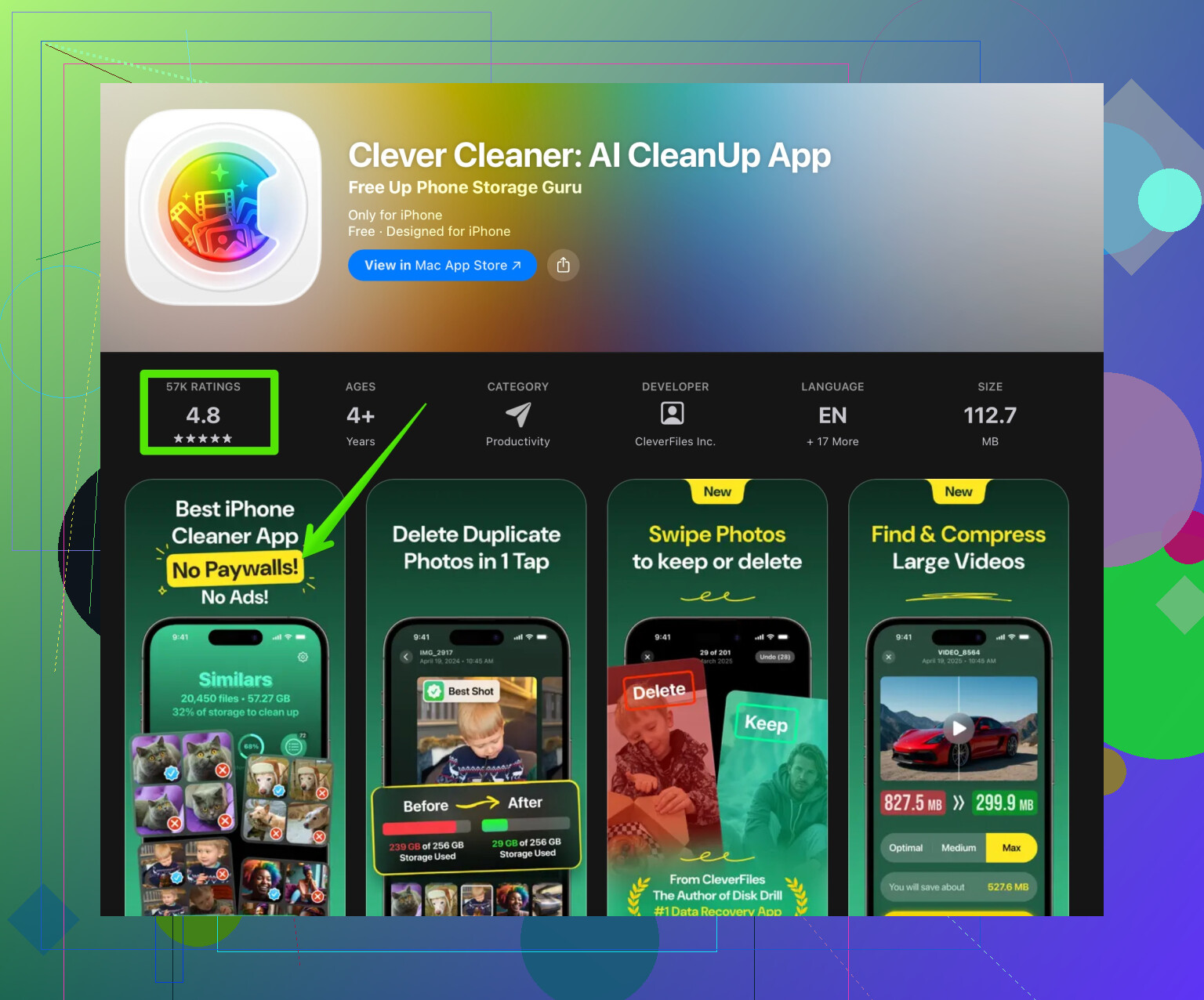
If you want help automating this, something like the Clever Cleaner App helps. It scans your gallery for duplicates, similar photos, large videos, and you pick what to trash. You can check it here:
clean up iPhone photos and storage quickly
- Messages and attachments
Messages keep years of photos and videos.
Settings > Messages > Keep Messages.
Change from Forever to 1 Year or 30 Days, depending on how brave you feel.
Then in Messages:
Settings > General > iPhone Storage > Messages.
Check “Photos”, “Videos”, “GIFs and Stickers”.
Delete large attachments from group chats or old threads.
- Safari and app caches
• Safari
Settings > Safari > Clear History and Website Data.
You log in again to some sites, but you free some storage.
• Social apps
Instagram, TikTok, Facebook, etc build huge caches.
You cannot clean their cache directly on iOS, so the only clean way is:
Press and hold the app > Remove App > Delete App.
Then reinstall from App Store.
Your account stays, you only lose temporary cache. For heavy apps, this can free 1 to 3 GB.
- Manage downloads and offline files
• Files app
Open Files > On My iPhone.
Delete large stuff you no longer need, like PDFs, video files, zip archives.
• Streaming apps
Spotify, Netflix, etc.
Open each app.
Remove offline playlists, albums, or downloaded movies you do not use.
- System Data (Other)
You cannot control it exactly, but you can shrink it.
• Restart your iPhone
Hold Power and Volume, slide to power off, wait 20 seconds, turn back on.
This often drops “System Data” by a few hundred MB.
• Ensure iOS is updated
Settings > General > Software Update.
After an update and a couple restarts, “System Data” often shrinks.
- Last resort moves
If storage is still red:
• Backup to iCloud or computer.
• Transfer old full‑res photos and videos to a computer or external drive.
• Delete old 4K videos on the phone, those eat huge chunks fast.
If you do all this in order:
- Optimize Photos and clean junk.
- Trim Messages history and attachments.
- Reset caches on heavy social / streaming apps.
You usually recover several GB without losing your core apps.
1 Like
Best way to free up storage on iPhone without touching your apps is to attack all the “quiet” stuff iOS hides from you. @reveurdenuit already covered the obvious stuff like Photos, Messages, and basic cache tricks, so I’ll skip repeating all that step‑by‑step and hit some other angles (and disagree a bit).
1. Tame iCloud properly (so it actually saves space)
People enable iCloud Photos and think “cool, space solved,” then nothing changes because “Optimize iPhone Storage” isn’t really doing its job yet.
- After turning on iCloud Photos, plug the phone into power and Wi‑Fi overnight.
- Open Photos and leave it on the “Library” tab for a while so it can fully sync and start downscaling local copies.
- Check iPhone Storage the next day. It usually takes time before you see the savings.
Also, if you use iCloud Drive, go to Settings > Apple ID > iCloud > iCloud Drive and turn off apps that store big stuff you don’t need locally (like old project files). iOS will eventually evict some of that from local storage and keep it in the cloud.
2. Stop future storage bloat from Messages & media apps
I kinda disagree with just nuking Messages history immediately like @reveurdenuit suggested. That can bite you if you need old codes, info, or convos.
Try this instead first:
- In Messages > a heavy thread > contact name > Info, scroll to “Photos” and “Documents” and clean those attachments per chat.
- For WhatsApp / Telegram / Signal, turn off auto‑saving media to Photos, and reduce the time they keep media:
- Example: WhatsApp > Settings > Storage and Data > Manage Storage. Clear “Forwarded Many Times” and “Larger than 5 MB” first.
Prevention is way easier than trying to rescue 20 GB later.
3. Video settings: stop recording like a Hollywood studio
Videos are probably killing you quietly.
- Go to Settings > Camera > Record Video and switch off 4K unless you truly need it. Use 1080p at 30 fps.
- Also disable HDR video if you don’t care about it; those files are heavier.
Then, in Photos, sort by “Videos” and look for multi‑minute clips. Deleting a few long 4K videos can free more than clearing thousands of photos.
4. Voice Memos, Notes & hidden heavy apps
Check the weird places:
- Voice Memos: long recordings can be hundreds of MB each. Export any you need to a computer or iCloud Drive and delete from the app.
- Notes: attachments like scans, PDFs, and photos add up. In Notes, filter by “Attachments” and clean unneeded stuff.
- In Settings > General > iPhone Storage, scroll down and look at “Recommendations.” Sometimes it suggests auto‑removing old conversations or big video attachments which is less painful than deleting apps.
5. System Data: the annoying blob
You can’t directly wipe “System Data,” but there are some non‑obvious tricks besides just restarting:
- Offload old iOS updates: In Settings > General > iPhone Storage, check for “iOS xx.x” installer sitting there. Delete it if you already updated or if you’re not ready to install yet.
- If you use VPNs / content blockers / Safari extensions, they sometimes cause caches to grow. Temporarily disable or remove the ones you don’t use much, restart the phone, and recheck System Data.
- If System Data is insanely huge (like 15+ GB) and nothing helps, the nuclear non‑app option is:
- Backup to iCloud or computer
- Reset via Settings > General > Transfer or Reset iPhone > Erase All Content and Settings
- Restore from backup
That often cuts System Data dramatically, but yeah, it’s a bit of a project.
6. Offloading without actually “losing” apps
You said you don’t want to delete apps, which I get. But there’s a difference between:
- “Delete App”
- “Offload App”
I know this was mentioned already, but here’s the nuance: instead of offloading “rarely used” apps, offload the big offenders which you open only occasionally but don’t want to fully delete. In iPhone Storage, sort apps by size and look at the top 10. Some games and social apps can be 2–4 GB each. Offloading 2 or 3 of those keeps your data and icon, and you free several gigs without truly “losing” anything.
7. Use a smarter cleaner for Photos
Manually combing through duplicates and blurry pics is soul‑destroying. If Photos is your main problem, an app like Clever Cleaner App actually makes sense here.
It scans for duplicates, similar photos, and giant videos so you can bulk‑review. For what you’re dealing with, it beats tapping 1,000 tiny thumbnails by hand. If you want something quick and focused on storage cleanup, check this out:
smart iPhone storage & photo cleanup
8. Make the problem smaller long‑term
A few simple future‑proof tweaks:
- Turn off auto‑downloads of videos/GIFs in messaging apps.
- Disable automatic saving of “Shared Library” photos if you’re in an iCloud Shared Library and don’t need every single meme stored locally.
- Periodically check Settings > General > iPhone Storage and handle any “Review Large Attachments” suggestions before it becomes critical.
So, if your phone is already screaming “storage full” right now, I’d do this order:
- Reduce video settings + delete a few long videos.
- Clean big attachments from Messages/WhatsApp/Telegram.
- Use something like Clever Cleaner App for photos & big videos.
- Kill any old iOS installers and restart.
- If System Data is still huge, consider the backup → erase → restore route as a last resort.
That way you keep all the apps you actually use and still claw back a solid chunk of GBs.
You are already getting solid advice from @reveurdenuit on the obvious stuff, so I’ll hit different angles and push back on a couple of ideas.
1. Stop treating “System Data” as a black box
People either ignore it or immediately jump to erase‑and‑restore. That works, but it is overkill if you are just trying to get a few GB back.
Try this sequence before the nuclear option:
- Turn off any “Download Automatically” settings in Podcasts, Netflix, Spotify, YouTube, etc. A lot of that cache is counted under System or “Other.”
- In Safari, instead of only clearing website data, go into individual sites in Settings > Safari > Advanced > Website Data and remove the heavy hitters. This is more controlled than wiping all cookies and login sessions.
- If you use Mail with large accounts, reduce Mail sync: Settings > Mail > Accounts > choose account > Mail Days to Sync. Shortening this can drop cached email and attachments without deleting the account.
I disagree a bit with the idea that VPN/content blockers are a primary culprit every time. They can bloat System Data, but in my experience the usual monsters are streaming apps with huge temporary files and Mail attachments.
2. Use iTunes / Finder as a “truth meter”
The storage bar in iOS can be confusing. Plug your iPhone into a Mac or PC and look at the storage breakdown there. Sometimes what iOS calls System is partly app cache that the desktop view classifies differently. If you see a specific app ballooning through that interface, you know where to attack.
3. Smart offloading, not blind offloading
Offloading is great, but do not rely purely on “Offload Unused Apps” recommendations. iOS is not always right about what is “unused” if you have niche apps you open only monthly but really need.
Instead:
- In Settings > General > iPhone Storage, sort by size and ask yourself for each large app:
- Does it have big offline data that will just re‑download the moment I open it again (Spotify playlists, offline maps)? If yes, offloading will not help much because the heavy data comes back.
- Is it a game or a one‑time tool that does not constantly sync large content? Those are the best offload candidates because the bulk is the app binary, not external files.
This is why I’m not 100% on board with offloading “big offenders” without checking how they store data.
4. Photos: use tooling, but do not trust automation blindly
You mentioned Photos as a space hog. The manual cleanup is brutal, so something like Clever Cleaner App can be genuinely useful here.
Pros of Clever Cleaner App
- Quickly finds similar and duplicate photos so you do not have to scroll your entire camera roll.
- Surfaces huge videos and lets you review them in one place, which is way faster than hunting through Albums.
- Good if you are dealing with meme dumps, many screenshots, and burst photos.
Cons of Clever Cleaner App
- Any automated cleaner can misjudge what is “similar but unnecessary.” You must manually confirm; never speed‑tap delete.
- If your main issue is System Data or app cache bloat, a photo cleaner alone will not solve it. It is excellent for Photos, not for everything else.
- Extra app to install, which slightly contradicts the idea of “no more apps,” although it is temporary: clean, then remove it if you want.
Used carefully, it is a better use of time than deleting thousands of pictures one by one.
5. Think about “one‑time dumps” you can offload to a computer
Instead of trying to keep literally everything on the phone:
- Export old large video projects, RAW photos, and big Voice Memo archives to a computer or external drive.
- Once you have two copies somewhere safe, delete from the phone and also empty “Recently Deleted.”
I disagree a bit with the mindset of relying only on iCloud to hold everything forever. A local archive you control gives you more flexibility to aggressively trim the phone.
6. Messaging apps: separate “important history” from junk
Rather than global auto‑delete for Messages, pick a compromise:
- Mark a few key threads as “never touch” for personal or work reasons.
- For big group chats or meme threads, periodically export anything important (photos, documents) and then bulk‑delete media from those specific chats.
Do the same with WhatsApp / Telegram. The storage management screens there are powerful but overlooked. This way you keep real history while discarding gigabytes of recycled gifs and forwarded videos.
7. Make a “maintenance day” once every couple of months
If your phone is constantly on the edge, the main fix is a regular short cleanup cycle:
- Check iPhone Storage recommendations.
- Clear offline downloads from media apps.
- Run a quick pass through Photos (possibly with Clever Cleaner App again).
- Review a few heavy message threads for bloated attachments.
That small routine keeps you from ever hitting the panic point where iOS starts complaining and performance tanks.
If you go through these steps plus what @reveurdenuit already laid out, you should be able to claw back several gigabytes without sacrificing the apps you actually use.