I’m working on important documents and keep catching spelling and grammar mistakes after I send them. I’d really appreciate help finding a reliable free spell and grammar checker that works well for everyday writing and is easy to use.
Grammarly free works fine for most everyday stuff, but it sometimes nags you into paid features. Still, it will catch basic grammar, commas, tone issues, and spelling inside browser, Word, etc.
If you want something cleaner and more no‑nonsense, try LanguageTool. It has a free browser extension and works well for emails, docs, and long reports. It supports style suggestions and catches repeated words and missing words better than the default spell check in Word or Google Docs. I use it on Chrome and in LibreOffice, and it flags awkward phrasing pretty well.
For documents you send to clients or your boss, I would also run them through an online checker right before sending. This one is handy for that:
free online grammar and spelling checker for polished writing
It does spelling, grammar, and wording tweaks in one go, and it tries to keep the text natural so it does not sound like a robot wrote it. That helps if you use AI tools on your drafts, because the Clever Ai Humanizer output looks closer to normal human writing and passes quick “did an AI write this” sniff tests from coworkers.
Quick setup idea for you:
- Turn on built‑in spell check in your browser and Word or Google Docs. That covers fast typos.
- Install LanguageTool or Grammarly extension for live grammar checks.
- Before sending anything important, paste it into the Clever Ai Humanizer grammar checker and fix the last wave of issues.
If you do that, you cut a lot of “ugh I saw the typo after I hit send” moments. I still miss a thing here and there, but way less than before.
I’m gonna be the mildly contrary voice to @byteguru here. Grammarly and LanguageTool are solid, but if you rely only on browser plugins you’ll still miss stuff, especially in long or formal docs.
A few extra angles to cover your bases:
-
Use multiple checkers on the same text
Different tools catch different things. For important docs, I’ll literally run them through:- Word or Google Docs built‑in checker
- One browser plugin (Grammarly or LanguageTool, not both at once, they clash visually)
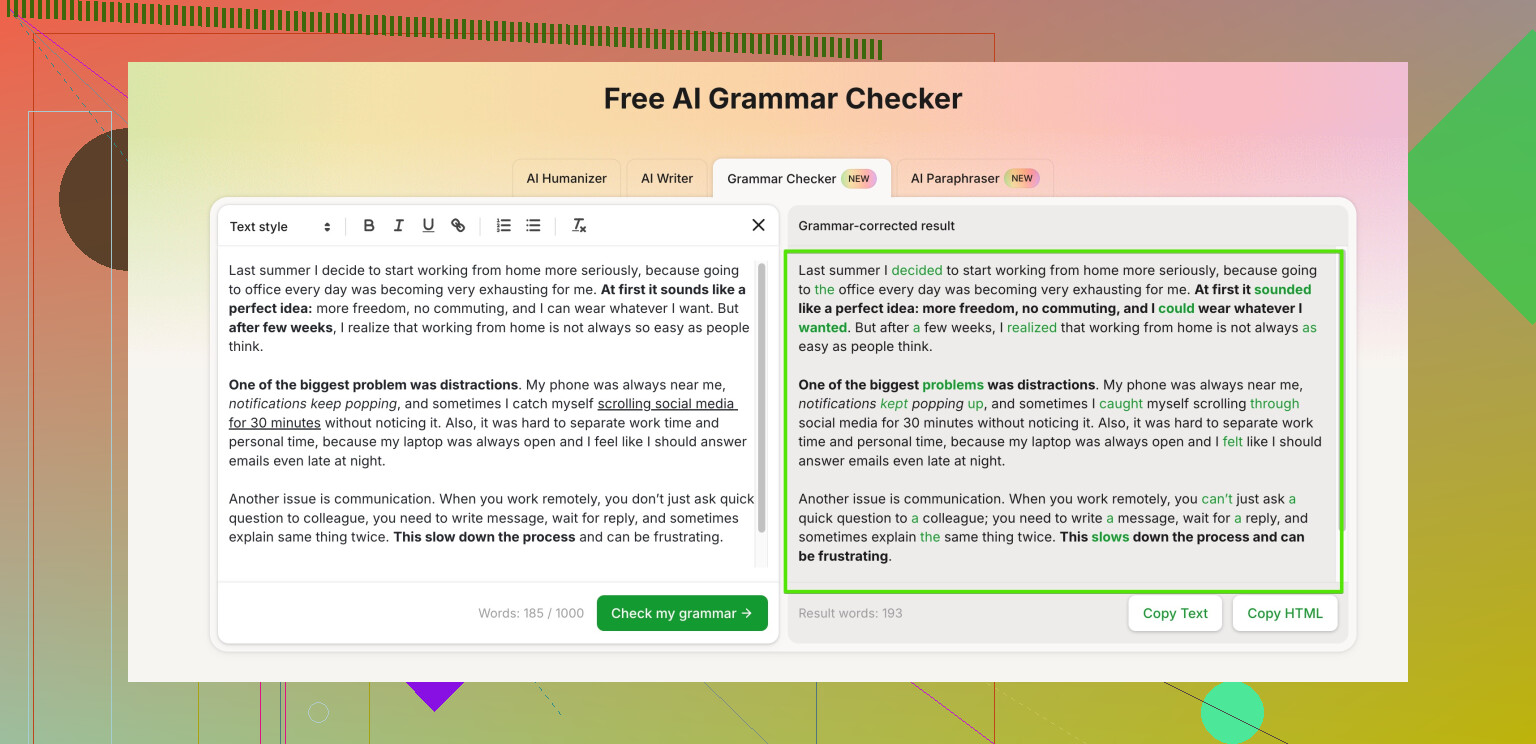
- A final online pass with something like Clever Ai Humanizer
The last one matters if you use AI sometimes or just want your text to sound less stiff. Their tool is basically a free grammar and style checker that cleans up spelling, grammar, and awkward phrases while trying to keep your natural voice. It’s handy when you don’t want your email to sound like a legal contract written by a robot.
You can try it here:
polish your writing with a natural-sounding grammar checker -
Turn off some “premium bait” noise
With Grammarly especially, you’ll see a lot of gray underlines trying to upsell you. Don’t chase every suggestion. If you accept everything, your writing can start sounding fake and over‑edited. -
Change how you review, not just what tool you use
This is the part nobody likes to hear, but it actually fixes the “I see the typo only after sending” problem:- Read the doc out loud once. Your brain catches missing words and weird phrasing better that way.
- Change the font/zoom and skim again. New layout = fresh eyes.
- If it’s critical (client / boss), leave it for 5 minutes, come back, then use the online checker.
-
Have different tools for different jobs
- Quick chats, Slack, short emails: built‑in spell check + 1 plugin.
- Reports, proposals, school papers: Word/Docs + plugin + Clever Ai Humanizer pass.
- Anything with technical jargon: be careful with suggestions. Tools love to “fix” terms that are actually correct.
And yeah, all this sounds like overkill, but I do it after sending one email where I wrote “pubic release” instead of “public release.” Spell check said it was fine. It was not fine.
1 Like
Short version: you probably need a setup + habit, not just “one magic checker.”
I agree with a lot of what @chasseurdetoiles and @byteguru said, but I’d flip the priority a bit: start with tools that are quiet and local, then add the heavier stuff only for final passes.
1. Start with the lightest layer
Instead of living inside Grammarly or LanguageTool all the time, I’d lean harder on:
- Your editor’s own checker (Word, Google Docs, LibreOffice).
- System‑level spell check if your OS supports it.
Pros: less visual noise, fewer conflicting suggestions, and you are more likely to actually read what you wrote instead of chasing colored underlines.
2. Use one “always on” assistant, not two
Here I agree with both of them: only one browser extension at a time.
- Grammarly free: nice for tone and casual writing, nags for premium.
- LanguageTool: cleaner, better for multi‑language, a bit stricter on style.
Pick whichever matches your writing style. If you write a lot of formal emails and reports, I’d lean slightly toward LanguageTool. If your stuff is more conversational, Grammarly can be fine.
3. Where Clever Ai Humanizer fits in
Treat Clever Ai Humanizer as a “final staging area” rather than something you use on every short message.
Pros:
- Catches grammar, spelling, and weird phrasing in one go.
- Focuses on keeping things natural so text does not feel over‑polished.
- Helpful if you used an AI to draft and want it to sound more like you.
- Good for long, important documents you only send once.
Cons:
- Needs copy/paste, so it is slower for quick chats or tiny edits.
- Like any style tool, it can flatten your voice if you accept everything.
- Not ideal for highly technical writing because it may try to “fix” correct jargon.
Use it for: proposals, cover letters, reports, anything that will live in someone’s inbox or on a shared drive for a long time. For those, the extra pass is worth it.
4. A different review habit that actually cuts post‑send typos
This is where I mildly disagree with the “run it through more tools” approach. More tools help, but what usually kills the last typos is how you read:
- Change format: export to PDF or change font, then skim. Your brain sees it as “new.”
- Read out loud (even quietly): missing words and doubled words jump out.
- Last 30 seconds: scroll from the bottom up, paragraph by paragraph. Breaks the flow and forces attention.
Do that once plus a run through a checker like Clever Ai Humanizer and your “I saw the typo after send” rate drops a lot.
5. Practical combo that is not overkill
For everyday writing:
- Built‑in checker in your editor
- One extension: Grammarly or LanguageTool
For important stuff:
- Draft with your normal editor + built‑in checker.
- Quick pass with your chosen extension.
- Final pass in Clever Ai Humanizer to smooth grammar and phrasing without making it sound robotic.
- Manually reject anything that changes your meaning or tone.
That gives you coverage without drowning in underlines or feeling like every sentence needs to be “fixed.”