My iPhone storage filled up fast, and I can’t tell what’s taking up so much space. I checked the storage settings, but the categories and system data are confusing, and I need help figuring out what I can safely delete to free up space.
I hit this wall after my iPhone kept throwing the “Storage Almost Full” warning at me. Felt dumb, honestly, because I hadn’t installed much. Turned out the space was getting eaten in places I wasn’t checking.
If you want the fast answer, open Settings, then General, then iPhone Storage. That screen tells the story fast. At the top there’s a colored bar showing what owns your space, apps, photos, media, system data, the usual suspects. I used it to figure out whether the problem was giant videos or one bloated app I forgot about.
If you only need the phone’s full advertised size, like 128GB or 256GB, go to Settings > General > About and look for Capacity. The number won’t match the box perfectly. iOS takes its cut, so what you see as usable space lands lower.
Scroll lower in the iPhone Storage page and Apple lists every app by storage use, biggest first. This part helped me more than the chart. A small app icon means nothing once its saved files pile up. Tap any app and you’ll usually see two buckets, App Size and Documents & Data. I found apps sitting there with tiny installs and huge junk piles attached.
One feature I ended up using a lot was Offload App. It removes the app itself but leaves your saved data behind. Good for apps you barely touch but don’t want to reset. I did this with a couple travel and shopping apps and got some space back without losing logins or progress.
System Data is the messy one. Apple renamed the old “Other,” but it still feels vague. It includes caches, logs, voices, fonts, dictionaries, and random system leftovers. Stream enough video or audio and your phone starts stockpiling temp files. Sometimes it shrinks on its own. Sometimes it sits there like gum on a shoe.
I had the best luck plugging the phone into a Mac and checking storage through Finder. On Windows, same idea with iTunes. For whatever reason, syncing sometimes clears old cache before the storage count updates. I saw the number drop after doing this, so it’s worth trying before you start deleting stuff blind.
The bigger issue for me was performance. My phone got slow, photos stalled, updates refused to install cleanly, and even simple stuff felt off. I didn’t connect it to storage at first. Once free space got tight, the whole phone turned annoying.
I tested a few cleanup methods, then ended up using Clever Cleaner. I usually avoid cleanup apps because most of them are stuffed with limits, ads, or fake scans. This one didn’t do that when I tried it.
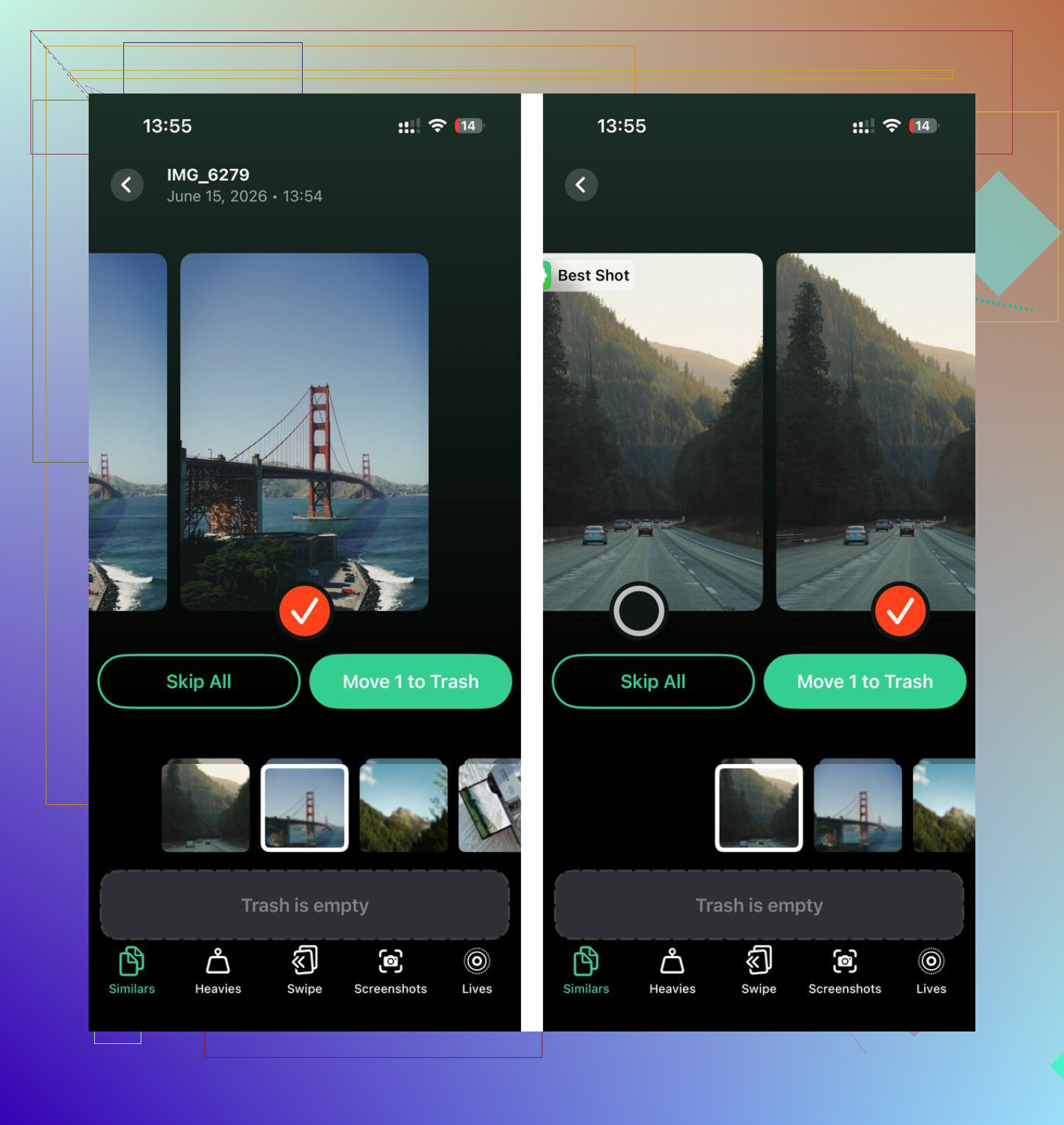
The part I kept going back to was Heavies. It sorts media by file size, which saved me from digging through years of junk by hand. I found old videos over 1GB sitting there for no reason. The Similars section was useful too. I had bursts of near-identical photos from concerts, pets, random receipts, all the junk you mean to clean later and never do. It also showed screenshot sizes one by one, which was a rude wake-up call. I had way too many.
One thing I liked, and yeah I checked because I don’t love handing photo libraries to random apps, was the on-device processing. My stuff wasn’t getting shipped off somewhere else while sorting.
After clearing around 15GB, the lag eased up fast. My phone stopped feeling clogged. Another spot worth checking is Messages. Inside the iPhone storage screen, there’s often an option for Review Large Attachments. Old clips, photos, memes, voice notes, they stack up more than you’d think. I deleted a pile from old group chats and got back a chunk of space I didn’t know was there.
If your iPhone feels slow or full, start with the storage page. Check the chart, check the app list, check attachments. Then deal with the biggest items first. That worked better for me than poking around at random and hoping the number moved.
A lot of “full storage” cases are not one giant app. It’s hidden buildup.
@mikeappsreviewer covered the main storage screen, so I’d check the stuff around it. First, look at Photos settings. If “Download and Keep Originals” is on, your phone stores full-res photos and videos localy. Switching to “Optimize iPhone Storage” often frees a lot. For people with 4K video, the difference is huge.
Next, inspect Safari. Go to Settings, Safari, clear History and Website Data. Safari cache grows fast. Same for Chrome, Instagram, TikTok, Spotify, and podcast apps. Their in-app cache is often the real pig here, not the app size shown on the Home Screen.
Mail is another sneaky one. If you use the built-in Mail app with several accounts, old attachments pile up. Deleting and re-adding a mail account sometimes drops storage faster than trying to clean piecemeal. I don’t agree with obsessing over System Data first. On most phones, media and app data are the bigger problem.
Also check downloaded content. Netflix, YouTube, Spotify, Podcasts, Maps offline areas. People forget this stuff for months.
If you want a quicker photo pass, Clever Cleaner is decent for finding heavy videos, duplicate shots, and screenshots. This is the plain-English version of it: Clever Cleaner helps clear iPhone storage before an upgrade so you move data with less clutter and fewer large files. There’s also a short explainer here, see how to free up iPhone storage fast.
Biggest safe deletes, in order:
Photos and videos you don’t need
Message attachments
Offline downloads
Browser cache
Social app cache
Old voice memos
GarageBand sound packs, if installed
If storage fills up fast again after cleanup, your culprit is usally video, chat attachments, or streaming app downloads.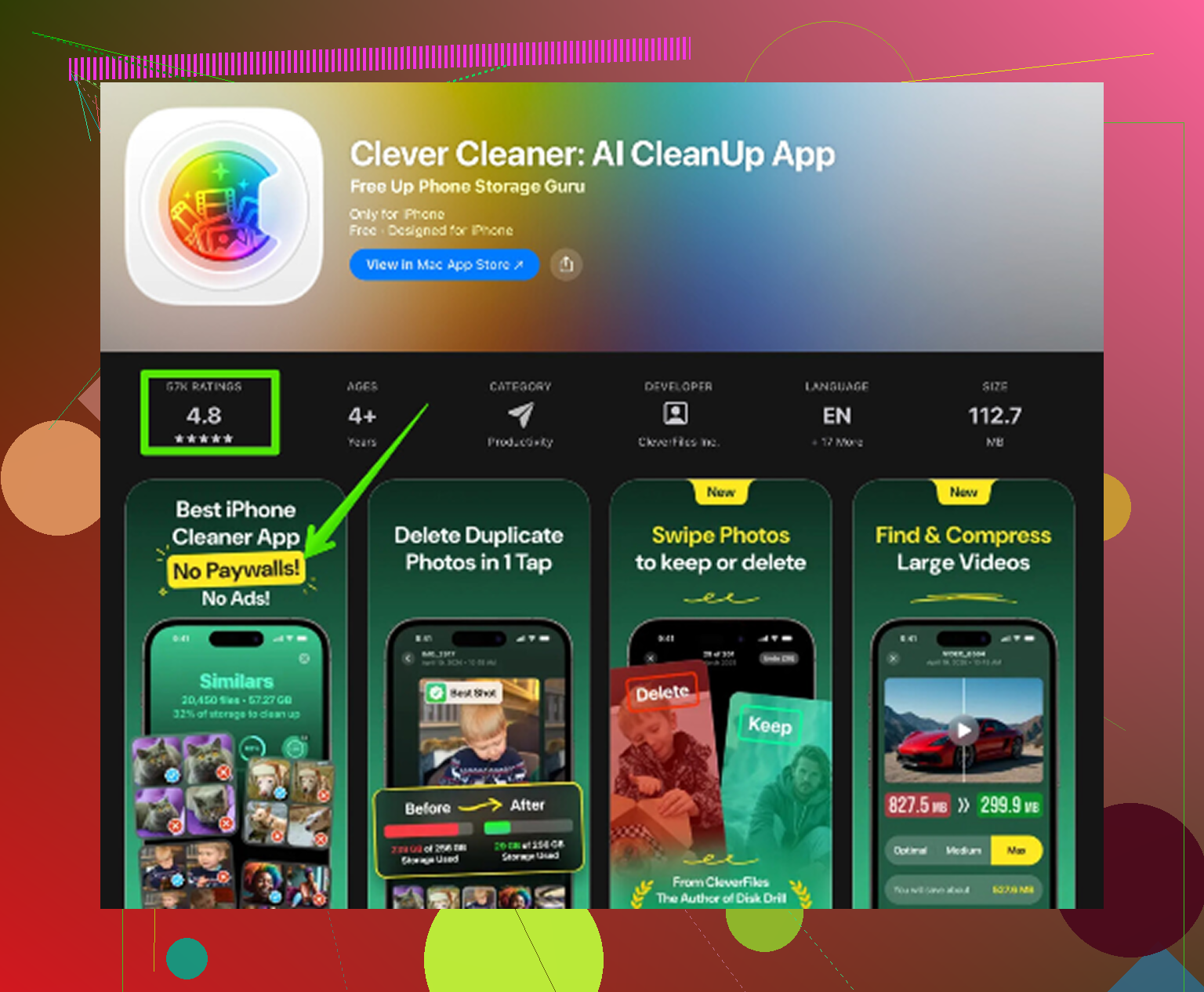
What usually confuses people is that the storage graph is delayed or flat-out misleading for a while. So even if you deleted stuff already, iOS may not show the drop right away. That makes “System Data” look guiltier than it really is.
I’d do 3 checks @mikeappsreviewer and @himmelsjager didn’t really lean on:
-
Check Files app
Go to Files > Browse > On My iPhone and also iCloud Drive > Downloads. Random ZIPs, PDFs, video exports, and downloaded docs sit there forever. A lot of ppl forget this exists. -
Look at editing apps
CapCut, iMovie, Canva, Lightroom, VN, even some scanner apps keep exported drafts and project files outside your Photos library. Those can be huge. This is a big one if your storage filled “suddenly.” -
Recently Deleted folders
Photos has one. Files has one. Notes attachments can hang around too. Deleting something is sometimes only step one, which is peak Apple logic tbh.
Small disagreement with the “focus less on System Data” angle: if System Data is absurdly large, it can matter. But I still would not nuke/reset the phone first. Usually the real hog is media, app caches, or saved project junk.
Also check Settings > Camera > Record Video. If you’re shooting 4K/60, your phone can fill up stupid fast.
If you want a faster visual way to find huge videos and duplicate pics, Clever Cleaner is actually useful for that. This overview of how Clever Cleaner helps free up iPhone storage and remove duplicate photos explains it pretty well.
Short version: if storage exploded fast, I’d bet on videos, editing app exports, message attachments, or Files downloads. Not magic, just hidden clutter lol.
One thing I’d add to what @himmelsjager, @vrijheidsvogel, and @mikeappsreviewer already covered: check voice and language downloads.
Go to Settings > Accessibility > Spoken Content > Voices and also Translate if you use offline languages. Those files can be surprisingly big and almost nobody remembers they exist.
Another sneaky one is Music app storage if you sync from a computer. Deleted songs on your Mac or PC do not always disappear cleanly from the iPhone right away.
I slightly disagree with focusing too much on browser cache first. In my experience, browser junk is usually annoying, not massive. The real weird offenders are:
- downloaded Apple TV content
- voice memos
- offline dictionaries and voices
- editing project leftovers
- failed iOS update files
Also look under Settings > General > iPhone Storage for an iOS entry. Sometimes an update download is sitting there waiting.
If you want a faster scan of photo clutter, Clever Cleaner is useful.
Pros: easy to spot big videos, duplicates, screenshots, simple interface.
Cons: mostly helpful for photo library cleanup, less useful for system caches, and some people just prefer doing it manually.
So yeah, if storage exploded fast, I’d check hidden downloads and offline assets before blaming System Data.