I downloaded files inside an app on my iPhone, and now I’m trying to free up storage. I’m not sure if deleting the app will also delete the downloaded content or if those files stay on my phone. I need help understanding how iPhone app deletion affects downloads so I don’t accidentally lose anything important or leave extra storage being used.
If you want to get rid of downloads on an iPhone, start with where iOS usually puts them.
Safari downloads normally land in the Files app. Open Files, then check the Downloads folder under either On My iPhone or iCloud Drive. It depends on what you picked in Safari settings. When I cleaned mine out, most of the junk was sitting there. PDFs, random ZIPs, old images, all forgotten. Swipe left on a file and hit Delete.
Some downloads are tied to apps and don’t show a clean delete option inside a download list. I ran into this with a couple apps where the history stayed visible but the file controls were useless. At that point, the blunt fix is removing the app, then installing it again if you still need it. Doing that wipes the app’s stored downloads too.
If your goal is to clear Safari-related clutter in one pass, go to Settings, then Safari, then tap Clear History and Website Data. This removes browsing history, cookies, and site data. It also signs you out of sites, so don’t do it blind if you rely on saved sessions. I learned this the annoying way after getting kicked out of two accounts.
A small thing people skip, storage checks. On iPhone, low free space tends to show up as lag, failed downloads, slow app switching, odd photo behavior. I noticed my phone got choppy once storage dropped into the last few gigabytes. Go through your storage once in a while and see what keeps growing.
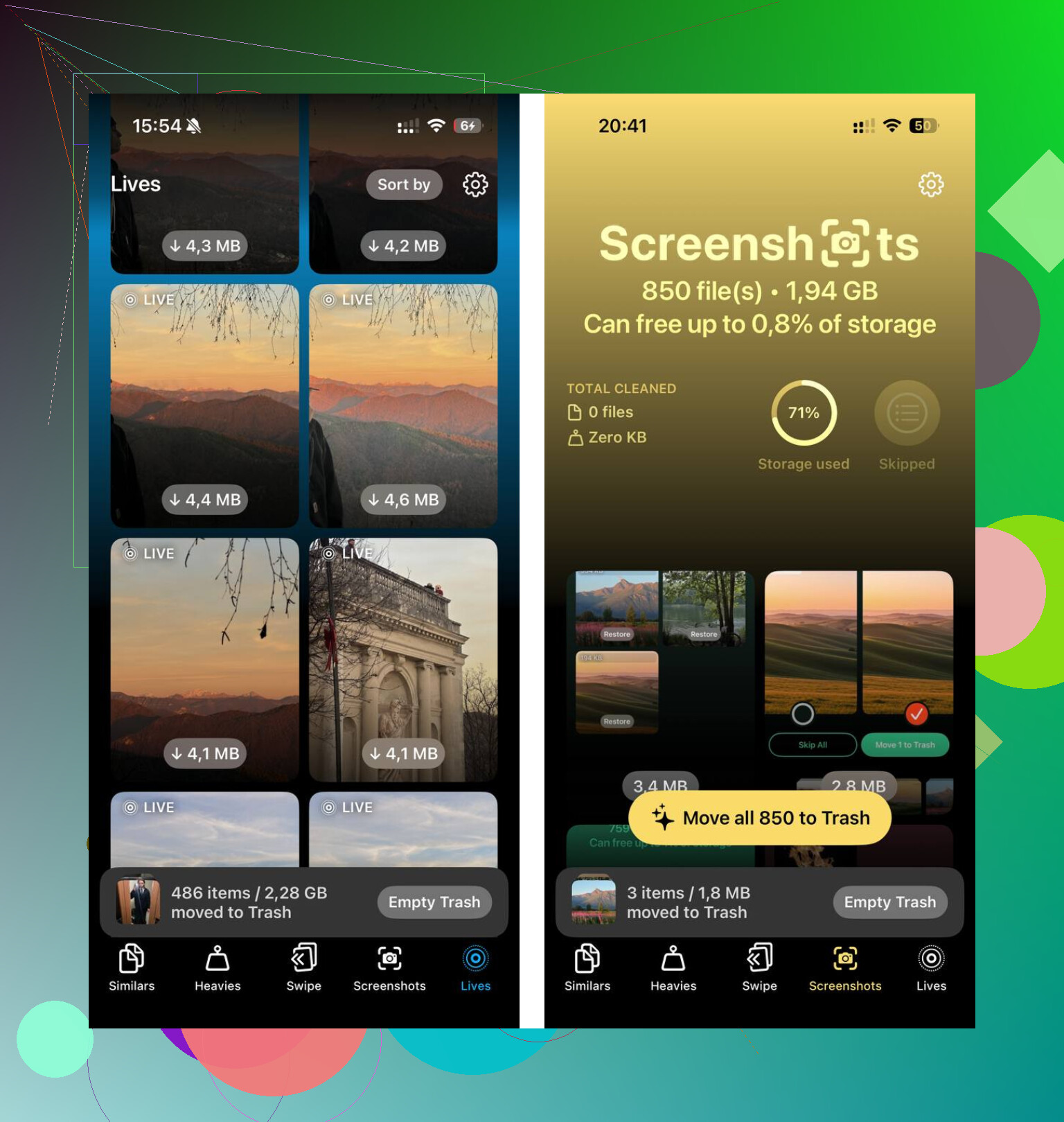
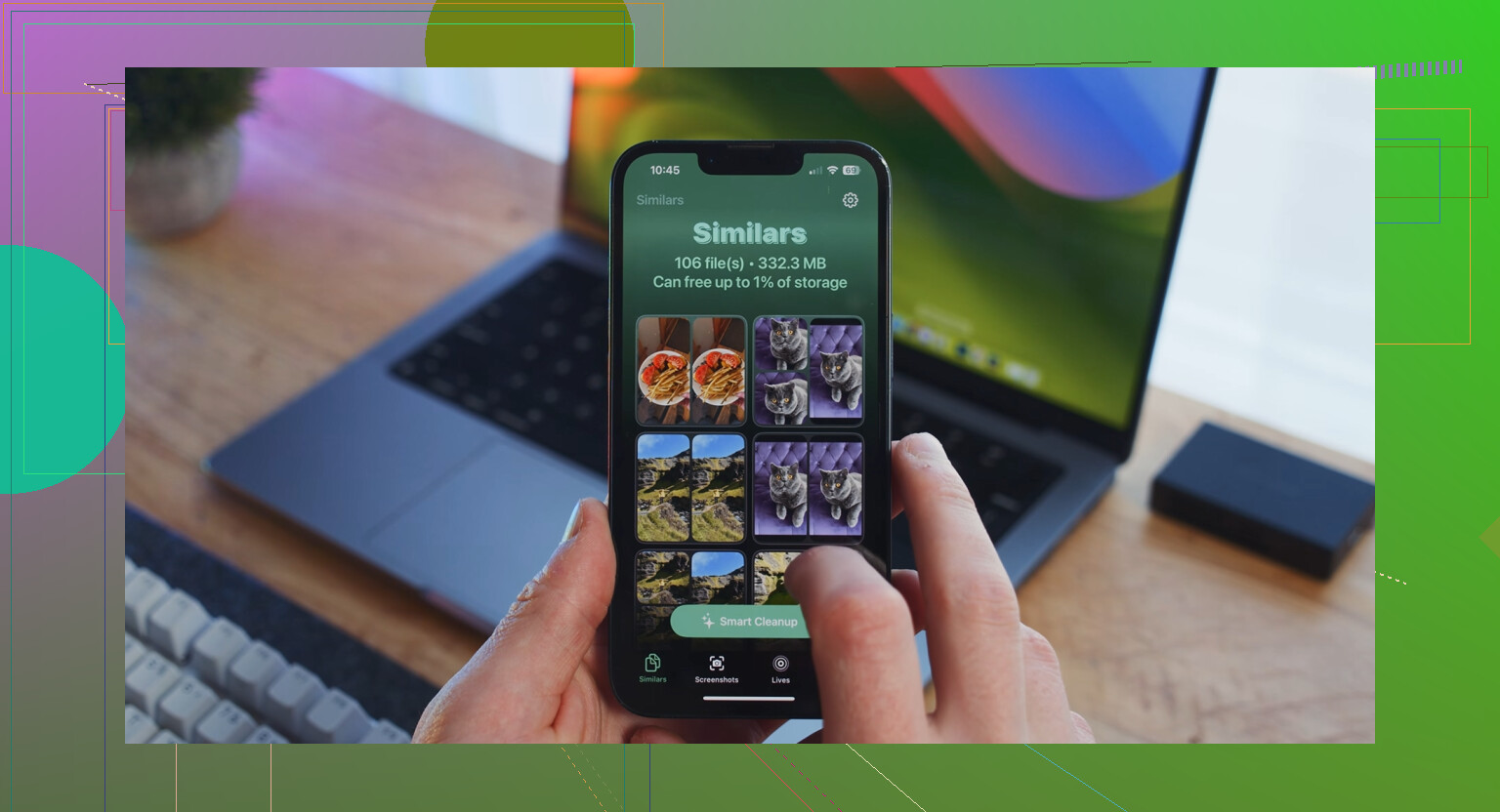
If downloads were only part of the mess and your storage is still full, you might need a cleanup app. I tested Clever Cleaner for this. What stood out to me was the simple stuff, file sizes were easy to see, screenshots were easy to sort, and the Heavies section made it obvious what was eating space. It also groups similar photos, which helped me clear a pile of near-duplicates fast. On my phone, that was where most of the wasted storage was hiding.
One habit helped more than anything. I started checking downloads every week or two. Takes a minute. If you leave it for months, the folder turns into a junk drawer.
So the short version is this. Delete Safari files from Files. Remove problem apps if their downloads are stuck inside the app. Clear Safari data if you want a broader reset. Then keep an eye on storage before your phone starts feeling off.
1 Like
Deleting an app usually deletes its local app data too, including offline downloads stored inside the app. That part is true. Where people get tripped up is iCloud. If the app saved files to Files, iCloud Drive, or synced them to its own account, deleting the app won’t remove those copies.
So the answer is, sometimes yes, sometimes no.
Fast way to check:
Go to Settings, General, iPhone Storage. Tap the app. If “Documents & Data” is large, deleting the app removes that local chunk. If you choose Offload App instead, your downloads stay on the phone. Don’t use offload if your goal is space.
I’d add one thing to what @mikeappsreviewer said. Reinstalling is not always needed. Some apps have a hidden download cache under Settings inside the app, often called Storage, Cache, or Downloads. Worth checking first so you dont wipe logins for no reason.
If storage is still packed after cleanup, use Clever Cleaner for photos, screenshots, and heavy files. It costs nothing to use, which is rare now. This review covers it well: see why Clever Cleaner is a truly free iPhone cleaner.
Short version. Delete app = local downloads gone. Synced files = often still there. Offload app = files stay.
Usually yes, but not always. That’s the annoying iPhone answer.
If the app stored those downloads only inside its own sandbox, deleting the app removes the app and that local data too. So offline Netflix episodes, Spotify downloads, map data, stuff like that, gone. If the files were exported to Files, saved into iCloud Drive, or synced to the app’s account/server, deleting the app does not necessarily delete those copies.
One thing I’d push back on a little from @mikeappsreviewer and @boswandelaar: deleting the app should be the last move, not the first blunt instrument. Some apps keep downloaded files in “Accounts” or cloud sync, so people delete the app, reinstall, and then wonder why storage barely changed or why the files came right back. Super annyoing.
Best clue is this:
- App size = the app itself
- Documents & Data = downloaded stuff, cache, saved files
If Documents & Data is huge, deleting the app usually frees that local space.
If you just offload it, not the same thing.
Also, after deleting, restart the phone once. iOS storage numbers can lag and look kinda fake for a bit.
If you’re doing a broader cleanup, Clever Cleaner is actually useful for the non-app junk, mostly duplicate photos, screenshots, and big files that pile up quietly. Also, this see why Clever Cleaner is considered the best free iPhone cleanup app gives a decent quick overview.
Short version:
Delete app = usually deletes local downloads.
Delete app ≠ guaranteed removal of synced/cloud files.
Offload app = nope, data stays.
I mostly agree with @boswandelaar, @jeff, and @mikeappsreviewer, but one nuance matters: some apps mark downloaded media as “temporary” and iOS may purge it before you ever delete the app. So if storage numbers look weird, that can be why.
Practical rule:
- Delete app: usually removes app-contained downloads
- Offload app: keeps downloads/data
- Delete from Files/iCloud: separate job
Two places people miss:
- Messages attachments
- Podcasts or streaming apps with auto-download turned on
If you want to verify before deleting, check whether the app has a “Remove Downloads” or “Reset Cache” option, then compare storage after a few minutes. More precise, less destructive.
If the space issue is broader than just app downloads, Clever Cleaner can help spot photo clutter and heavy files.
Pros:
- free
- easy to scan large items
- useful for duplicate/similar photos
Cons:
- not really for app sandbox data
- cleanup suggestions still need manual review
- less useful if your issue is mostly streaming app downloads
So yes, deleting the app often clears its local downloads, but not anything synced elsewhere.