My external hard drive appears in Windows Disk Management, but when I try to open it in File Explorer I get “The parameter is incorrect.” I need help figuring out if this is a file system, drive letter, or hardware issue, and how to recover access without losing the data.
Don’t format it yet. That’s the big thing. Windows can make this look worse than it is, especially when it throws 'The parameter is incorrect.' I had the same panic the first time I saw it on an external drive with old photos and work stuff on it. I kept reconnecting it and Windows still refused to open it, so I assumed the drive was dead. In my case, the data was still there.
I’d also avoid running CHKDSK right away if you care about what’s on the drive. Sometimes this error is just Windows failing to read the file system correctly. CHKDSK can help later, but I wouldn’t use it as the first move before you’ve copied or recovered the important files.
Start with the boring checks first since they’re quick:
- Use a different USB cable.
- Try another USB port, ideally one on the back of the desktop directly connected to the motherboard.
- Plug the drive into another computer.
- Check Disk Management and see if the drive appears with the right size.
If Disk Management still shows the correct capacity, that’s a good sign. It usually means the drive is at least talking to Windows, even if the file system is messed up.
After that, check the drive health before doing anything heavy. CrystalDiskInfo is good for this and it’s free. If you already have Disk Drill, it can show SMART data too. If you see warnings like reallocated sectors, pending sectors, or other serious SMART problems, stop poking at the drive more than necessary. A failing drive can get worse just from being scanned repeatedly.
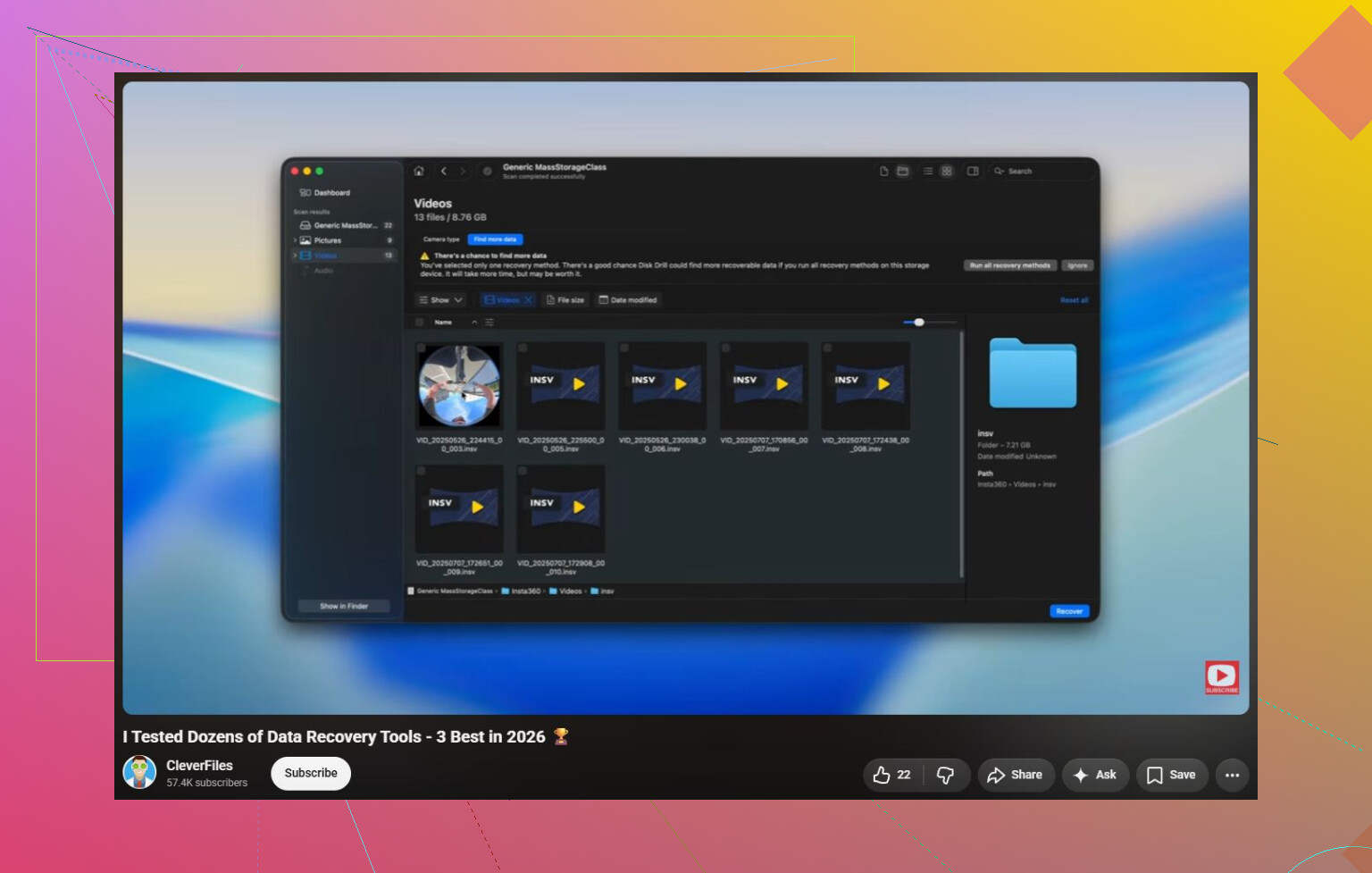
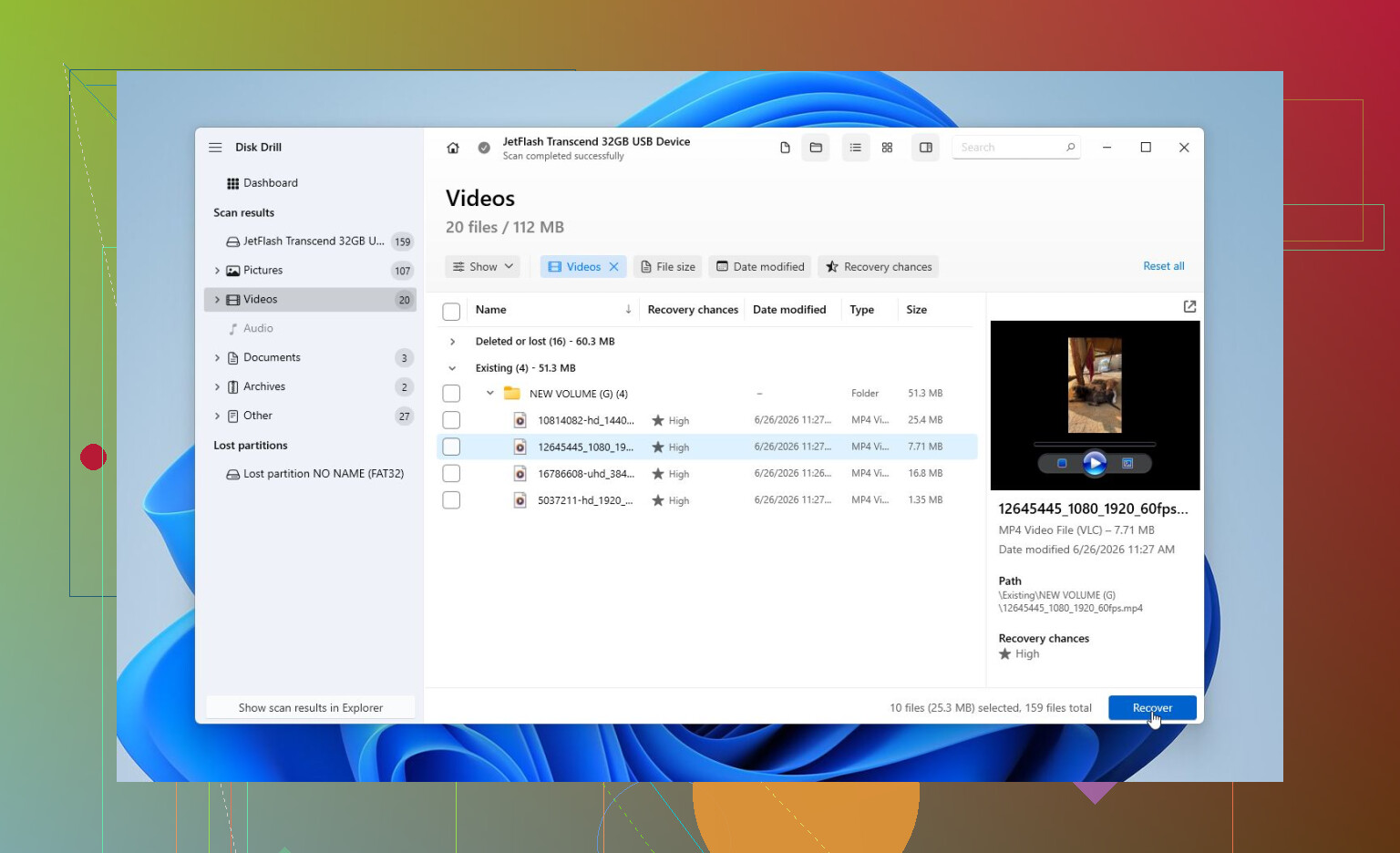
For getting the files back, I’d use Disk Drill. That’s what worked for me.
The feature I’d use first is Byte-to-byte Backup. It makes a full disk image, so you’re not repeatedly scanning the original drive. That matters if the drive is unstable, because every read puts a little more stress on it. Once the image is made, scan the image instead of the actual drive.
If the drive seems healthy enough, or once you have the image, run a Universal Scan. When the scan finishes, preview the files before recovering them. Photos, documents, videos, whatever matters to you. If the previews open properly, that’s usually a strong sign the files can be recovered. Save everything to a different drive, never back onto the broken one.
Once the important stuff is somewhere safe, then I’d think about repairs.
- If Windows still recognizes the file system, try CHKDSK with
chkdsk X: /r, replacingX:with the correct drive letter. - If the drive shows as RAW, CHKDSK usually won’t do much. In that case, TestDisk may be worth trying because it can sometimes rebuild damaged partitions.
- If the issue seems to be Windows rather than the drive, run SFC and DISM to repair corrupted system files.
- There are also some weird edge cases where the Windows decimal separator being changed causes this error. Setting it back to a period has fixed it for some people, although that’s definitely not the common cause.
If you’ve recovered everything and the drive still won’t behave, do a quick format. If it works normally after that, it was probably file system corruption. If the same error comes back after formatting, I wouldn’t trust the drive anymore.
The point where I’d stop DIY attempts is if the drive clicks, drops in and out, vanishes from Disk Management, only gets detected sometimes, or SMART shows serious failures. At that stage, powering it on over and over can make recovery harder.
Most professional recovery places will evaluate the drive first and give you a quote before starting. A lot of them also have a no data, no fee setup. Logical recoveries often land around $300 to $600. If the drive needs hardware repair or clean-room work, it can be more like $700 to $2,000+, depending on what failed and how large the drive is.

https://www.youtube.com/watch?v=_e4D_2bu8LE

1 Like
Check whether Explorer is the only thing choking on it before you start repairing the disk. Open an elevated Command Prompt and try dir X:\ with the external drive’s letter. If that gives the same parameter error, it’s probably file system damage or the USB/SATA bridge acting weird, not a File Explorer glitch. If dir works but Explorer fails, remove and reassign the drive letter in Disk Management, preferably using a letter that was never used by a mapped network drive or card reader. I agree with not formatting and not hammering it with CHKDSK first, but I’d be careful about assuming the drive itself is bad just because Explorer throws that message. External enclosures can cause dumb errors too, especially with larger drives or flaky USB controllers. If the disk is out of warranty and it’s a standard SATA drive inside, testing it through another enclosure or dock can separate “bad drive” from “bad adapter,” but only do that if you’re comfortable opening the case and the data is not worth pro recovery money.
If this disk was ever used in a different USB enclosure than the one it is plugged into now, the enclosure itself could be the whole problem. Some external boxes translate the drive’s sector size differently. Windows may still show the disk and even assign a letter, but the partition layout does not line up correctly, so Explorer throws dumb errors like “The parameter is incorrect.” In that case, CHKDSK is not just unhelpful, it can make a recoverable mess harder to recover.
That is the angle I’d check before treating it like a normal Windows repair job.
Look closely in Disk Management, not just whether the disk appears. The useful details are:
- Does it show the correct total capacity?
- Does the volume show NTFS, exFAT, or RAW?
- Does the partition look like one big normal data partition, or does it look weirdly small/unallocated?
- Is the status “Healthy” but with no file system shown?
- Did the drive come out of a NAS, DVR, Mac, old enclosure, or another USB dock?
If it came out of another device or enclosure, put it back exactly where it was last working and copy the data from there if possible. Don’t “initialize,” don’t create a new simple volume, and don’t let Windows “fix” it. Windows is very good at offering destructive buttons with harmless-sounding labels.
I agree with @vrijheidsvogel that testing outside Explorer is useful, but I’d take it one step lower than dir X:\ if the data matters. Open Command Prompt as admin and run:
mountvol
Then:
diskpart
list disk
list volume
You’re not changing anything there, just looking. If DiskPart shows the volume as RAW or shows no usable file system, then Explorer is probably not the issue. If DiskPart shows a normal NTFS volume with the right size, then the drive letter/mount point theory gets stronger.
A small thing people miss: remove any weird mount points too, not just the letter. In Disk Management, right-click the volume, “Change Drive Letter and Paths,” and see if it has both a letter and a folder mount path. If it has some old path to a missing folder or a stale assignment, remove the odd one and assign a plain letter like T: or W:. Don’t do this if the partition layout looks wrong or RAW, though. That is just rearranging labels on a damaged volume.
I’m more skeptical of jumping straight to chkdsk X: /r than some people are. /r is a long surface scan and it forces a lot of reads. Fine after you have a copy or image. Not my first move on a drive that might be dropping reads. If you eventually decide to run CHKDSK after recovery, I’d start with a plain read-only check first:
chkdsk X:
No /f, no /r, just see what Windows thinks. If it reports a bunch of index errors, orphaned files, or unreadable segments, that tells you this is not a simple Explorer problem.
For a cheaper sanity check, booting a Linux live USB is useful because it separates “Windows is confused” from “the disk is unreadable.” You don’t need to install Linux. Boot Ubuntu or Mint from USB, plug in the external drive, and see if it mounts read-only or shows files. If it mounts, copy the important stuff to another disk immediately. Do not run Linux repair tools unless you know exactly what they are doing. The goal is copying, not fixing.
If Linux also struggles, or it only shows the device but cannot mount the partition, then I’d stop treating this like a drive-letter issue. At that point you’re in file system damage, partition damage, enclosure weirdness, or failing hardware territory.
Disk Drill or any other recovery tool makes more sense after that, but scan an image if you can. The honest caveat is that making a full image can take a long time and can fail if the disk is physically bad. Still, it is better than repeatedly scanning the same sick drive from different programs because each pass may read the same bad areas again.
The simplest split is this:
If the drive has no important data, delete the volume in Disk Management, make a new one, quick format, and test it. If it acts up again, retire it.
If the drive has important data, don’t format, don’t initialize, don’t run repair commands yet, and don’t keep unplugging/replugging it hoping the next try is magic. Confirm the file system/partition state, try a different enclosure only if it’s a standard SATA drive and you understand the sector-size risk, then image or recover to a different disk.
The fact that Disk Management sees it is better than nothing, but it does not prove the file system is readable. It only proves Windows can talk to something on the USB side. That “something” can still be a bad bridge board, a half-readable partition table, or a drive that is barely holding together.