My iPhone Photos app is showing a lot of duplicate pictures after syncing and importing from iCloud. I want to clean up storage, but I’m worried deleting duplicates might remove the original photos too. What’s the safest way to delete duplicate photos on an iPhone without losing the originals?
I get why this is so annoying. Once your photo library gets into the tens of thousands, the “I’ll clean it up later” plan stops working fast. A lot of the junk usually isn’t true duplicates either. It’s five shots of the same dinner, ten versions of one sunset, screenshots you forgot about, Live Photos eating space, and random videos that are way bigger than you expected.
If you’re nervous about wiping out the wrong copy, start with Apple’s built-in tool first.
Check Apple’s Duplicates album first
On iOS 16 and newer, Photos has a Duplicates section built in. Open Photos, go to Albums, scroll down to Utilities, and look for Duplicates. If you don’t see it, that doesn’t always mean the feature is gone. Your phone may still be indexing the library, which usually happens while it’s locked and charging. It can also mean iOS just didn’t find exact matches.
The useful part is Merge. Apple doesn’t simply trash one photo. It keeps the best-quality version and pulls in the better metadata from the copies. If there are a lot of them, don’t waste time merging one pair at a time. Tap Select, then Select All, then Merge.
Why that album may not find much
The built-in Duplicates tool is pretty strict. It’s mostly looking for exact duplicate files, not “basically the same photo.” So if you took a burst, edited a photo and saved another copy, or snapped the same thing twice a second apart, Photos may treat those as different images.
That’s usually where people get stuck. The library is full of repeats, but Apple doesn’t count them as duplicates.
For similar photos, you’ll probably need a cleaner app
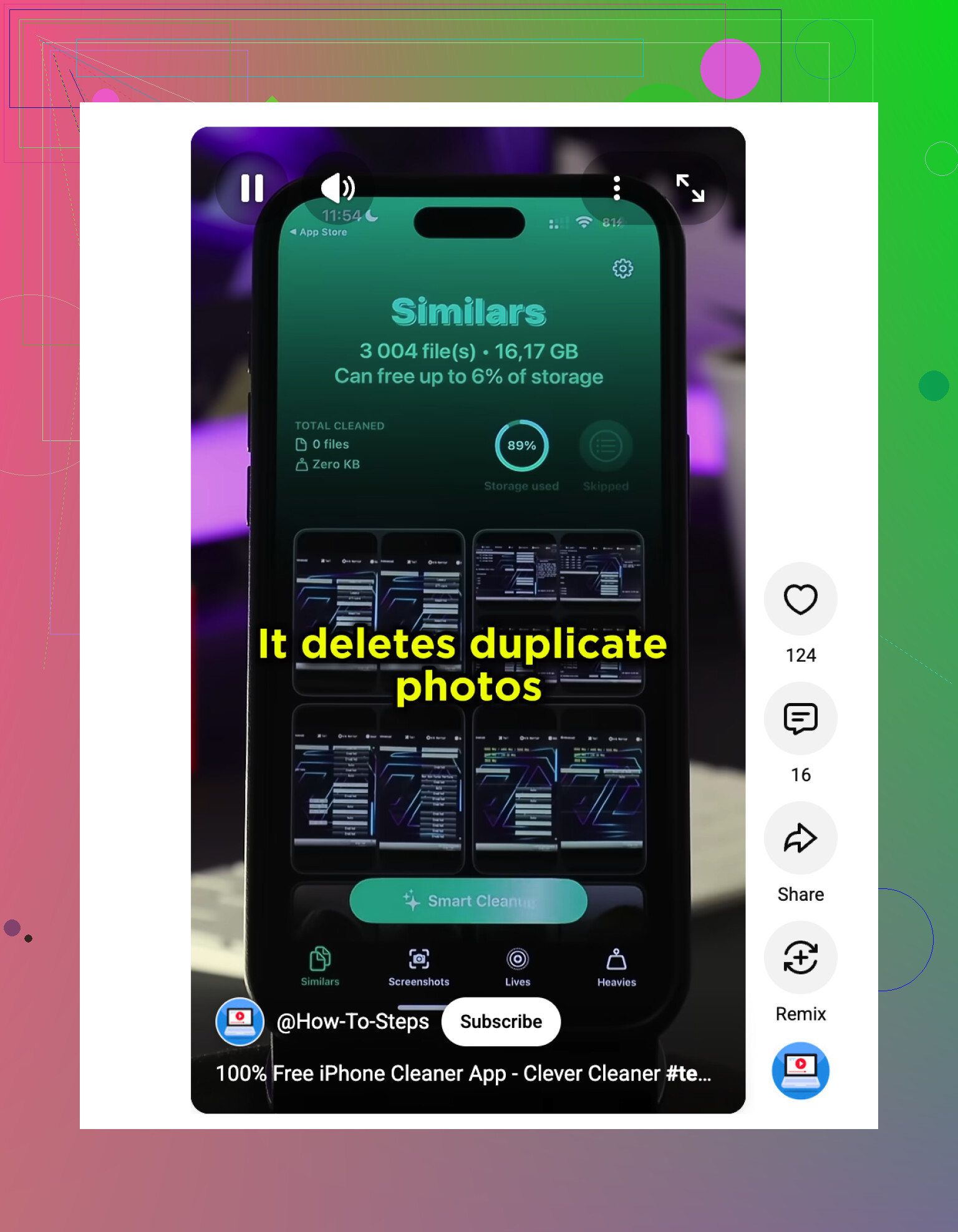
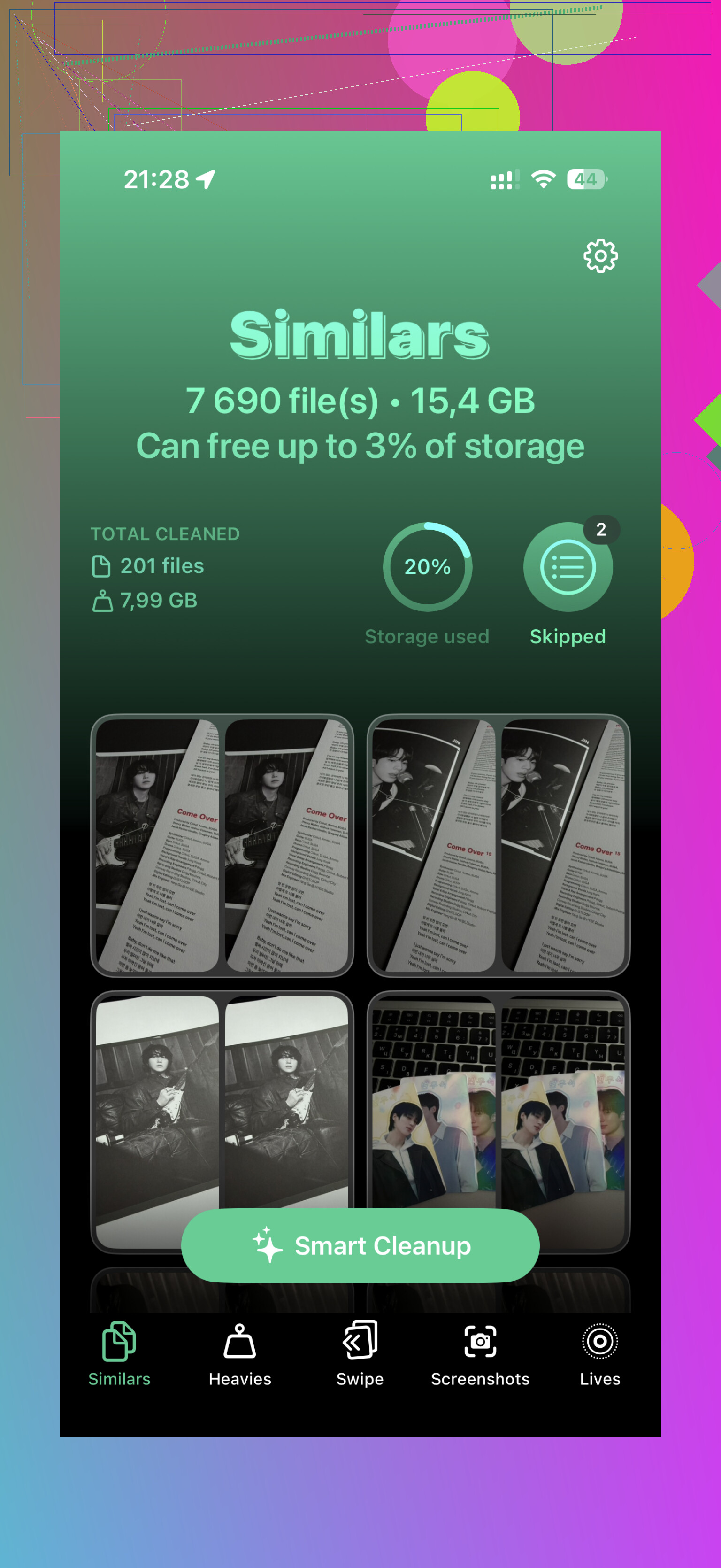
For a large library, a third-party app is usually faster. The one I’d point people toward is Clever Cleaner. The big difference is that it looks for similar photos, not only exact copies. So instead of missing ten nearly identical selfies, it groups them and suggests a best shot based on things like focus and lighting.
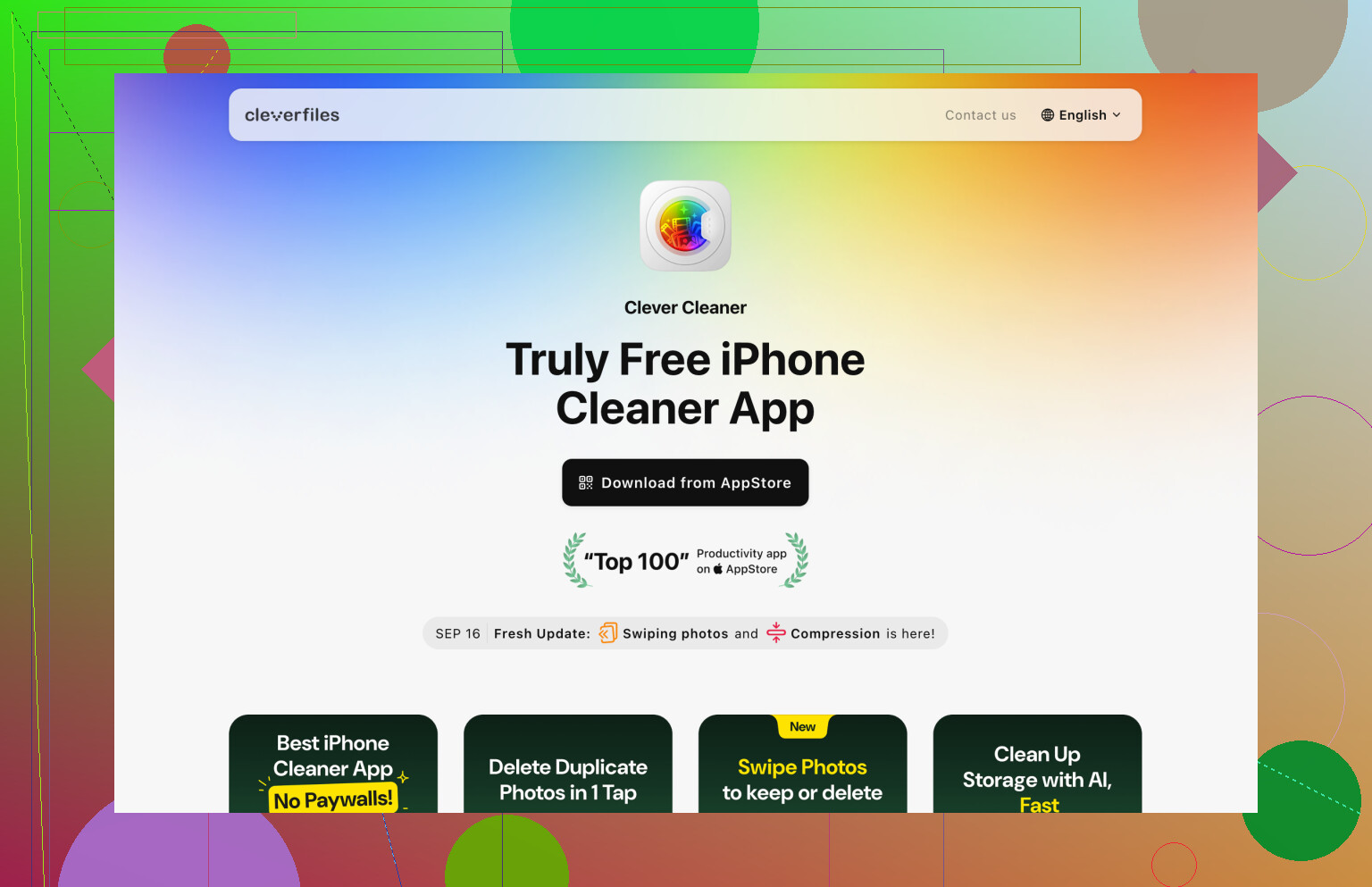
A few reasons it’s worth trying:
- It’s actually usable for free, instead of turning into a subscription prompt or ad wall right away.
- It works locally on the phone, so your photos aren’t being uploaded somewhere else.
- It can help with more than duplicates, like sorting large videos, turning Live Photos into stills, clearing screenshots, and swiping through photos quickly.
- It handled a 20,000+ photo library in about seven minutes, while some other apps just kept spinning.
If you want to do it manually
You can use Search in Photos and type a month, place, trip, restaurant, or event where you know you overshot. The Map view under Utilities can help too, because big clusters usually show where the repeated photos are hiding.
It works, but if you have thousands of images, it’s slow. Expect it to take a long time unless you’re only cleaning up one trip or one month.
Keeping the mess from coming back
After you clean things up, it helps to change a few habits and settings:
- Check Camera settings so Burst isn’t causing accidental piles of photos.
- Be careful syncing the same library through both iCloud and Google Photos, since that can create duplicates. Picking one main service is usually cleaner.
- Delete the bad shots right after taking them, while you still remember which ones matter.
- Avoid saving or downloading the same images over and over from messages, shared albums, or cloud backups.
One last thing: deleted photos still sit in Recently Deleted for 30 days, and they keep taking up space until that folder is emptied manually.
If iCloud Photos is turned on, deleting a duplicate on your iPhone deletes it from iCloud and your other devices too, so don’t treat it like local cleanup. Before merging or using any cleaner, export a small backup of the photos you care about most, then delete in batches and check Recently Deleted before emptying it.
The sneaky problem is that the “original” may not be the one your eyes pick from the thumbnail. You can have two photos that look identical, but one is the full-resolution HEIC from the iPhone camera and the other is a lower-quality JPEG that came back from an export, message app, old backup, or cloud sync. If you delete by appearance only, you can keep the worse copy by accident.
I’d be a little cautious with “Select All” in the Duplicates album unless you have a backup somewhere outside iCloud. Apple’s Merge is usually the safest option inside Photos because it is meant to keep the best version, but I still wouldn’t do a whole giant library in one hit if this is the first time you’re cleaning it. Try 20 or 50 duplicates first, then check that the remaining photos still have the date, location, edits, and album placement you expect.
The safest order is boring but it works:
-
Make a backup that is not just iCloud Photos.
iCloud Photos is syncing, not a separate safety copy. If you delete something from the synced library, that deletion travels. Use a Mac Photos library backup, export originals to an external drive, or use another backup method before you start. -
In Photos, open a duplicate pair and tap the info button.
Compare file type, size, resolution, date, and whether one has edits. Don’t just trust the thumbnail. -
Prefer Merge over manual delete for true duplicates.
Manual delete is fine if you know exactly what you’re removing, but Merge is less likely to make you keep the wrong technical version. -
Leave Recently Deleted alone for a while.
Don’t empty it the same day unless you are desperate for space. Treat it like your undo folder while you check the library on your other devices. -
If you use a cleaner app, review groups instead of accepting every suggestion.
Apps like Clever Cleaner can be useful for similar shots, especially selfies, screenshots, and near-identical photos that Apple ignores. But “similar” is not the same as “duplicate.” A cleaner might group the sharp photo and the sentimental photo together, and only you know which one matters.
A common trap after iCloud imports is having edited and unedited copies. For example, you may have the original photo plus a cropped version, or a Live Photo plus a still image saved from it. Those are not always duplicates. If the edit matters, keep both or make sure the remaining one is the version you actually want.
If your goal is only to free storage on the iPhone, deleting photos may not be the right first move. Check Settings > Photos and see whether “Optimize iPhone Storage” is turned on. That can reduce local storage without deleting from your library. It will not clean up duplicate clutter, but it may solve the panic-storage problem while you take your time with the actual cleanup.
My rule would be: use Apple’s Merge for exact duplicates, use a cleaner only for review-heavy “similar photo” cleanup, and don’t empty Recently Deleted until you’ve checked iCloud.com or another device. That way you are cleaning the library, not accidentally pruning the only good copy.
Deleting a photo from an album is different from deleting it from the Library. If you’re sorting manually, make sure you’re using “Remove from Album” only when you’re organizing, and “Delete Photo” only when you’re sure, because Library deletion is the one that goes to iCloud and all synced devices.