I accidentally deleted important photos from my Canon camera SD card before backing them up, and now I need help recovering them. The card has family pictures I can’t retake, so I’m looking for the safest way to restore deleted Canon SD card photos without causing more data loss.
I’ve run into this with Canon cards more than once, and the first move is boring but important. Stop using the card now. Every new shot, even a throwaway one, lowers your odds because deleted photos often sit there until new data lands on top of them.
What I’d do right away:
- Don’t take any test photos. One photo is enough to overwrite part of an older file.
- Don’t poke around in the camera trying to fix it. Scrolling, changing stuff, or doing cleanup in-camera won’t bring the images back.
- Don’t format the card. If your computer pops up a format prompt, hit Cancel.
- Pull the SD card out. If it has the little lock switch, slide it to read-only and leave it there until you scan it on a computer.
Why deleted photos sometimes come back
Canon cameras do not keep a trash folder on the card. Most of the time, deleting a photo only marks its space as free. The photo data often stays on the card for a while, unseen, until something new overwrites it. Once overwritten, it’s gone. I learned this the hard way on a trip, and yeah, it stings.
Before you mess with recovery tools, check the image.canon app on your phone if you’ve used it before. Sometimes it still has cloud copies for up to 30 days. If nothing shows up there, move to recovery software. Use a computer and a USB SD card reader. I would not connect the camera by USB for this.
A couple tools worth trying
This is the one I’d start with. It’s easier to deal with than most recovery apps, and it handles photo recovery from SD cards well. Big plus if you shot Canon RAW like CR2 or CR3, since support for those formats matters. The preview feature helps a lot too, because you get to check what was found before restoring a pile of junk. On Windows, the first 100 MB recovery is free, which is enough for a quick test.
- PhotoRec
If you don’t want to spend money, this one gets mentioned for a reason. It’s free and open source. It also feels old and a bit rough. It runs in a text window, not a normal polished app, and recovered files usually come back without the original names. Still, I’ve seen it pull files off cards when nicer-looking tools came up empty.
How I’d handle the recovery attempt
- Install the recovery app on your computer, not on the SD card.
- Put the card in a reader and start the scan.
- Wait. Big cards take a while, esp if you shot RAW.
- Filter results by image type so you’re not sorting through random fragments.
- Preview files before restoring them.
- Save recovered photos to a different drive, not back onto the same SD card.
That last part matters more than people think. Writing recovered files back to the same card is how you make a bad day worse.
If you stay off the card and scan it soon, your odds are decent. After you recover what you can and back it up somewhere else, format the card in the camera before using it again.
2 Likes
If the photos were deleted recently, your odds are still decent. I agree with @mikeappsreviewer on one big point, stop using the SD card. That matters more than anything else.
A few extra things I’d do:
-
Make a full image of the SD card first.
If your card is failing, scanning the original over and over is risky. Use a tool like USB Image Tool, Win32 Disk Imager, or dd on Mac/Linux to copy the entire card to an image file. Then run recovery on the image, not the card. Safer approach. -
Check for hidden file system damage.
Sometimes the files are not gone, the card index is messed up. On Windows, look at the card in File Explorer with hidden files visible. On Mac, check Disk Utility. If you see DCIM folders but empty listings, the issue might be directory corruption, not deletion. -
Try a file-system-aware tool before signature carving.
PhotoRec is strong, but it often strips names and folders. I prefer starting with Disk Drill because it looks for deleted entries plus raw photo data. Better chance of getting folder structure back. That saves time if you shot hundreds of family pics. -
If Disk Drill finds previews but recovery fails, the card might have bad sectors.
At that point, clone first, then work from the clone. If the card disconnects mid-scan, stop messing with it. Repeated reads make things worse. -
If the photos matter a lot, skip DIY after one careful pass.
A lab costs more, but if these are once-in-a-lifetime shots, it might be worth it. Especially if the card was formatted, shows 0 bytes, or the camera says card error.
One small place I disagree with @mikeappsreviewer, scrolling in-camera usually won’t hurt recovery by itself. Taking new photos and formatting are the bigger dangers. Still, I would keep the card out of the camera from now on.
Also, if you want a short visual guide, this Instagram reel on SD card photo recovery steps is easy to follow.
Main thing, recover to your computer or external drive, never back onto the same card. Thsi part trips people up a lot.

First thing I’d add to what @mikeappsreviewer and @sognonotturno said: pay attention to how the photos were deleted. Simple delete in-camera is usually the easiest case. If you did a full format, or the card started showing errors, that changes the odds a lot.
One thing I slightly disagree on: I would not spend forever trying lots of tools on the original card. One careful pass is fine. After that, you risk stressing a flaky card for no reason. If the card is acting weird, cloning it first is smarter than repeated scans.
Also check something boring but easy: on Canon cards, sometimes the images are still there but the folder index got messed up. Look for alternate folders under DCIM, not just the last one the camera used. I’ve seen files sitting there while the camera acted like they vanished. Kinda dumb, but it happens.
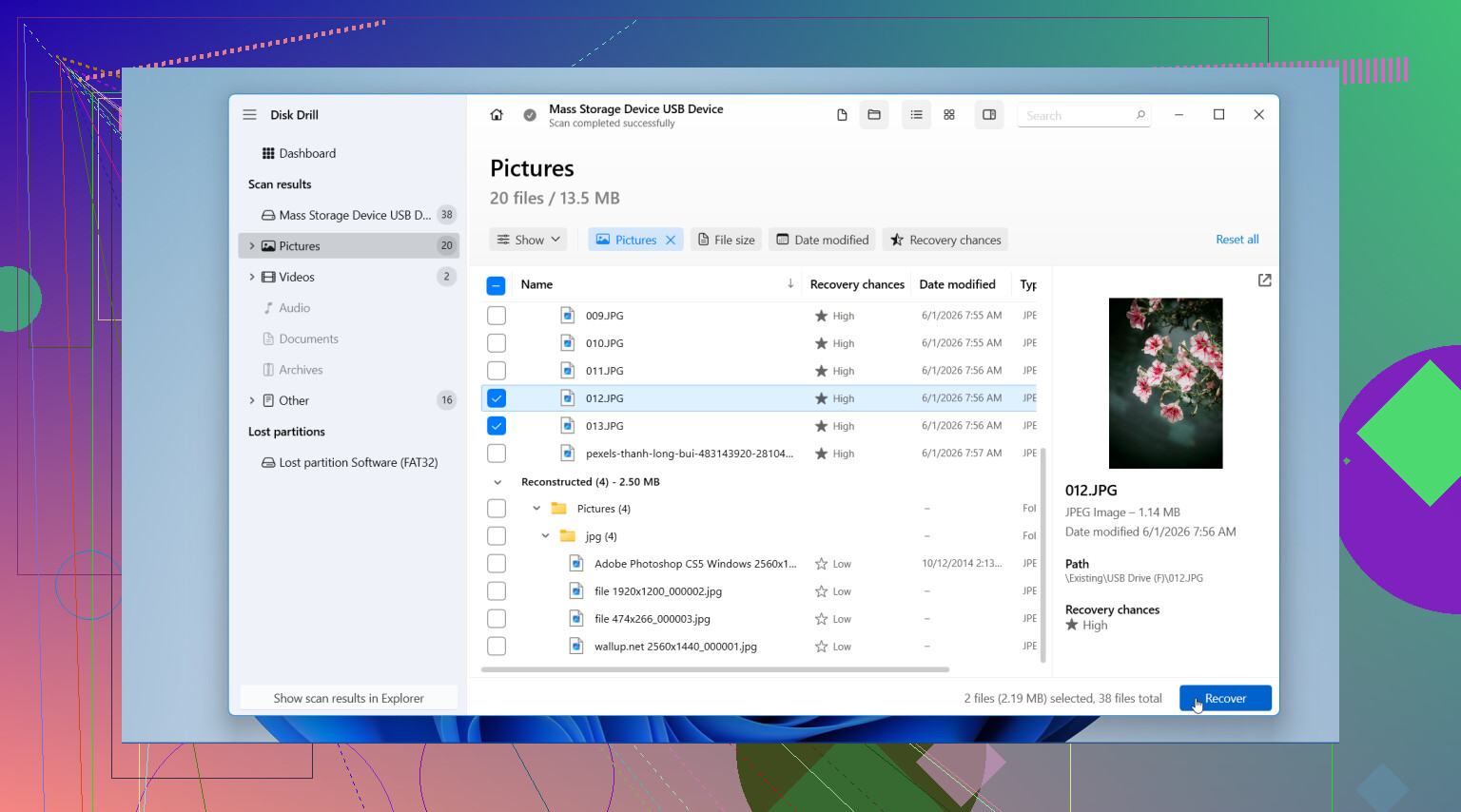
If the files matter and you want the least headache, Disk Drill is probly the easiest place to start because it can show previews and handle common Canon formats without a ton of setup. If previews look intact, your chances are decent. If previews are corrupt or half-gray, some data was already overwritten.
One more thing people skip: check whether your computer auto-imported them earlier into Photos, Lightroom, OneDrive, iCloud, or even an old desktop import folder. I found “lost” vacation pics that way once and felt real smart for panicking first.
For more Canon SD card recovery discussion, this thread has some useful camera photo recovery advice and real-world input: Canon camera SD card photo recovery tips from Reddit
Recover to a different drive, then leave the SD card alone till you know what you got back.
Small add-on to what @sognonotturno, @ombrasilente, and @mikeappsreviewer covered: check whether the missing shots are actually in Canon’s protected/locked state or a weird sidecar-only situation. I’ve seen cards where the JPEGs looked gone in camera, but the computer still showed RAW files or hidden thumbnails.
A couple things I’d do that weren’t stressed enough:
- Use a good SD reader. Bad readers cause disconnects and fake corruption.
- Check the card health with H2testw or F3 after recovery, not before. If the card is counterfeit or failing, that explains a lot.
- Sort recovered results by file size. Tiny CR3/JPG files are often fragments, full-size ones are the real candidates.
- Keep the recovered files even if some won’t open at first. A repair tool can sometimes fix partial JPEGs.
On Disk Drill specifically:
Pros
- Easy previews
- Good support for common camera formats
- Better for non-technical users than command-line tools
- Can find both deleted records and raw photo signatures
Cons
- Free recovery is limited on Windows
- Previewable does not always mean fully recoverable
- Deep scans can return lots of duplicates
- Less ideal if the card has serious hardware failure
One place I mildly disagree with the usual advice: if the card looks perfectly healthy and the deletion was recent, I wouldn’t automatically jump to a lab. A careful single pass with Disk Drill is reasonable first. If it starts throwing read errors, then stop.