My iPhone storage is almost full, and I want to empty the Trash/Recently Deleted folders in apps like Photos, Mail, and Files. I’m worried I might permanently delete something I still need. What’s the safest way to review and clear iPhone trash without losing important data?
If your iPhone storage bar barely changed after deleting a bunch of stuff, the usual reason is simple: the phone is still holding those files in “Recently Deleted.” They’re out of sight, but they’re not actually gone yet.
Most Apple apps keep deleted items for about 30 days unless you manually clear them. So if you deleted videos, PDFs, message threads, or photos, they may still be taking up the same space as before.
Check these places first
Files app
This one is easy to miss. Open Files, go to Browse, then keep tapping the back arrow in the upper-left until you’re at the top-level Locations screen. Look for Recently Deleted with the trash icon. Open it, tap the three dots, choose Select, then Delete All. If you download big PDFs, work files, ZIPs, or videos, this folder can be larger than expected.
Photos
Open Photos, go to Albums, then scroll down to Utilities and open Recently Deleted. Photos will show how many days are left before each item is removed for good. Recover anything you still need, or use Select and Delete All if you’re sure.
Messages
This one gets overlooked a lot. If you deleted conversations with photos or videos in them, the attachments can still sit on the phone. Open Messages, tap Edit or the filter icon in the top-left, then choose Show Recently Deleted. Delete those threads again if you want the space back.
Notes
Go back to the main folder list in Notes and open Recently Deleted. It works the same way, with the same 30-day holding period.
One important iCloud thing
If iCloud is turned on, permanently deleting something from Recently Deleted can remove it from iCloud and from your other Apple devices using the same Apple ID. Once you delete it there, don’t count on getting it back. It’s worth scrolling through the folder before hitting Delete All, especially in Photos where the countdown is shown on each item.
Why low storage makes the whole phone feel worse
iOS needs breathing room for temporary files and background tasks. When storage gets tight, normal stuff starts acting weird: the camera opens slowly, apps crash, switching apps lags, and the phone generally feels stuck. Emptying Recently Deleted helps, but it only clears things you already deleted.
For most people, the bigger problem is still the photo library.
After that, deal with the actual media library
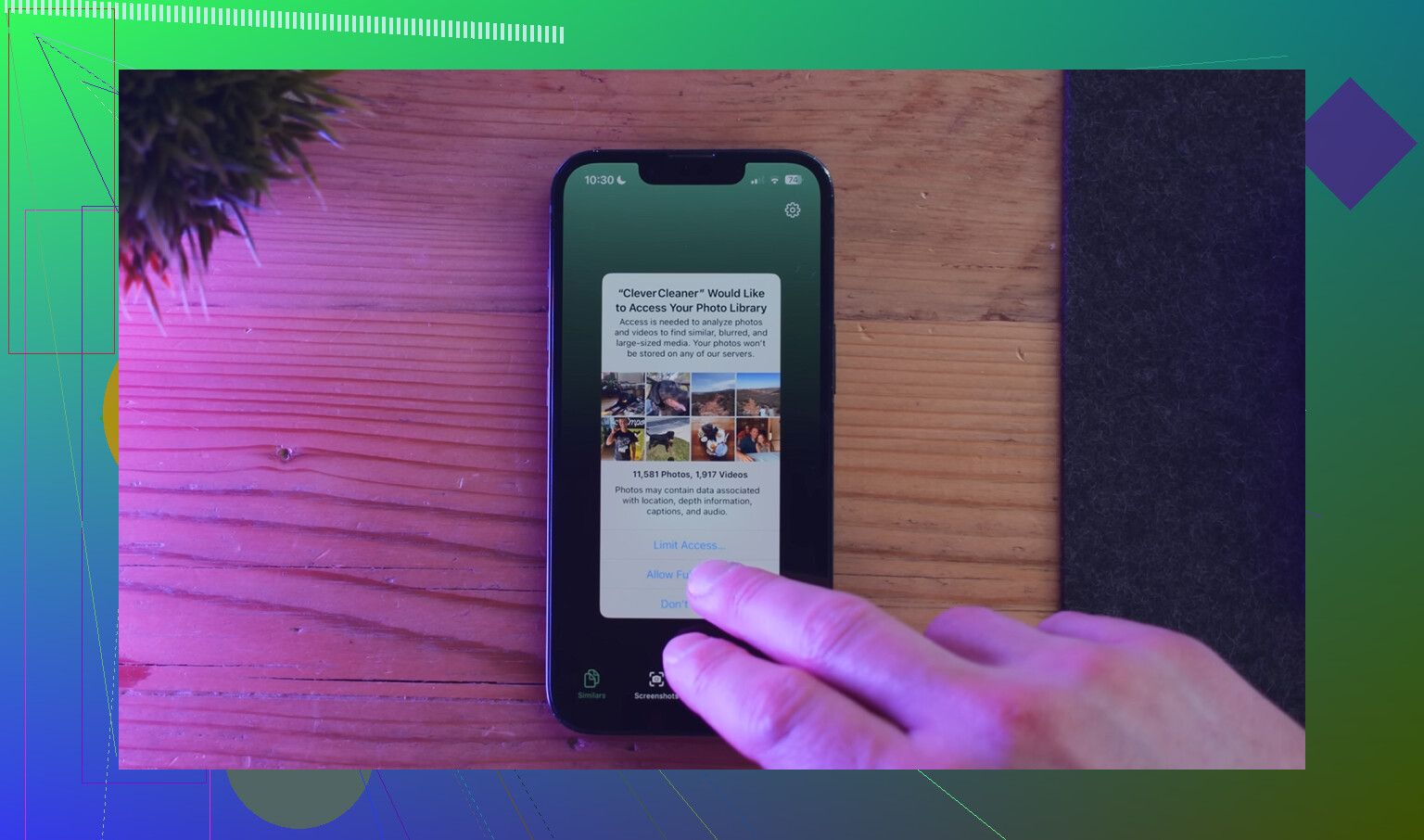
Clever Cleaner is useful for the part Apple’s trash folders don’t handle. It’s free, with no ads or subscription.
- Start with the Heavies tab. It sorts files from largest to smallest and shows exact file sizes, so old 4K videos and huge screen recordings are easy to spot.
- Then check Similars. It groups near-duplicate photos and marks a Best Shot, which makes it easier to clear five versions of the same photo without checking each one manually.
- Look at Screenshots too. Each screenshot shows its file size, and those piles add up faster than people expect.
- The cleanup runs on the device, so your photos and data are not uploaded somewhere else.
The order that usually makes the most difference is: clear Recently Deleted in Files, Photos, Messages, and Notes first. Then use Clever Cleaner to find the large videos, screenshots, and similar photos that are still sitting in the library. The storage bar is much more likely to move after doing both, not just one or the other.
Make a backup before you empty anything.
The catch is that a normal iCloud Backup is not always the safety net people think it is. If iCloud Photos is turned on, your photos are usually syncing to iCloud, not being separately saved inside the phone backup. So if you permanently delete a photo from Recently Deleted, that deletion can sync everywhere. Same idea with iCloud Drive files and notes if they’re synced.
The safest way is to treat each Recently Deleted folder like a final review queue. Open it, sort or scan for anything large or important, recover anything you’re unsure about, and only then empty it. For Photos especially, I’d review on a bigger screen if possible, either another Apple device or iCloud on a computer, because it’s easier to spot the one receipt, document photo, or family video you actually wanted to keep.
If storage is so tight that you need space right now, don’t hit Delete All blindly. Move questionable items somewhere else first, like a computer, external drive, Google Photos, Dropbox, or whatever you trust. After that, empty Recently Deleted. And don’t be surprised if the storage number takes a little while to update afterward. Sometimes iOS needs a restart or a bit of time before the free space looks right.
“Recently Deleted” is not a second backup, it’s the last stop before gone. Before emptying it, copy the questionable stuff out to a place that does not sync deletions back to the phone, like a Mac/PC folder, external drive, or a cloud account you are not cleaning at the same time. Then empty only the folders you have already checked. I’d be especially careful with old scanned documents, voice memos, downloaded tax/medical PDFs, and photos of receipts, because those are the boring files people miss until later. If you need space fast, delete the obvious junk first, such as long videos, screen recordings, duplicate bursts, and app downloads, then restart the phone and check storage again. Don’t make “Delete All” the first button you press.
Don’t empty trash folders while you’re still in panic mode trying to win back space. That is when people delete the wrong folder because every “Delete All” button starts looking helpful.
I agree with @mikeappsreviewer that Recently Deleted is not a backup, but I’d handle the review a little differently: anything you hesitate over should be recovered first, not left sitting there while you decide. Make a temporary album in Photos called “Check Later,” or a temporary folder in Files called “Keep For Now,” and move/recover the questionable items there. Then you can empty the trash without having to make perfect decisions item by item under pressure.
For Mail, be extra careful because it depends on the account. If it’s Gmail, Outlook, Yahoo, Exchange, etc., deleting from Trash on the iPhone may be deleting it from the mail server too, not just from the phone. Before clearing Mail trash, search for words like receipt, invoice, insurance, tax, flight, password, medical, warranty, or the names of people/companies you care about. Archive anything questionable instead of leaving it in Trash.
If you need space immediately and you’re nervous, the safer quick win is usually offloading large apps, deleting downloaded shows/music/podcasts, and removing obvious huge videos from Photos after saving anything important elsewhere. Empty Recently Deleted last, when the only things left in there are items you would be fine losing forever.