My iPhone storage is full, and I’m running out of space for photos and videos. I’m trying to figure out if I can use an external drive to add more storage to my iPhone and how it works. I need help finding the easiest option that will let me free up space without losing anything.
I ran into this on my own iPhone, usually at the worst time. A short concert clip, a kid blowing out candles, some random video I wanted fast, then the storage warning dropped in and killed it. iPhones don’t give you the microSD escape hatch, so what you bought is what you live with.
I skipped iCloud upgrades for a long time. Didn’t want another monthly charge. Even when I tried cloud backup stuff, my phone still felt clogged. Once my storage dipped into the red, I saw the slowdown right away. Apps took longer to open. Safari felt sticky. Scrolling got weird. iOS seems to need free space to breathe, and when you choke it down too far, performance slips.
Start with photos and videos, because that’s usually the mess
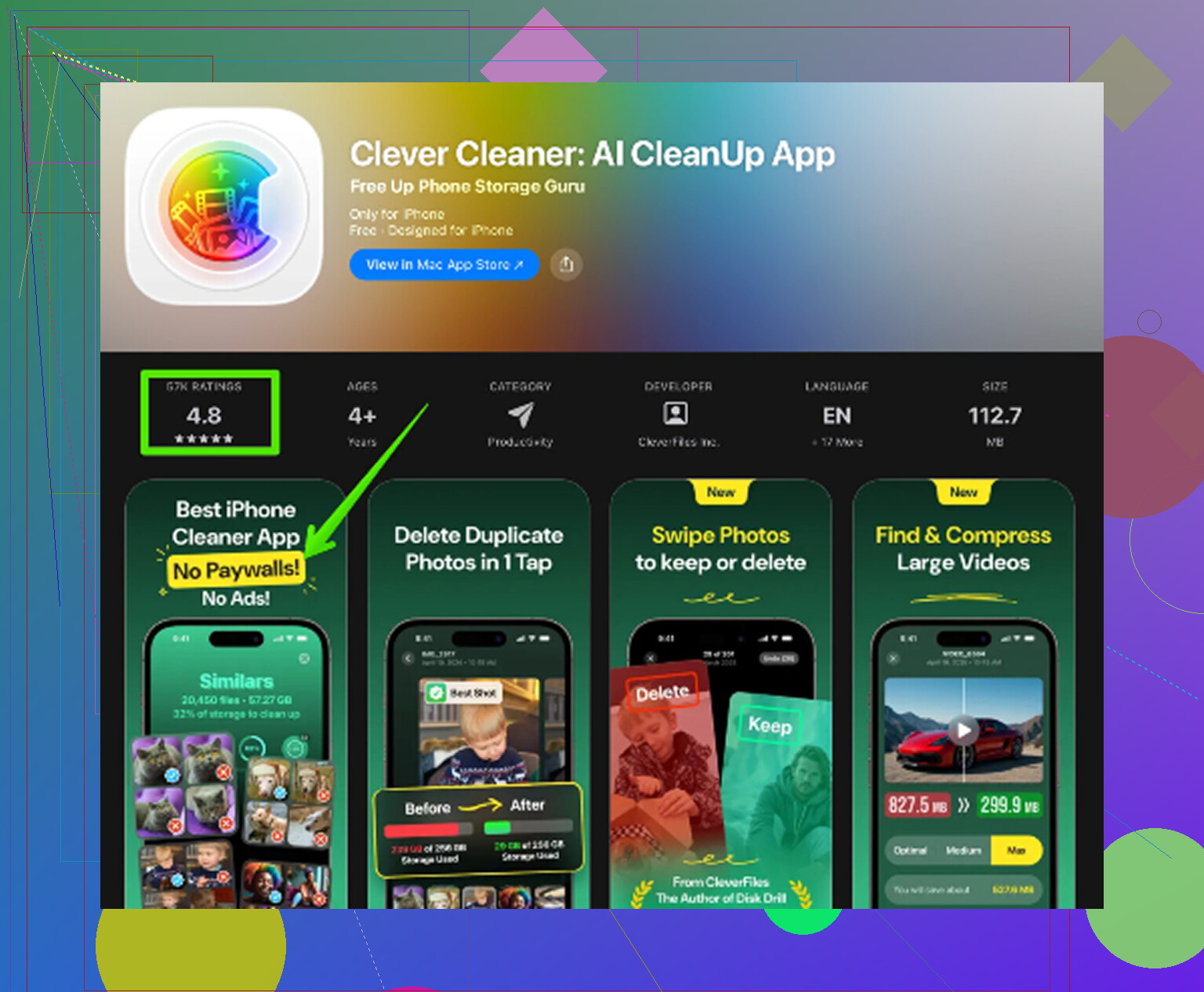
For me, the biggest win came from cleaning the media library, not poking at random settings. I used to sort it by hand and, honestly, it was miserable. Too many screenshots, duplicate shots, giant videos I forgot existed. I ended up trying Clever Cleaner after dodging a pile of junk cleaner apps. Most of those looked shady or pushed subscriptions. This one felt different. No ads. No paid wall. I didn’t hit any surprise charge screens.
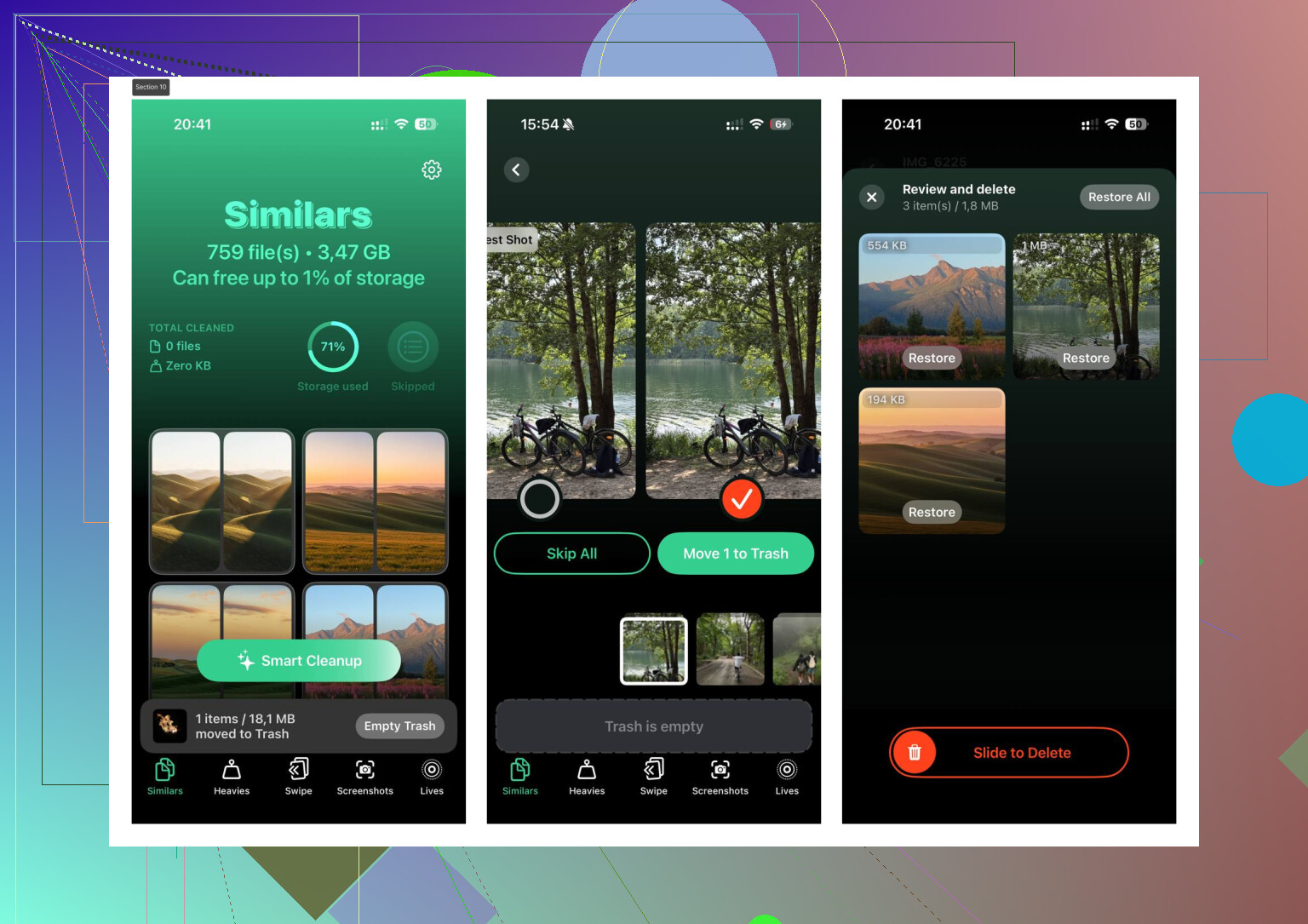
The useful part was how it grouped large files first. The Heavies section made it easy to spot the stuff eating space, fast. A few old 4K clips were taking up more room than hundreds of normal photos. There’s also a Similars section for near-duplicate photos, which helped with the usual burst-shot nonsense. I had six versions of the same dog photo, same angle, same second, because I never bothered cleaning them out. It also showed file sizes clearly, which I liked more than I expected. I want to know what I’m deleting before I tap anything.
One thing I checked before trusting it, whether it pushed my photos off-device. From what I saw, it processes locally, which mattered to me. After clearing a few GB, my phone felt less sluggish. Not magic, but noticeable.
If you want to look at it, here’s the link they used:

If storage is still tight, move big files off the phone
I did this with old video first. If your iPhone has USB-C, life is easier. Plug in a regular flash drive or external SSD and move your big files over. If you’re on an older Lightning model, something like a SanDisk iXpand works since it plugs straight into the phone. This helped me keep local copies of videos without feeding another subscription.
For people who shoot a lot of 4K, this matters more than anything else. A handful of long clips can eat tens of gigabytes before you notice. Offloading those to a drive frees space fast, and you still keep a backup in your bag or desk drawer.
Use Offload for apps you barely touch
This setting is buried a bit, but it’s worth checking. Go to Settings > General > iPhone Storage. Your apps show up sorted by size. I found old games sitting there like abandoned furniture. Offloading removes the app itself but keeps its saved data. So if you reinstall later, your stuff is still there.
I prefer this over deleting when I’m unsure. You get space back without wiping everything tied to the app.
Clear the junk you don’t see
Safari cache builds up slowly, then one day it’s huge. Mine was worse than I expected. You can clear it in Settings > Apps > Safari > Clear History and Website Data.
Messages is another one people ignore. Old threads collect videos, memes, GIFs, voice notes, all the little junk files nobody remembers. Go into iPhone Storage, tap Messages, then check Large Attachments. I found ancient clips in there I would never watch agian. Deleting those one by one freed more room than some app removals did.
If you don’t want iCloud, use another backup option
I know a lot of people who’d rather skip Apple’s storage plans entirely. Google Photos is the usual fallback. The free tier gives 15GB shared with Gmail and other Google stuff, which is still better than Apple’s free allotment. You back up your photos there, then use the cleanup option to remove copies from the phone.
It’s not perfect if your Google account is already packed with email and files, though for a lot of people it works fine.
What worked best for me
I wouldn’t start with deleting random apps. I’d check media first, then Messages attachments, then Safari cache, then offload apps I haven’t opened in months. If your phone is still jammed after all of that, an external drive solves the big-file problem without another bill every month.
My phone stopped feeling bogged down once I got the storage meter out of the danger zone. If yours is full, I’d treat it less like a settings issue and more like a cleanup job. That’s what fixed it for me.
1 Like
Yes, but with a catch. An external drive does not expand your iPhone’s built-in storage like a microSD on Android. Apple doesn’t allow that. Your iPhone still keeps apps and iOS on internal storage only.
What an external drive does well:
- Store photos and videos off the phone.
- Let you record video straight to the drive on some newer iPhones.
- Move large files in and out through the Files app.
If you have iPhone 15 or newer with USB-C, this is easy. Plug in a USB-C SSD or flash drive, open Files, then copy or move your folders. An SSD is better than a cheap thumb drive if you move lots of 4K video. It’s faster and less flaky.
If you have an older Lightning iPhone, it’s more annoying. You need a Lightning flash drive made for iPhone, or Apple’s Lightning to USB 3 Camera Adapter plus a drive with enough power. Some drives fail because the iPhone says the accessory needs too much power. Thsi is why I don’t fully agree with @mikeappsreviewer on “regular flash drive” being simple for everyone. On Lightning models, it often isn’t.
Best easy setup:
- Buy a 256GB or 512GB external SSD.
- Format it exFAT on a computer first.
- Plug it into the iPhone.
- Open Files, look under Browse.
- Move your big DCIM exports, edited videos, Downloads, and large project files.
Extra tip. On iPhone 15 Pro and Pro Max, ProRes video recording to external storage is a huge storage saver if you shoot a lot.
I’d still clean first, then offload media. Clever Cleaner helps if your library is full of duplicates and giant files. This review explains the app in plain English and covers its AI photo cleanup tools, duplicate finding, and large file removal: best free iPhone cleaner app for clearing duplicate photos and large videos
So yes, external storage works, but as off-phone storage, not true internal expansion. That distinction trips ppl up all the time.
Yes, but only in the “move stuff off the iPhone” sense, not “upgrade the iPhone’s internal memory” sense. Apple basically says nope to that.
What I’d add to what @mikeappsreviewer and @nachtdromer said is this: an external drive is best treated like a media locker, not extra phone storage. You can keep photos, videos, Files app docs, even Final Cut exports there, but your apps, app data, and system storage still live on the phone. That part doesn’t change.
My unpopular opinion: for most people, the “external drive” route sounds easier than it actually is. It’s great if you’re disciplined enough to regularly move stuff over. If not, the drive ends up in a drawer and your phone gets full again 3 weeks later.
Best practical setup:
- Keep only current photos/videos on iPhone.
- Archive older albums to an SSD.
- Leave the drive labeled by month or trip.
- Back that drive up somewhere else too, because one drive is not a backup. It’s just a single point of failure.
That last bit matters. A lot. Tiny portable drives are easy to lose, break, or wash in your jeans by acident.
Also, if your problem is mostly duplicate pics, screenshots, and giant forgotten videos, I’d clean that before buying hardware. That’s where something like free iPhone storage cleaner for duplicate photos and large videos makes more sense. It’s faster than manually poking through years of camera roll chaos.
One more thing people forget: external drives are way more useful with USB-C iPhones than Lightning ones. On older iPhones, compatibility can be janky and kinda annoying. So if you want “easiest option,” I’d say:
- USB-C iPhone: external SSD = yes
- Lightning iPhone: maybe, but check compatiblity first
- If you hate cable management: just clean the library and use selective cloud backup
So yeah, you can absolutely use an external drive, just not as true expandable storage. More like a garage for your bloated photo habit.