I’m trying to delete all photos from my iPhone, but every time I start selecting a large group, the selection resets and I have to begin again. I need to clear storage fast, and I can’t figure out if this is an iPhone Photos app bug or if there’s a better way to remove everything at once. Looking for help with the quickest fix.
I lost count of how many times I spent ten minutes picking photos, missed one tiny gesture, then watched the whole selection snap back to zero. On iPhone, once your library gets huge, Photos starts acting flimsy. Newer models did not fix it for me. Same mess, same resets, same lag.
Why the selection wipes itself out
From what I saw, the trouble gets worse when two things stack up. A huge photo library, and storage getting tight. The app starts dragging. The phone warms up. Taps stop feeling clean. Then one bad move and the whole selection is gone.
There is one shortcut I used which saves a lot of stupid scrolling:
- Open your main library in Photos and hit Select in the top right
- Drag across the bottom row to start selecting
- Keep your finger down, then with your other hand tap near the time or battery area at the top
- The screen jumps up and selects the full range in between
It is quicker. Way quicker. Still, if your phone storage is almost cooked, even this can choke. The phone needs some open space before it handles a giant selection without falling over.
iOS 17 and iOS 18
I checked both, and for this issue, there is barely anything worth talking about. Some layout changes, some polish, same missing feature. There is still no Select All button in the main library. Apple only puts it inside albums. So if your stuff lives in the main camera roll, which most people's does, you're stuck with manual tricks. Same on iOS 17. Same on iOS 18.
Why Recently Deleted keeps eating storage
Deleting photos from the main library does not clear them off the phone. iOS shoves them into Recently Deleted and leaves them there for around 30 to 40 days. Those files still take up full space during that whole period.
If you want your storage back, finish the job:
- Open Photos and go to Albums
- Scroll to Recently Deleted under Utilities
- Tap Select
- Tap Delete All
Until you do this, the storage meter barely moves, even if you removed thousands of photos a minute ago. I learned this the annoyng way.
Why large deletions fail in the background
The Photos app does not handle giant delete jobs well once you leave it. If you wipe out 20,000 photos, then hop into Messages or Safari while it is working, there is a good shot the process stalls or dies. I had better luck leaving the phone parked inside Photos until it finished. Once I switched away too early, stuff got stuck.
If you want a full wipe and have a Mac
This was steadier for me than doing it all on the phone. Image Capture cuts out the touch screen mess.
- Plug the iPhone into your Mac
- Open Image Capture from Applications
- Press Command and A
- Click the delete button
For bulk removal, this tends to hold up better. Check your backup first. If you delete through Image Capture, there is no Recently Deleted buffer waiting to save you.
Where Clever Cleaner comes in
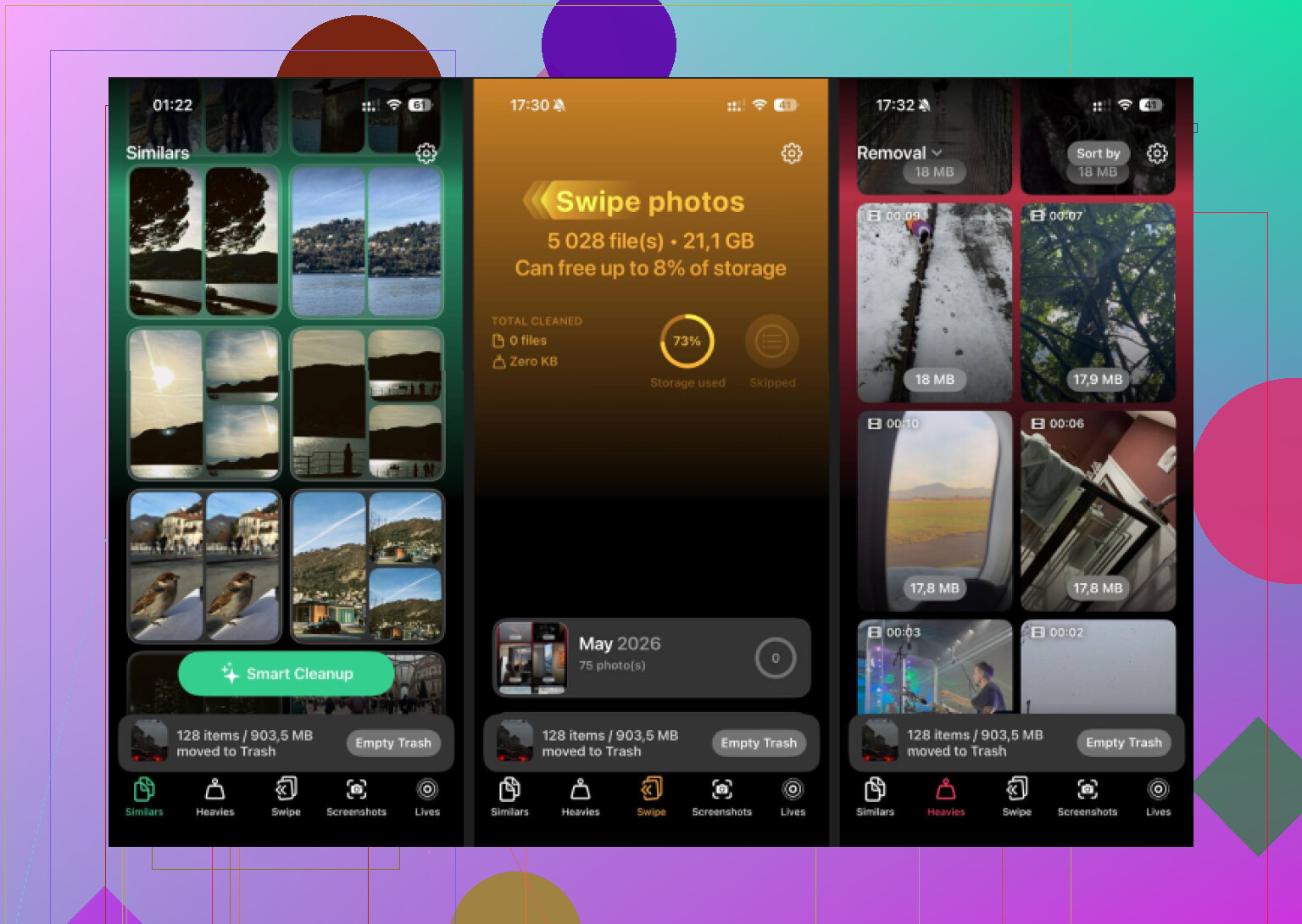
If the Photos app keeps resetting selections, lagging out, or choking on a huge library, using a cleanup app makes more sense than fighting the stock app for an hour. Clever Cleaner looked like the best free pick I found. Here is the link, unchanged: https://www.insanelymac.com/blog/clever-cleaner-review/
The parts worth paying attention to:
- Heavies sorts your library by file size, so the worst storage hogs show up first instead of being buried in 8,000 random items
- Similars groups near-matching photos together, stuff like burst shots, repeat tries, and tiny frame changes, so you keep one and trash the rest faster
- Screenshots shows file size on each thumbnail before deletion, which helps if screenshots are the junk pile clogging your phone
- Everything stays on the device, so nothing gets uploaded elsewhere
2 Likes
If the selection keeps resetting, stop trying to mass-select in the main library. That part of Photos is flaky when storage is low. I agree with part of what @mikeappsreviewer said, but I do not think iOS is always the main problem. iCloud Photos sync lag is often the bigger issue.
Try this instead.
- Turn off Low Power Mode.
- Put the phone on charge.
- Go to Settings, Photos.
- If iCloud Photos is on, pause a bit and let syncing finish if it says Updating.
- Delete in smaller batches, 300 to 500 at a time.
- Force close Photos after each batch, then reopen.
A better fast route is Albums, then Media Types. Start with Videos, Screen Recordings, Live Photos, and Bursts. Those eat storage first. On many phones, 100 videos free more space than 5,000 photos. That is the fast win.
If your goal is total wipe, the cleanest method is Settings, General, Transfer or Reset iPhone, Erase All Content and Settings. That removes the library without the broken tap-select mess. Backup first, obviosly.
If you want sorting help before deleting, Clever Cleaner is worth a look. It groups large files and dupes faster than Photos does. This page is useful too: best free iPhone cleaner app for clearing photo storage.
Also check Photos in Files app edit mode if some images were saved outside the library. People miss ths part a lot.
If the selection keeps resetting, I would stop treating it like a Photos bug only. Sometimes it is the app, but a lot of the time it is touch input getting interrupted because Photos is still indexing, syncing, or rebuilding thumbnails in the background. That part gets overlooked.
I half-agree with @mikeappsreviewer and @cazadordeestrellas, but I would not spend forever fighting the main Library view if your goal is just fast space recovery.
Try this instead:
- Restart the iPhone first
- Go to Settings, Accessibility, Touch, and turn off Reachability if it is on
- Go to Settings, Photos and turn off View Full HDR if enabled
- Stay off the Library tab and delete from specific categories like Selfies, Portrait, Live Photos, Bursts, Videos, and Screenshots
- Then open Recently Deleted and wipe that too
Why this helps: those category pages are smaller chunks, so Photos is less likely to spaz out and drop the seleciton.
Also, if you use iCloud Photos, check icloud.com from a browser on a computer or even iPad. Bulk deleting there can be weirdly more stable than on the phone itself. Not always faster, but less rage-inducing.
If you want the quickest practical route without manually wrestling Apple’s awful selector, use Clever Cleaner. It is better for spotting duplicates, large files, and junk shots fast, especially when the Photos app gets laggy. You can grab it here: get Clever Cleaner free on the App Store for faster iPhone photo cleanup
One more thing people miss: after a huge delete, leave the phone plugged in and locked for a while. iOS sometimes needs time to recalculate storage, otherwise it looks like nothng changed. Super annoying, but yeah, that happens.