Facebook keeps crashing on my iPhone before I can clear cache or delete app data. I’ve tried reopening it and restarting my phone, but it still closes right away. I need help removing Facebook data from iOS or resetting the app without losing anything important.
If Facebook is taking up several GB on your iPhone, there isn’t really a magic “clear everything” button. Some of it can be cleaned inside the app, but the bigger cache buildup usually takes a delete/reinstall.
What you do and don’t lose
Your Facebook posts, photos, friends, messages, and profile stuff are stored on Facebook’s servers, not only on your phone. Clearing local data will not delete those.
The main thing to watch for is offline video downloads inside the Facebook app. If you delete and reinstall Facebook, those local downloads are removed. You can download them again later from the app, but they are not the same as your normal profile content.
The three cleanup options
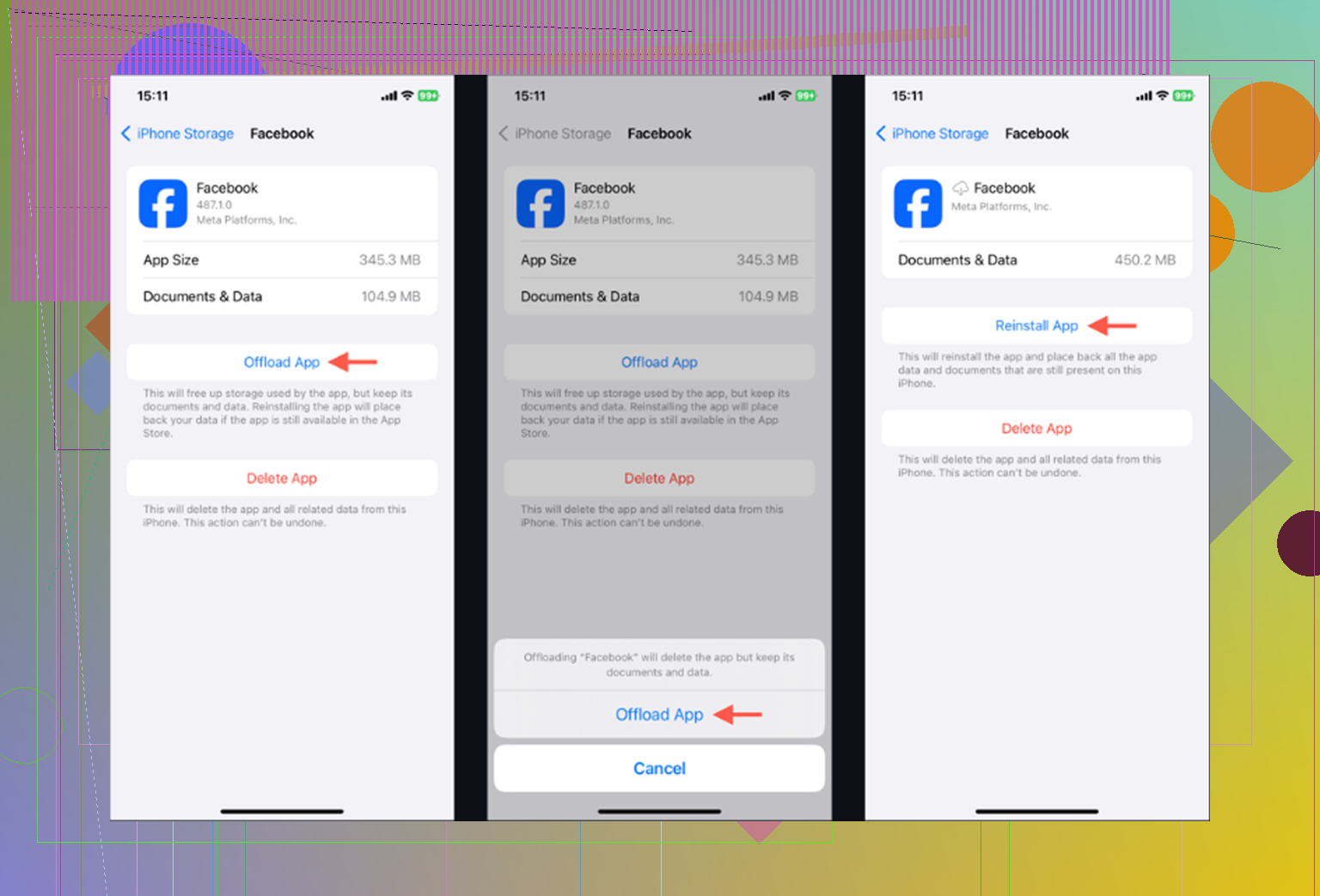
Offload App
Go to Settings > General > iPhone Storage > Facebook, then choose Offload App.
This removes the app itself but keeps its Documents and Data on the phone. After reinstalling, you’ll usually still be logged in and your settings should still be there. It can help with app glitches or crashes, but it usually does not free much space because the stored data is still sitting there.
Delete and Reinstall
On that same iPhone Storage screen, choose Delete App instead.
This removes the app, cache, temp files, and local database. After reinstalling, Facebook’s storage use should drop a lot more. You’ll need to log in again, and any videos saved for offline viewing inside Facebook will be gone. If the app has built up a huge amount of cache, this is the cleanup method that actually clears it.
Clear Facebook’s in-app browser cache
Open Facebook and go to Menu > Settings and Privacy > Settings > Browser, then tap Clear next to Cookies and Cache.
This only clears website data from links you opened inside Facebook. It might help if links are acting weird or loading slowly, but by itself it usually will not recover a big chunk of storage.
Why Facebook fills back up again
Facebook caches a lot on purpose. Images you scroll past, feed videos that start playing, and links opened through the app can all leave local data behind so the app feels faster next time.
So if you clear 2GB today, then use Facebook normally tomorrow, a big part of that can come right back. That does not mean the cleanup failed. It is just how the app behaves. You can manage it, but you cannot really stop it permanently.
Also, Facebook cache may not be the real reason your phone feels slow
Facebook is an easy target because the storage number is visible, but on most iPhones the photo library is where the bigger problem usually lives. Old 4K videos, burst shots, screenshots, duplicate-looking photos, and random clips add up quietly.
iOS also needs free space to work properly in the background. If the phone is close to full, it can slow down even after you clear one app’s cache.
What helps with the bigger storage issue
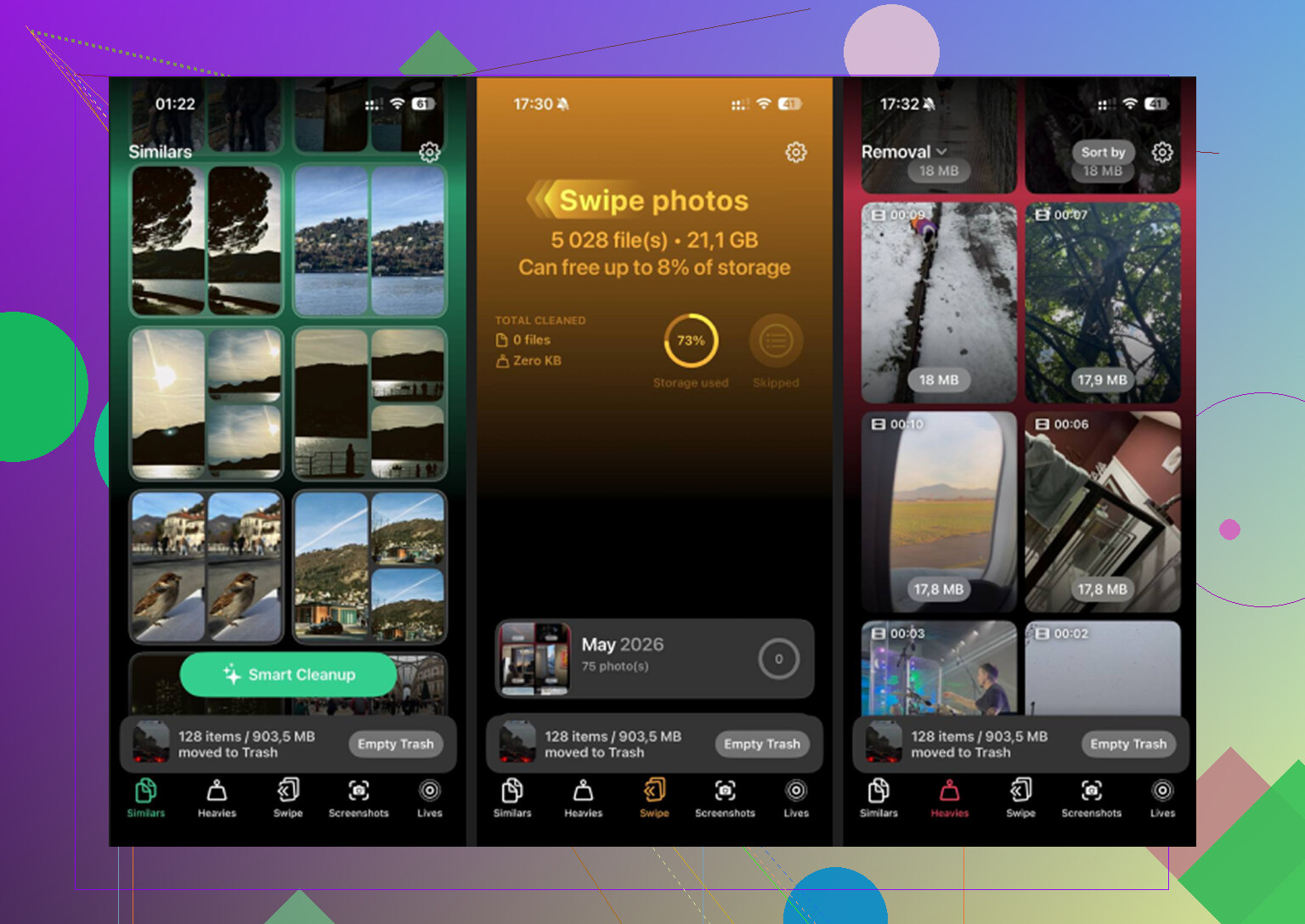
Clever Cleaner does not clear Facebook cache or app data. The Facebook steps above are still manual. What it does help with is finding the photo and video files that are actually eating the most storage. It is free, with no ads and no subscription.
The Heavies tab sorts your files from largest to smallest and shows the exact size of each one. That makes it much easier to spot old videos that are taking up hundreds of MB, or even close to a GB, without scrolling through the Photos app forever.
The Similars tab groups near-duplicate photos and picks a Best Shot from each set. If you have five versions of the same picture, you can clean them up much faster. It also shows file sizes before you delete anything, so you know what space you’re getting back.
Everything runs on the iPhone itself. The files are not uploaded to an outside server.
A practical order to do it
First, delete and reinstall Facebook if it is crashing or taking up a ridiculous amount of space. That gives you the quick win.
Then check the photo library with Clever Cleaner, because that is usually where the larger storage problem is hiding. After deleting photos or videos, go to Photos > Recently Deleted > Delete All. Otherwise, iOS still counts that storage until the recently deleted items are removed.
If Facebook crashes after the logo, treat it differently than a slow app that still opens. Don’t waste time trying to reach Facebook’s own settings, because iOS can remove the local data without launching it. Go to Settings > General > iPhone Storage > Facebook and use Delete App, not Offload App. I agree with @mikeappsreviewer there: offloading is the trap if your goal is wiping the bad cache, since it keeps the documents/data that may be part of the problem. After deleting, restart the phone once, reinstall Facebook, and log back in. Small caveat people forget: if you only remove it from the Home Screen or App Library, that does not clear the data. You need the actual Delete App option.
Resetting the whole iPhone should be the last resort, not the next move. If Facebook crashes before you can tap anything, clear it from iOS by deleting the app from iPhone Storage like @andarilhonoturno said, but before reinstalling make sure your phone has some free space left and install any pending iOS/App Store updates. A clean reinstall can fail again if the phone is nearly full or Facebook’s current version is bugging out on your iOS version. If it still closes after Delete App, restart, and reinstall, stop chasing cache and use Facebook in Safari for now while waiting for an app update. That means the crash probably is not your old local data anymore.
Realistically, if it crashes right after the logo, a reinstall alone might not fix it, because the current app version could just be broken on your iOS build. Delete App is still the right first step, but if it keeps closing after a clean install, don’t keep reinstalling, just wait for the next Facebook update and use the mobile site meanwhile.