I’m running really low on space on my iPhone, and I’m not sure which files, apps, or cached data are safe to delete without breaking anything or losing important photos, messages, or app data. Could someone walk me through the safest steps or settings to free up iOS storage while keeping my essential data intact
I ran into this on my iPhone last month and went a bit obsessive about cleaning it up without losing photos or messages. Here is what worked, in safe order.
-
Check what eats your storage
• Go to Settings > General > iPhone Storage
• Wait a bit for it to load
• Look at the list of apps, sorted by size
• Tap each app to see “App Size” vs “Documents & Data”You want to target large “Documents & Data” first, not system stuff.
-
Safest things to remove first
• Old apps you do not use
Tap app in the list, use “Offload App”.
This keeps documents and data, removes the binary.
Reinstall later from App Store and your stuff stays.
• Big offline content
Spotify / Netflix / YouTube / Podcasts often store gigabytes.
Inside each app, remove downloaded music, shows, or videos.
• Safari data
Settings > Safari > Clear History and Website Data.
You lose logins for some sites, not your photos or messages. -
Photos and videos without losing them
• First step, turn on iCloud Photos if you have enough iCloud space.
Settings > your name > iCloud > Photos > iCloud Photos ON.
Turn on “Optimize iPhone Storage”.
Your full‑res photos go to iCloud, phone keeps smaller versions.
• If iCloud is full or you do not want to pay, back up to a computer.
On Mac: use Photos or Image Capture.
On Windows: use the Photos app or File Explorer import.
• After backing up, delete big videos from the Photos app.
Then open “Recently Deleted” and empty it to free space.Videos take much more space than photos. Start there.
-
Messages and chat apps
Messages can grow a lot from years of photos and videos.
• Settings > Messages > Keep Messages > set to 1 Year or 30 Days.
That removes older threads over time, so think about what you need.
• Inside Messages, open big threads, tap the contact name > Info.
Scroll to Photos and Videos, delete the largest ones you do not need.
• WhatsApp / Telegram / Signal
Each app has “Storage” or “Data and Storage” settings.
Clear large media from groups and backups.
Do not delete the whole app if you care about chat history and you do not have a cloud backup set. -
Clear app junk safely
iOS does not let you clear all caches manually, so you target apps where it is safe.
Safe approach that worked for me:
• For social apps like Instagram, Facebook, TikTok:
Storage often is mostly cache.
If Documents & Data is huge, delete the app, reinstall, log in again.
Your account and content sit on their servers.
• For maps and travel apps:
Remove offline maps or downloads inside the app settings.
• For mail apps:
In iOS Mail, accounts sync from the server.
Removing and re‑adding an email account frees cached mail but not server mail. -
System stuff you should leave alone
• “System Data” in iPhone Storage sometimes looks huge.
This shrinks after a reboot or software update.
You cannot safely delete it by hand.
• Do not delete anything under Settings that you do not understand, like VPN profiles or configuration profiles, unless you know why they exist. -
Use a helper app if you hate doing this by hand
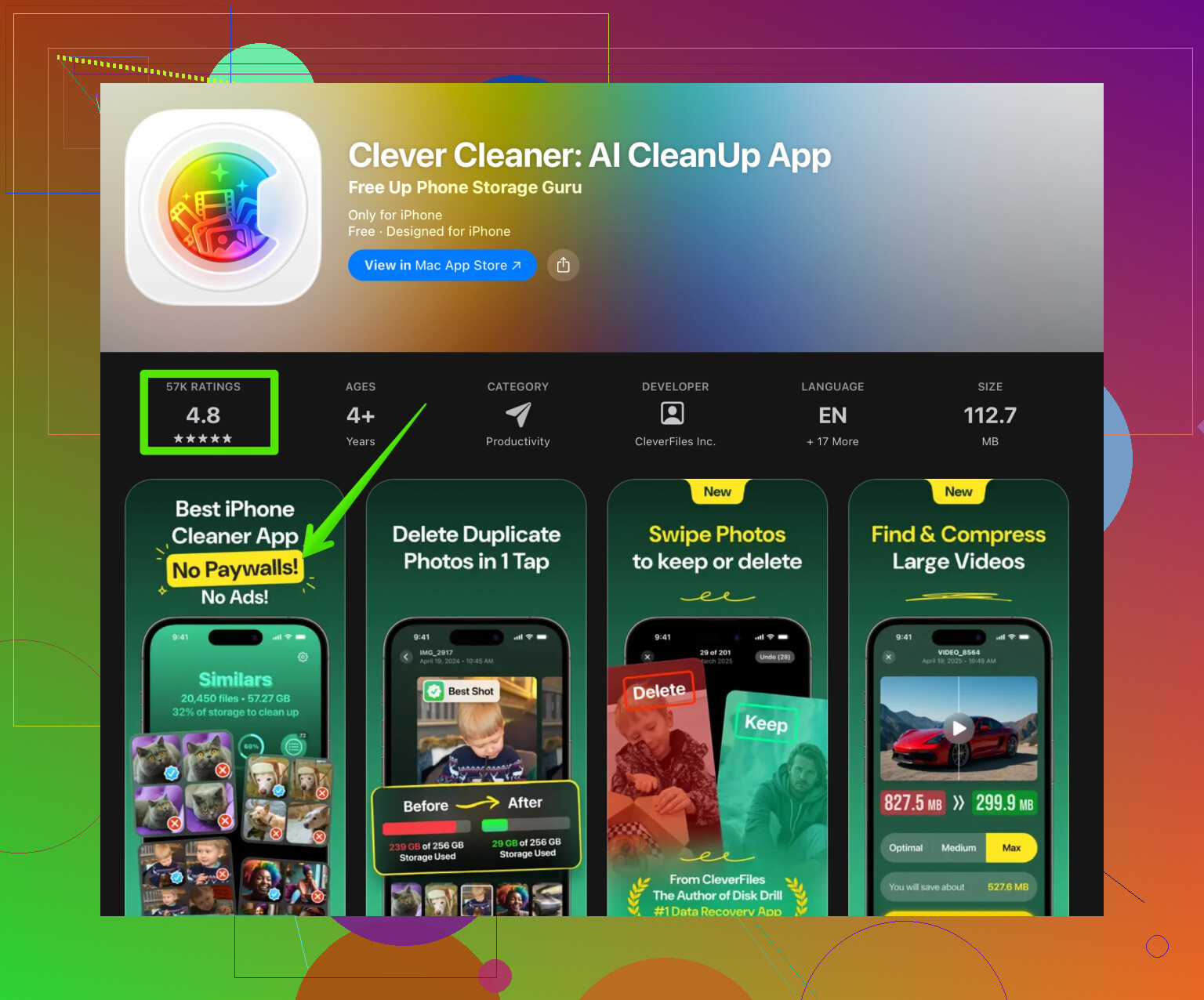
If you want something that helps find duplicate photos, similar shots, and big video files, an app like Clever Cleaner App helps a lot.
It focuses on cleaning media without touching your important system data.
It scans for duplicate pictures, burst photos, and heavy videos, then lets you confirm what to delete.
You keep control, it handles the boring scanning work.
For easy download and more details, check this link:
smart iPhone cleanup with Clever Cleaner App -
Last resort option
If storage is still bad after all this and the phone feels slow:
• Back up to iCloud or to a computer via Finder or iTunes.
• Go to Settings > General > Transfer or Reset iPhone > Erase All Content and Settings.
• Set it up again from the backup.
This reset step cleared a lot of hidden “System Data” on my phone, but I only did it after a full backup and after trying all the steps above.
How to delete iOS storage safely without losing photos, messages, or important data
You’re low on iPhone space and don’t want to break apps or lose memories. The goal is simple: free up gigabytes while keeping your photos, chats, and app data intact. That means targeting temporary files, duplicate media, and oversized downloads instead of randomly nuking stuff.
@suendelbosque already nailed the “official” path in Settings and per‑app cleanups, so I’ll skip repeating that checklist and focus on different angles, plus a couple places where I’d tweak their approach.
1. Start with “low risk, high reward” cleanups
These are things I routinely remove on clients’ phones without drama:
-
Downloaded files from apps
- Files app
- Open Files > On My iPhone.
- Check folders like “Downloads,” “Chrome,” “Firefox,” “Slack,” etc.
- Delete old PDFs, ZIPs, docs you already have on email or cloud.
- Many people forget these and they can be hundreds of MBs.
- Files app
-
Old iOS backups on your computer
- Not on the phone itself, but it matters if you sync often.
- On Mac (Finder) or iTunes on Windows, delete very old device backups.
- Then do a fresh backup so you only keep 1–2 recent ones.
-
Voice Memos & screen recordings
- Voice Memos app and “Screen Recordings” album in Photos.
- Both are sneaky storage hogs, especially long recordings and 1080p/4K captures.
- Back up the important ones to a computer or cloud, then remove the rest.
2. Photos: free space without wiping your memories
I agree with @suenodelbosque on turning on iCloud Photos if you can afford the storage, but I’d add:
-
Turn off auto‑saving from chat apps
Otherwise your Photos library becomes a meme graveyard.- WhatsApp: Settings > Chats > Save to Camera Roll OFF.
- Telegram / others: similar setting in “Data and Storage” or “Chat Settings.”
-
Find “hidden fat” inside Photos
- Search by media type:
- Open Photos app > Albums > scroll to “Media Types.”
- Check “Videos,” “Slow-mo,” “Time-lapse,” “Bursts,” “Live Photos.”
- These eat way more space than regular photos.
- Delete the ones you don’t care about, then clear “Recently Deleted.”
- Search by media type:
-
Use a cleaner app only for media, not system
If you hate doing that manually, this is where a dedicated cleaner is actually useful.
A tool like Clever Cleaner App scans for duplicates, similar photos, bursts, and huge videos and lets you confirm what to delete. It won’t poke at system files, which is what you want.
Check something like
smart iPhone storage cleanup with Clever Cleaner
if you want a quicker way to handle photo/video clutter.
3. Messages & chats: clean smarter, not just “set to 30 days”
One spot where I’d be more cautious than @suenodelbosque:
Setting Messages to “Keep for 30 days” is aggressive if you rely on old conversations.
Instead:
-
Target big attachments first
- Open Settings > General > iPhone Storage > Messages.
- You’ll see categories like “Photos,” “Videos,” “GIFs and Stickers,” “Others.”
- Tap each and bulk delete the largest ones.
- This trims the fat but keeps the actual text history.
-
For WhatsApp / Signal etc.
- Go in the app’s storage section and sort chats by size.
- Clear media from groups you don’t care about, not from important personal chats.
- On WhatsApp, avoid deleting the entire app if you don’t have chat backup set up to iCloud first.
4. Apps: what’s really safe to delete vs what to leave alone
Deleting and reinstalling social apps like Instagram or TikTok to clear cache is usually fine. One thing I’d add:
-
Be careful with apps that don’t sync to the cloud
- Examples: some note apps, authenticator apps, game saves that don’t use iCloud Game Center.
- Before deleting, check if they have a visible backup/sync setting:
- iCloud toggle in Settings > your name > iCloud.
- Or their own cloud login/backup option.
- If nothing, assume deleting the app = losing data.
-
Offload vs Delete
- Offload App: keeps documents & data, removes the executable.
- Delete App: removes everything.
- For apps you rarely use but might need, offload them first. If months pass and you still don’t reinstall, then consider fully deleting.
-
Game apps are often the worst offenders
- Mobile games can be 5–10 GB.
- If your progress is tied to an online account (Supercell ID, Facebook, etc.), dump and reinstall when needed.
- If not, maybe take screenshots of important stuff, then delete if you’re desperate.
5. System “mystery” storage and what not to do
People freak out about “System Data” taking several GB. I’d strongly not chase shady “iOS cleaners” or try weird tricks from random blogs. A few safer options:
-
Update iOS
- New versions often clean old logs, caches, and leftover system blobs.
- Do it with enough free space and on Wi‑Fi.
-
Occasional restart
- not magic, but can reduce some temp caches.
-
Only go nuclear if nothing else works
The full backup > erase > restore routine @suenodelbosque mentioned is legit, but treat it as a last step.- Make an encrypted backup to a computer (so passwords & Health data are saved).
- Erase all content.
- Restore from that backup.
I’ve seen this drop “System Data” by several GB, but it’s time‑consuming and you need to be comfortable with the process.
6. Short practical order of operations
If you want a simple flow that’s relatively safe:
- Clean Files app downloads and unused docs.
- Delete old screen recordings, long videos, and useless Live/slow-mo clips.
- Disable auto‑save from chat apps to Photos.
- Use something like Clever Cleaner App to bulk remove duplicates and similar photos / big videos.
- Offload rarely used apps, then uninstall truly unused ones.
- Trim large attachments in Messages & chat apps.
- Restart the phone and, when convenient, update iOS.
- Only then consider the full backup & erase route.
Follow that in order and you usually free several GB without risking important stuff.
4 Likes
Short version: you’re not trying to “delete iOS,” you’re trying to delete cruft around iOS without nuking memories or app state.
I’ll skip the Settings > iPhone Storage basics since @suenodelbosque and @suenodelbosque already did the standard tour. Here are extra angles that hit different parts of your storage problem and sometimes I’d do them before some of what they suggested.
1. Decide what you actually want to protect first
Before you delete anything, clarify what is “sacred”:
-
Must‑keep:
- Camera photos & videos
- Personal chats and attachments with a few key people
- Notes, password / 2FA apps, health data, banking apps
-
OK‑to‑sacrifice:
- Games without emotional value
- Random group chat media
- Offline playlists, downloaded Netflix/YouTube content
- Temporary work files already saved somewhere else
Why this matters:
If you try to protect everything, you end up too scared to delete anything and stay out of space forever. Decide now which 10 percent you absolutely cannot lose.
2. Audio & video subscriptions: your hidden storage vampire
People obsess over photos and forget about subscription apps:
-
Streaming video apps
- Netflix, Prime Video, YouTube, Disney+, etc often keep multiple gigabytes of offline downloads.
- Open each app > Downloads / Library and remove anything you have already watched.
- Safer than deleting the app because you keep your login, watch history and settings.
-
Music & podcast apps
- Apple Music / Spotify:
- Remove old downloaded playlists, especially “Liked” songs that silently auto‑download.
- Podcasts:
- Auto-download is a space killer. Keep auto-download only on the 1–2 shows you actually listen to weekly.
- You can free several GB here without touching personal content like photos.
- Apple Music / Spotify:
Personally I would do this before heavy Message or Photos pruning because it is totally reversible and not sentimental.
3. iCloud strategy so your cleanup is not a one‑time fix
Where I slightly disagree with the “just use iCloud Photos if you can” take:
Simply turning it on without a plan can create confusion and a feeling that your pictures are in some black box.
Do it intentionally:
-
Pick one truth source for photos
- Either your iPhone + iCloud Photo Library as “master”
- Or a computer / external drive as “master,” with iPhone mostly as a viewing device
-
If you stick with iCloud Photos:
- Settings > [your name] > iCloud > Photos > turn on “Optimize iPhone Storage.”
- Give it time on Wi‑Fi + power; it can take hours or days to fully shrink local copies.
- Only start aggressively deleting big videos after you confirm they are visible on another device or at icloud dot com.
-
If you refuse iCloud Photos:
- Regularly import to a computer and then prune from the phone.
- Treat the phone like a camera card that you empty every few months.
This “who is the master copy?” question is more important than which cache you delete today.
4. Safer use of photo cleaner tools
Cleaner apps are a double‑edged sword. Used right, they save you hours. Used wrong, they wipe memories.
Clever Cleaner App is actually reasonable as long as you treat it like a review assistant, not an auto‑shredder.
Pros:
- Quickly surfaces:
- Duplicate / very similar photos
- Long, huge videos
- Bursts and multiple takes of the same scene
- It avoids messing with system files, so you are not risking iOS stability.
- The interface for reviewing and confirming what to delete is faster than doing it photo by photo in the Photos app.
Cons:
- “Similar” detection can sometimes mark a slightly different version of a photo that you actually want to keep.
You must manually review, not trust it blindly. - If your library is massive, the first scan can take a while and feel overwhelming.
- It will not solve “System Data” bloat or app caches. It is for media, not deep system cleanup.
Use it for step 2 or 3 in your process, after you decide what’s truly important and before you start deleting whole apps.
5. When deleting apps is safe vs risky
Apple’s “Offload App” feature is good, but you should make a call based on how that app behaves.
Safer to delete or offload:
- Social apps: Instagram, TikTok, Facebook, Reddit, etc
Your account + content live on their servers. Reinstalling is mostly just login pain. - Shopping, delivery, travel apps
Anything where your data is essentially in your online account.
Think twice before deleting:
- 2FA / authenticator apps unless you are 100 percent sure they sync or you exported codes.
- Standalone note or journal apps that may store data locally.
- Small niche apps from single developers with no visible cloud backup option.
- Some games that clearly say “all progress stored on this device.”
Rule of thumb:
If an app forces you to create an online account, your data is probably safe in the cloud. If it never asked and never mentions “sync,” treat it as fragile.
Here I partially disagree with the casual “delete and reinstall common apps to clear cache” approach: for less‑technical users, that often leads to “I cannot log back in” or “my 2FA codes are gone.” Check backup / login first.
6. Do not obsess over getting “System Data” to zero
System Data is not supposed to be tiny. It caches:
- Safari webpage data
- App logs
- Siri & keyboard learning data
- Various frameworks and temporary files
Trying to force that number down with weird tricks usually wastes more time than you save in space.
Smarter approach:
-
Use big‑impact deletions first
- Offline media from video/music apps
- Huge games
- Massive video clips and Live Photos with no emotional value
- Group chat media
-
If System Data is truly outrageous (like >20 GB) after you cleaned the obvious stuff:
- Restart the phone normally.
- Update iOS to the latest stable version.
- Only if it is still insane, consider the backup → erase → restore cycle that other posts mentioned.
Otherwise, accept that several GB of “System Data” is just iOS doing its job.
7. Order of operations that avoids nasty surprises
A slightly different flow that I recommend in practice:
-
Identify the must‑not‑lose items:
- Critical chats
- Important photos / albums
- Non‑cloud‑synced apps
Make a quick encrypted computer backup if possible.
-
Nuke “purely temporary” storage:
- Offline Netflix, YouTube, Spotify, Podcasts, etc
- Downloads in browser / Files that you already have backed up elsewhere
-
Optimize media:
- Enable iCloud Photos with “Optimize Storage” or do a manual export to a computer.
- Use Clever Cleaner App for duplicates / similar shots / huge videos, but manually confirm suggestions.
-
Trim communication fat rather than entire history:
- In Messages and chat apps, delete large attachments and random group content instead of global “keep 30 days.”
-
Only then touch big apps:
- Offload or delete games and big social apps you can easily reinstall.
- Avoid touching anything related to 2FA, banking, or irreplaceable notes until you verify their backup status.
Follow in that order and you usually free several gigabytes without breaking your everyday workflows or sacrificing important memories.