I found a lot of old files and downloads on my iPhone and deleted them, but I’m not sure they’re actually gone for good. I need help figuring out how to permanently remove files, clear anything left in storage or iCloud, and make sure deleted data can’t come back.
I keep ending up in the same mess on my iPhone. One week I had around 20GB open. A few days later, I got the storage warning, apps started freezing, and simple stuff felt slow. Annoying every time.
If you’re trying to figure out where the space went, here’s the route I use now after messing this up more than once.
Start with the storage list
Go to Settings > General > iPhone Storage. Wait a bit. It takes a sec to count everything. The color bar up top is fine, but the useful part is the app list underneath. iPhone sorts it by size, so your worst offenders show up first. For me, it was usually Photos, then Messages, then streaming apps with saved downloads.
You want the top of that list first. Don’t waste time poking at tiny apps when one video folder is eating gigabytes.
Check the Files app for local junk
Stuff downloaded from Safari, PDFs, ZIPs, random forms, old attachments, all of it tends to pile up in Files.
- Open Files.
- Tap Browse.
- Open On My iPhone.
- Press and hold a file, then tap Delete.
- If there’s a pile of junk, tap the three dots, then Select, mark what you want gone, then tap the trash icon.
I found old airline PDFs, giant ZIP archives, and app downloads I forgot about. Small stuff adds up faster than you’d think.
About those gray folders
I ran into this too. Some folders in Files look stuck or grayed out. Those usually belong to apps like Chrome, Keynote, or some VPN app. iOS keeps the folder there because the app expects it. The folder stays, but the contents inside often don’t need to.
Open the folder. Delete the files in it. If you want the folder itself gone, removing the related app is often the only thing which worked for me.
Other apps hide files in there too
A lot of third-party apps build their own storage spots under On My iPhone. Look for folders with app names or icons. Browser downloads, mail attachments, exported docs, cached items, all sorts of leftovers sit there.
If storage vanished and you don’t know why, this section is worth checking slowly.
The part people miss, Recently Deleted
This one got me more than once. Deleting a file or photo often does not free space right away. It gets moved to Recently Deleted and sits there for 30 days unless you wipe it yourself.
For Files:
- Go back to the main Browse screen.
- Under Locations, open Recently Deleted.
- Tap the three dots, then Select.
- Tap Delete All.
For Photos:
- Open Photos.
- Go to Albums.
- Scroll to the bottom and open Recently Deleted.
- Tap Select, then Delete All.
If you skip this, the space often won’t come back. I learned tht the hard way.
Photos and videos are usually the real problem
Docs and downloads matter, sure. Still, big media files were the main issue on my phone almost every time. One long 4K clip, screen recordings, duplicate burst shots, saved memes, it gets ugly fast.
I got tired of hunting through the Photos app one item at a time, so I stopped doing it manually.
What I used instead
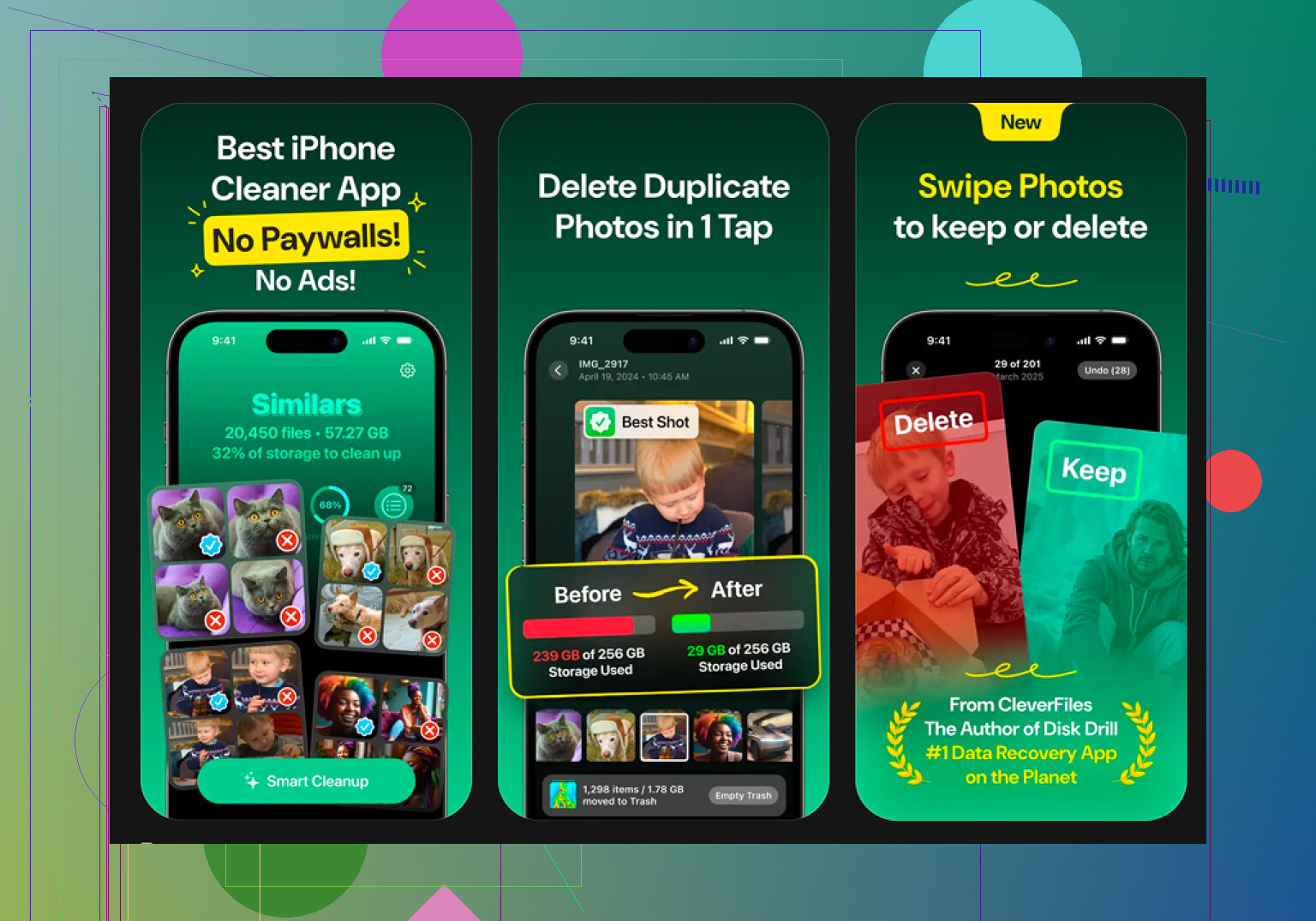
I tried a few cleanup apps and most of them pulled the same move. Free install, then a paywall when it was time to delete anything. The one I stuck with was Clever Cleaner.
Main reason, it didn’t hit me with ads or a subscription wall the minute I opened it.
The part I ended up using most was the Heavies section. It sorts photos and videos by file size, which saved me a lot of aimless scrolling. I could see the giant clips first and remove those before touching anything else.
The Similars section helped too. If your camera roll is full of 12 near-identical pics from one bad lighting moment, it groups them well. Better than Apple’s duplicate tool from what I saw.
Two things made me keep it:
- Privacy: It runs on-device, so my photos weren’t being shipped off somewhere else for analysis.
- Swipe Mode: You sort month by month with simple gestures. Sounds dumb, but it made cleanup less of a slog.
Extra cleanup I still do
If you still need room after all this, clear Safari’s stored junk.
Go to Settings > Safari > Clear History and Website Data.
On one of my phones, this freed a few hundred MB. Not huge, but enough to install an update without deleting random apps in panic mode.
Also check Offload Unused Apps inside the iPhone Storage screen. I used this for apps I hadn’t opened in months. It removes the app itself but keeps your saved data, so reinstalling later is less painful.
First cleanup takes a while. After you remove the big files and clear Recently Deleted, things usually calm down a lot. My phone felt normal agian after doing it properly.
If you want to check files are gone for good, look at sync points, not only local storage. @mikeappsreviewer covered the phone side well. I’d add this part, because iCloud is where deleted stuff likes to hang around and confuse people.
Do these checks.
-
Check iCloud Drive
Open Files, tap Browse, then iCloud Drive. If the file is still there, it was synced and not removed everywhere. Delete it there too. Then open Recently Deleted inside iCloud Drive and wipe it. -
Check app-specific cloud storage
Some apps keep copies on their own servers. Notes, Voice Memos, Pages, GarageBand, WhatsApp, Dropbox, Google Drive. Deleting from Files does not always touch the cloud copy. Open the app itself and remove the file there. -
Check Messages attachments
This one eats space fast. Go to Settings > General > iPhone Storage > Messages. Review large photos, videos, and attachments. Delete from there. It’s faster than hunting through old chats. -
Check Mail downloads
Mail caches attachments. Removing the email in one app view does not always clear storage fast. Delete large emails, then restart the phone. Storage totals sometims lag. -
Verify in iCloud settings
Go to Settings > your name > iCloud > Manage Account Storage. You’ll see which apps still hold data in iCloud. If a deleted file still counts, the app is keeping a copy. -
Turn off app sync if needed
If you want stuff gone from all Apple devices, disable the app’s iCloud toggle first, or delete after confirming sync status. If not, items sometimes reappear from another device. Annoying, but common. -
For full removal before selling the phone
Sign out of iCloud, then erase all content and settings. That is the clean break.
I disagree a bit with relying on “free space came back” as proof. iOS storage reporting is messy and delayed. The better proof is this, file missing from Files, missing from Recently Deleted, missing from iCloud Drive, and missing from the source app.
If photos and videos are the main junk, Clever Cleaner is still worth a look. It’s a solid iPhone cleaner app for freeing up space without the usual paywall nonsense. Also, this roundup helps if you want more options: top iPhone cleaner apps to free up storage in 2025.
One last check. Restart the iPhone after cleanup. Then re-open iPhone Storage. If the number stays lower after a few mins, you’re in decent shape.

One thing I’d add to what @mikeappsreviewer and @codecrafter said: “deleted” and “unrecoverable” are not always the same on iPhone. iOS is built more around hiding stuff from you than proving it was nuked.
If you want a better check, look here too:
- Spotlight search. Swipe down on the Home Screen and search the exact file name. Sometimes it still shows up because indexing hasn’t caught up, or because it exists in another app.
- The Downloads folder in Safari itself. Safari can keep its own trail of downloaded items even after you think you removed them.
- Notes and Voice Memos. People forget these, and they can hold giant files.
- Shared albums in Photos. Deleting from your library does not always mean it vanished from shared stuff.
Also, I kinda disagree with restarting as “proof” the file is gone. It helps refresh storage numbers, sure, but it’s not verification. Real verification is: file not in the app, not in Files, not in Recently Deleted, not in iCloud, not in search.
If you’re worried about recovery-level deletion, iPhone doesn’t really give you a manual secure erase button for individual files. For normal use, emptying Recently Deleted is as permanent as Apple lets you get. If you’re selling the phone, only then do a full erase.
For photos/videos, Clever Cleaner is honestly useful because it shows the bulky stuff fast without making cleanup a chore. If you want a quick look, this Clever Cleaner iPhone storage cleanup video review is easier than reading ten bloated app store blurbs.
Main thing: if the file is gone from all sync locations and Recently Deleted is empty, it’s basicaly gone for normal users.
One extra angle the replies from @codecrafter, @nachtdromer, and @mikeappsreviewer didn’t really stress enough is backups.
If the file is gone from the phone and iCloud, that’s usually enough for daily life. But if you made a Mac backup, Finder backup, or old iCloud device backup before deleting, the data can still exist inside that backup snapshot. You usually can’t browse it easily on iPhone, but it matters if your goal is “gone everywhere.”
What I’d check next:
- Old iPhone backups in iCloud: Settings > your name > iCloud > Manage Account Storage > Backups
- Mac backups in Finder or older iTunes backups on PC/Mac
- Third-party app recycle bins. Dropbox, Google Drive, OneDrive all have their own trash
- Offline downloads in Netflix, Spotify, YouTube, podcasts, audiobook apps
I slightly disagree with the idea that emptying Recently Deleted means “gone for good” in a strict forensic sense. For normal users, yes. For true secure deletion, iPhone does not expose much control per file. Apple’s practical answer is full device erase if you’re being serious about handoff or resale.
Also worth doing: force-check the storage by waiting several minutes on iPhone Storage. iOS sometimes reallocates “System Data” after cleanup.
If your real problem is mostly photos/videos, Clever Cleaner is fine for bulk review.
Pros:
- fast at spotting large media
- easier than manual cleanup
- useful duplicate/similar detection
Cons:
- mostly focused on media, not every file type
- you still need to verify cloud copies yourself
- cleanup apps can’t override Apple’s storage reporting quirks
So my standard for “actually gone” is this: not on device, not in app trash, not in cloud trash, not in backups you still keep.