I accidentally deleted photos and videos from my SD card while moving files to my computer, and now important files are missing. I stopped using the card right away because I’m trying to avoid overwriting anything. What’s the best way to recover deleted SD card data safely, and which recovery methods or tools actually work?
I learned this the hard way once, so I’ll start with the part people skip. Stop using the SD card now. Pull it out of your phone, camera, drone, whatever had it mounted. Don’t take one more shot. Don’t record a clip. When you delete a photo, the storage usually doesn’t wipe the image bytes right away. It drops the file entry and marks the space as free. The photo data often sits there until new stuff lands on top of it. The second new write hits those sectors, your odds fall off fast.
Before you install anything, check the obvious places.
- If the card was in a phone, open your gallery app and look in Recently Deleted or Trash.
- If you used the card on a PC before, look in the Recycle Bin.
- Check cloud sync folders like Google Photos or OneDrive. I’ve seen auto-upload save people by accident.
- On your computer, turn on hidden files once. Sometimes files weren’t deleted, they were hidden by a glitch or bad software.
If the files are gone from the card itself, you’re in recovery-tool territory. Skip CHKDSK on Windows. Skip First Aid on macOS. Those tools are meant to repair file system problems, not pull deleted photos back. I’ve seen them make a messy card worse.
I tried a few options over time. The free ones exist, but they’re not pleasant.
PhotoRec and Windows File Recovery cost nothing, which is nice. Using them felt like doing taxes in a terminal window. No normal interface. PhotoRec also tends to dump recovered files into piles with generic names, no folder tree, no clean sorting. If you lost 2,000 images, enjoy your weekend. Recuva is easier to look at, but with RAW formats like NEF or CR2, I got mixed results and some broken files.
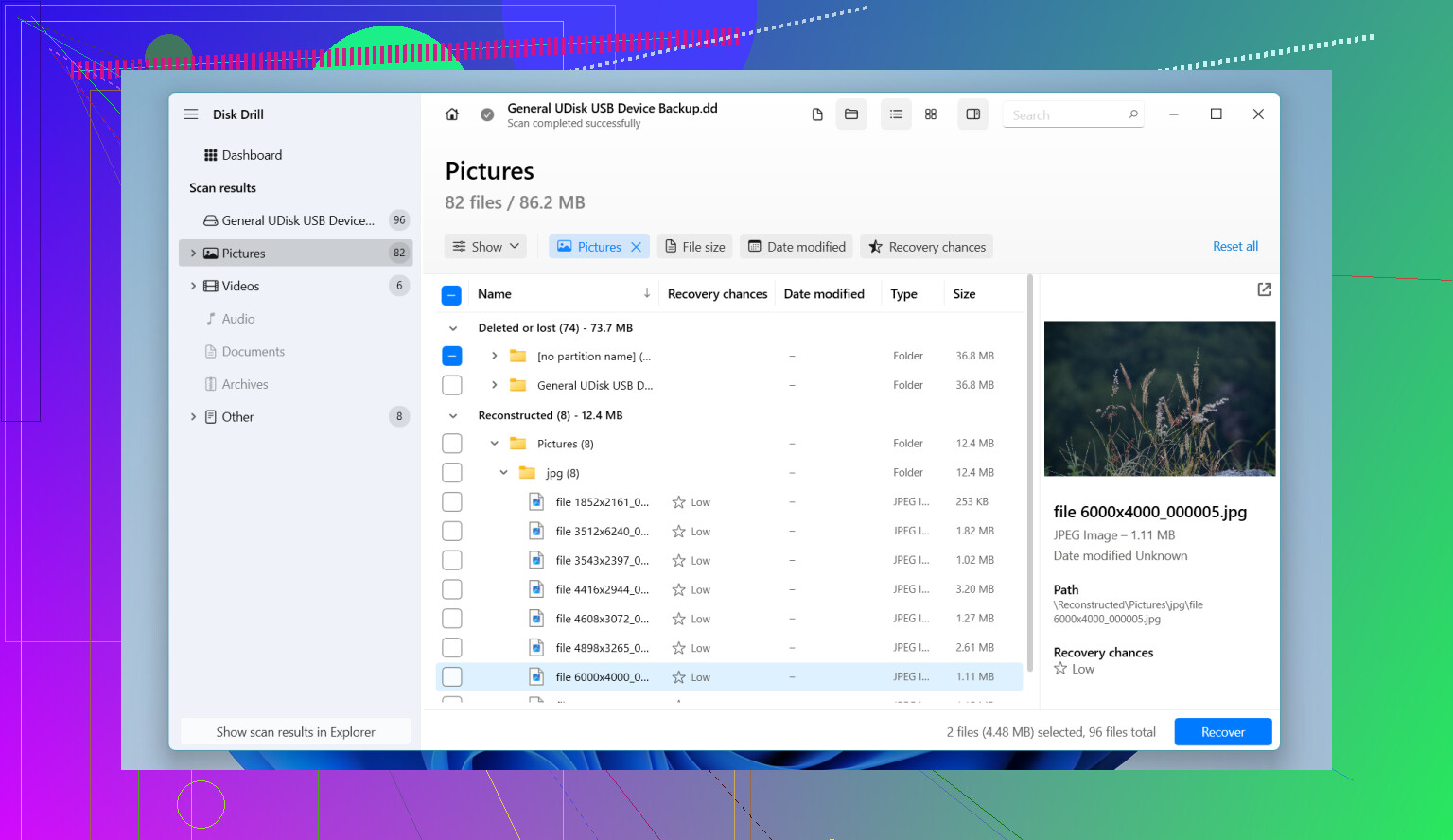
What worked best for me on SD cards was Disk Drill. I kept seeing people mention it in recovery threads, then I used it on a camera card and understood why. The scan is simple to run. It also has Advanced Camera Recovery, which is the part worth using for camera media, especially when files are split up or shot in RAW.
If you want the shortest path, do this:
- Install Disk Drill on your Windows PC or Mac.
- Insert the SD card with a card reader. Don’t connect the camera over USB if you can avoid it. Some cameras expose storage in a limited mode, and recovery apps don’t get proper low-level access.
- Open the app and pick the SD card from the drive list.
- Run a lost-data scan. If you only want photos or video, pick Advanced Camera Recovery.
- Wait. Big cards take a bit.
- Preview the files after the scan finishes.
- Select the good ones and recover them.
The preview step matters more than people think. If the app shows a clean preview, the file is usually intact. I use this to avoid restoring garbage with half an image or broken headers.
And don’t blow this last part, becuse it ruins recoveries. When the app asks where to save the restored files, save them somewhere other than the SD card. Put them on your internal drive or a different external disk. Writing recovered data back onto the same card risks overwriting the exact sectors you’re trying to save.
After you’ve checked the recovered photos and confirmed they open fine, then format the SD card in the camera if you plan to keep using it. At that point it’s safe. If you haven’t written new stuff onto the card since deletion, your chances are usually pretty decent. I’d start there.
You did the right thing by stopping use of the card. That matters a lot.
I agree with most of what @mikeappsreviewer said, but I’d add one step first. Make an image of the SD card before recovery. Work from the image, not the card. If the card has weak sectors or starts dropping reads, you get one clean shot. On Linux or macOS, ddrescue is the usual pick. On Windows, use any disk imaging tool you trust. This takes more time, but on important photos I’d do it.
A few practical points people skip:
-
Check whether the “move” failed on the computer side.
Sometimes Windows copies files, then throws an error before cleanup finishes. Search your PC by file type and date, not folder name. Look for JPG, MP4, MOV, CR3, NEF, ARW, DNG. Sort by modified date. -
Look at file system type.
FAT32, exFAT, and NTFS behave differently after deletion. SD cards are often exFAT now. Recovery rates are often best when no new writes happened after deletion. If you shot even 2 to 3 new videos on a full card, your odds drop fast because video files are large and overwrite big chunks. -
If the card asks to format, stop.
Do not click repair. Do not format. If Windows says the card is corrupted, recover first. -
If filenames matter, try file-system recovery before signature carving.
Signature scans find file content by pattern, but names and folder paths are often gone. Disk Drill is decent here because it shows both deleted file records and deep scan results in one place, which saves time. For camera stuff, that matters. -
Preview a sample from each file type.
Recover 5 photos and 2 videos first. Open them. Scrub through the videos. Corrupt files often look fine at the start and break later. -
If the files are business-critical, stop DIY after the image.
Labs cost money, but if this is wedding footage or client work, every extra recovery attempt lowers your margin for error.
I’d still put Disk Drill near the top for ease of use on SD cards, especially if you want previews and less manual sorting. If you want a visual guide, this quick guide to recover deleted files from an SD card shows the flow in a short format.
Main thing, recover to a different drive. Not back to the SD card. That mistake wrecks recoveries fast.

One thing I’d do a little differently from @mikeappsreviewer and @chasseurdetoiles is this: don’t get too hung up on making a full image first unless the card is acting weird. If the SD card reads normally, sometimes the extra imaging step just burns time and confuses people who already panicked-clicked their way into trouble. If the card is disconnecting, slow, or throwing errors, then yeah, image it before anything else.
Since you already stopped using it, the next move is basically: test recovery software that can preview files properly, and recover to your computer, not back to the card. That preview part matters a lot more for videos than photos. A JPG might open even when half of it is bad. A video can look fine for 3 seconds and then completely fall apart.
I’d also check whether your “deleted” files are actually just incomplete transfers on the PC side. Search by file extension and by size. Sometimes the files got copied but landed in some dumb temp/import folder.
For actual SD card photo/video recovery, Disk Drill is probly the easiest place to start because it handles deleted entries and deeper scans without making you babysit command line tools. I don’t agree with people acting like only free tools are “real” recovery. Time has value too.
Also, if this was from a camera, avoid plugging the camera in directly if you can. Use a card reader. Fewer weird driver issues.
If you want more SD card data recovery recommendations and a cleaner breakdown of what to try first, this thread is pretty useful: best ways to recover deleted files from an SD card
Small warning: if recovered files come back with wrong names, that’s annoying but normal. The main goal is getting the actual photos/videos back in one piece.