I ran Disk Cleanup on my Windows PC and realized it emptied the Recycle Bin with files I still need. What are the best ways to recover deleted files after Disk Cleanup, and is recovery still possible if I haven’t used the drive much since?
If you emptied the Recycle Bin and then realized an important file was in there, don’t panic yet. It may be gone from view, but that doesn’t always mean the data is fully wiped.
On Windows, deleted files often sit in the same place on the drive for a while. The system just marks that space as free to reuse. Once new data gets written over it, recovery gets much harder or impossible, so the main thing is to stop using that drive as much as you can.
Before trying recovery software, check the simple stuff first. Open the Recycle Bin again and search carefully. Look for the filename, but also check for the folder it used to be in. Sometimes the file was deleted as part of a larger folder, so it may not show up where you expect. If you find it, right-click it and choose Restore.
If the Recycle Bin is definitely empty, avoid writing anything new to that drive. Don’t install apps, download files, copy things over, or run updates if you can avoid it. Even normal computer use can overwrite the exact space where the deleted file was stored.
Next, check whether Windows already has a backup. Go to the folder where the file used to be, right-click inside it or on the folder itself, and choose Restore previous versions. If there’s a version from before the deletion, open it and copy the file somewhere safe.
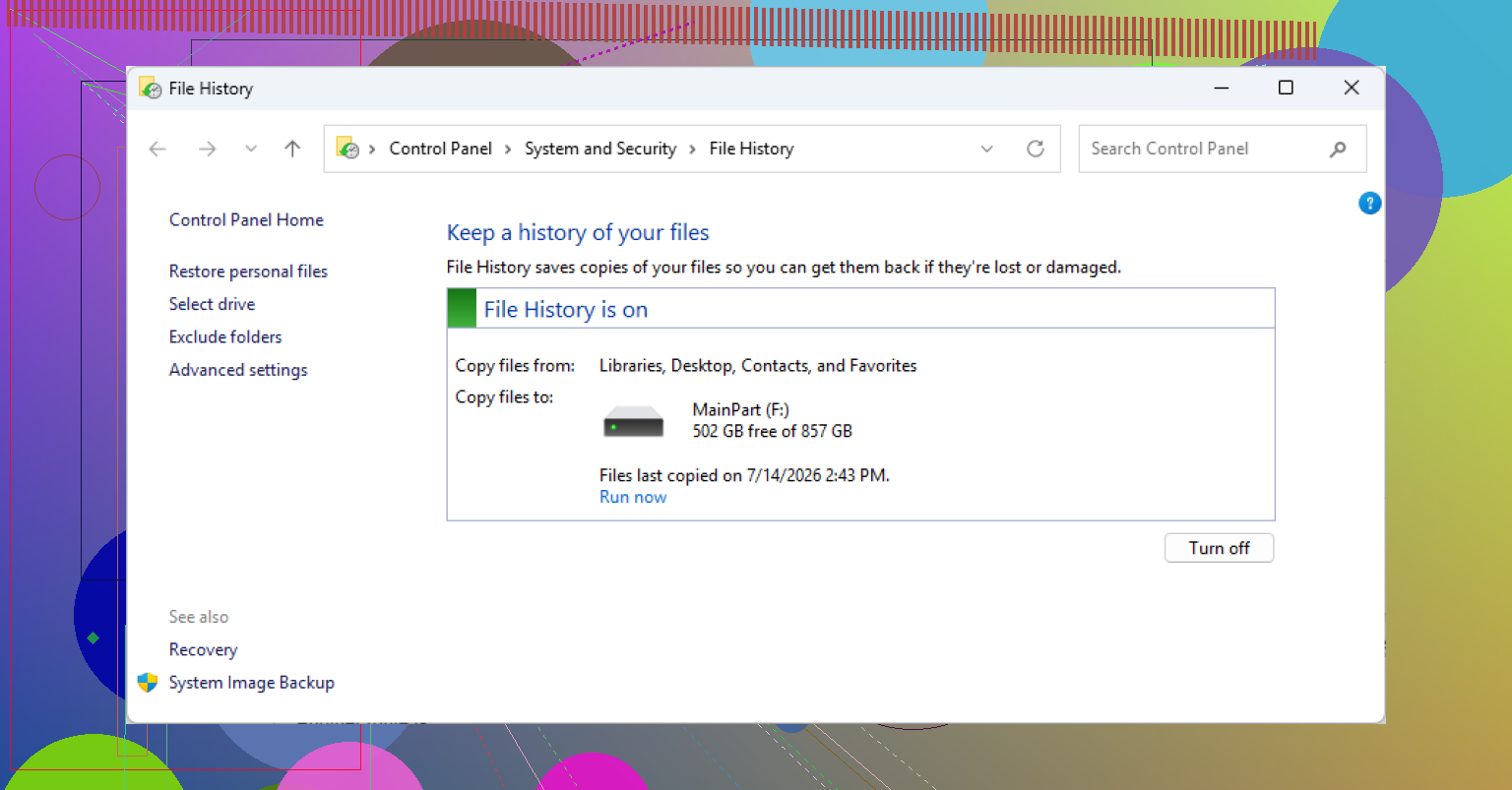
You can also check File History here:
Control Panel > System and Security > File History > Restore personal files
That lets you browse older versions of common folders like Desktop, Documents, and Pictures, assuming File History was enabled before the file was deleted.
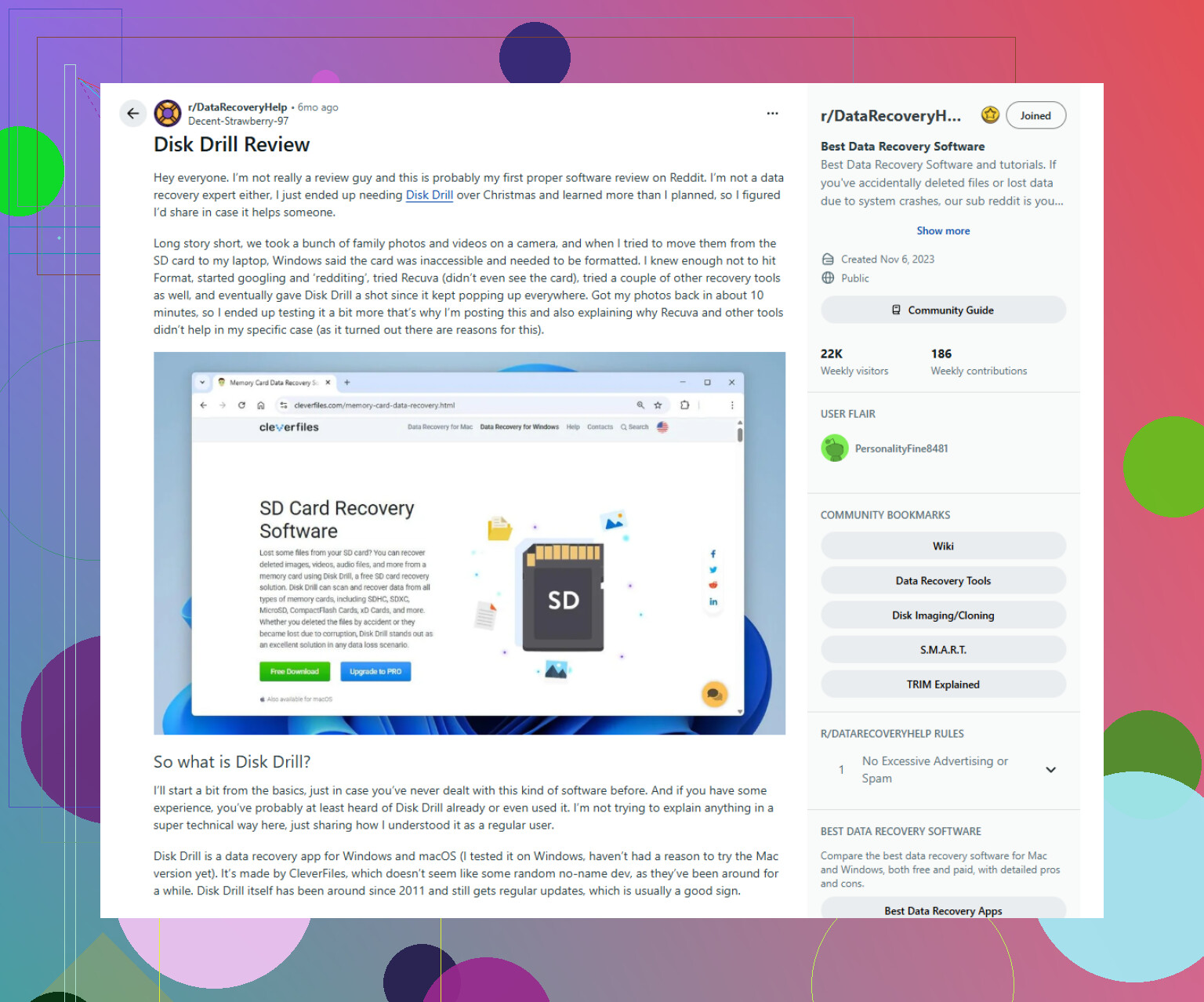
If you don’t have a backup, a recovery tool like Disk Drill is one option to try. It can scan for deleted files on Windows drives and supports common file systems like NTFS and FAT32.
Important part: install the recovery software on a different drive than the one you’re trying to recover from. If you install it on the same drive, you might overwrite the deleted file before the scan even starts. Once it’s open, choose the affected drive and click Search for lost data.
Let the scan finish, then use the preview option to check what it found. If a file previews properly, that’s a good sign, but it still doesn’t guarantee the recovered copy will be perfect.
When you find the files you need, select them, click Recover, and save them somewhere else. An external drive is best, but a separate internal drive is fine too. Just don’t recover files back onto the same drive you scanned.
Depending on the current licensing terms, the Windows version may allow a limited amount of recovery before payment is required.
One last thing: SSDs are trickier. Most modern SSDs use TRIM, which can clear deleted blocks pretty quickly. Once that happens, recovery may not be possible. If the deleted file was on an SSD, stop using the computer as soon as you can and check backups or recovery options right away.
1 Like
Do not keep “checking around” on that PC if the files were on C:.
If it’s a system drive, Windows itself may overwrite deleted data just by running, so the safer move is to shut it down and scan the drive from another computer or a bootable recovery USB. Tools like Disk Drill can be useful, but the bigger factor is whether the data blocks are still untouched, especially on an SSD.
A file deleted from a secondary hard drive is a very different situation from a file deleted from the Windows drive on an SSD. On an old external HDD, recovery software may still have a decent chance. On your main C: drive, especially if it is an SSD with TRIM enabled, the window can be very short. So yes, recovery is possible, but “I haven’t used the PC much” matters a lot more than people expect because Windows writes logs, updates, browser cache, thumbnails, and temp files in the background.
Before scanning, check places that are not the Recycle Bin. If the file was in Desktop, Documents, or Pictures, check OneDrive’s online recycle bin if you use Microsoft account syncing. Same idea for Dropbox, Google Drive, Adobe apps, Office AutoRecover, email attachments, or whatever app created the file. People often skip this and go straight to recovery tools, but a cloud trash folder or version history is usually safer than carving half-broken files off a drive.
If you do use a recovery tool, I agree with the others on the main rule: do not install it to the same drive and do not restore recovered files back to that drive. Disk Drill is fine to try if you want a normal GUI, but don’t assume a found filename means the file is healthy. Preview matters. If you want a free first attempt and you’re comfortable with commands, Microsoft’s Windows File Recovery is another option, but it is less friendly. For anything truly important, the best move is to power the machine off and work from another system or make an image of the drive first. The more you experiment on the original disk, the more you turn a possible recovery into a coin toss.

Find your BitLocker recovery key before you start pulling the drive or booting from recovery media. A lot of newer Windows PCs have device encryption on by default, and if you move the SSD to another machine or boot from a USB tool, Windows may ask for that key. Check your Microsoft account first if you sign in with one. Getting locked out while trying to recover deleted files is a very annoying way to make the problem bigger.
I agree with the SSD warnings above, but I’d be a little more conservative about “trying a few tools.” Pick one approach and do it carefully. If the files were on an external HDD, scanning it from another computer is usually fine. If they were on the internal C: drive, shut down, use another PC if possible, and save recovered files to a totally different disk. Disk Drill is fine for a GUI scan because you can preview files before recovering, but preview matters more than the list of filenames. Recovery software often shows old names or folder paths even when the actual file contents are damaged.
Do not run CHKDSK, defrag, another cleanup tool, or “repair drive” prompts before recovery. Those are meant to make the file system consistent, not preserve deleted data. After you’ve tried backups, cloud trash, previous versions, and a recovery scan, the honest answer is: yes, recovery can still be possible, but if it was an SSD system drive and Disk Cleanup emptied the bin some time ago, expect mixed results rather than a guaranteed restore.