I’m overwhelmed by all the universal TV remote options and need help picking one that can reliably control my TV, soundbar, and streaming box. My current remotes keep losing sync or won’t program correctly, and I’m tired of juggling three different remotes. What models are you using that actually work well, are easy to set up, and won’t break after a few months?
Hi everyone,
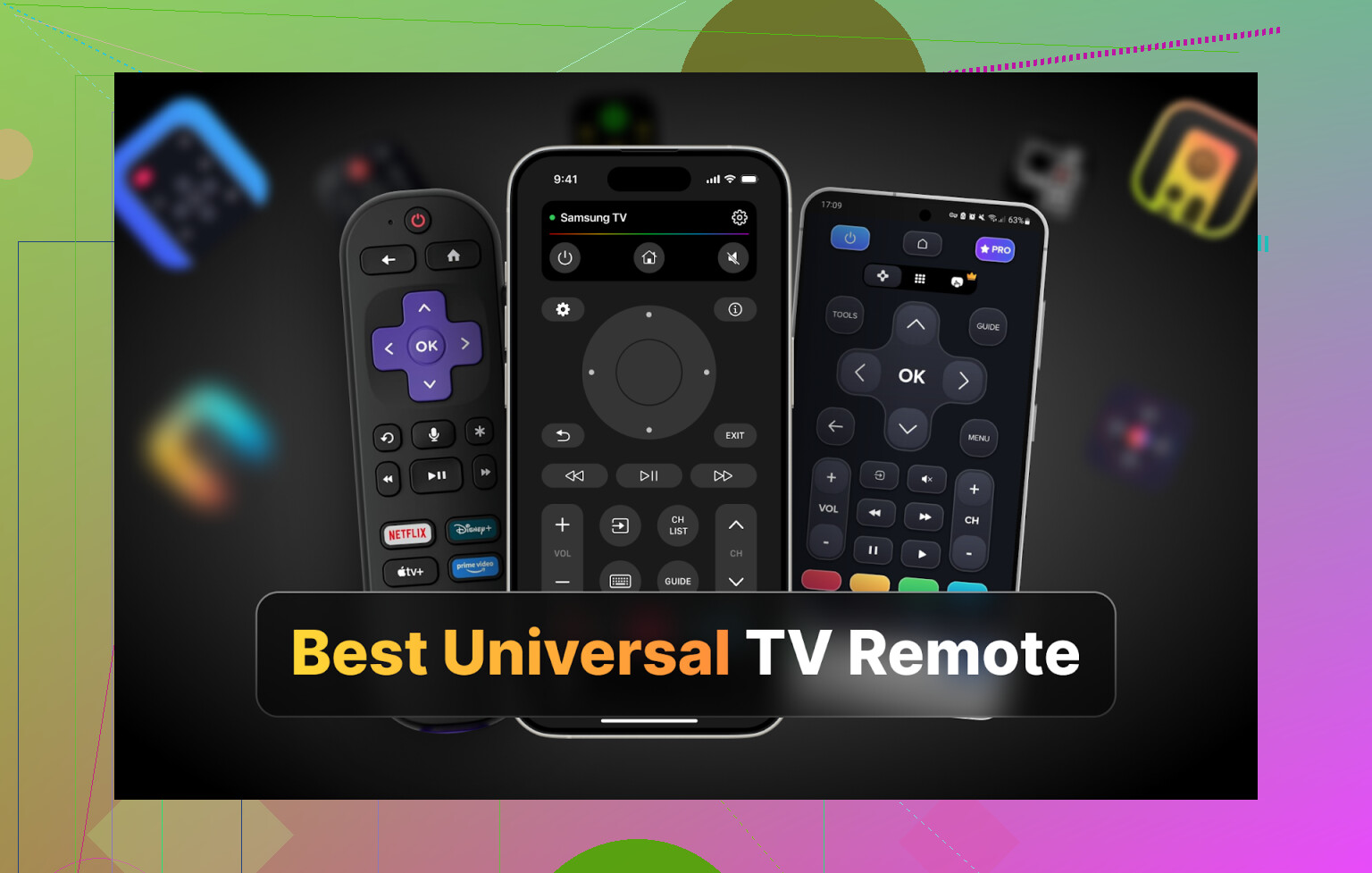
I hit the point where I was done hunting for TV remotes under the couch. We have two TVs at home, a Samsung and an LG, each with its own remote, both always in the wrong room. My phone is on me all the time, the remotes are never where they should be, so I started testing “universal TV remote” apps on iPhone, Android, and Mac.
Below is what I tried, what broke, what worked, and what I would actually keep installed.
I’ll leave all links intact in case you want to check the same apps.
Part 1: TV remote apps I tried on iPhone
I pulled four of the popular ones from the App Store:
- TVRem Universal TV Remote
- TV Remote – Universal Control
- Universal Remote TV Smart
- TV Remote – Universal
All tests were on an iPhone, on the same Wi‑Fi as a Samsung and an LG.
TVRem Universal TV Remote – the iPhone app I kept
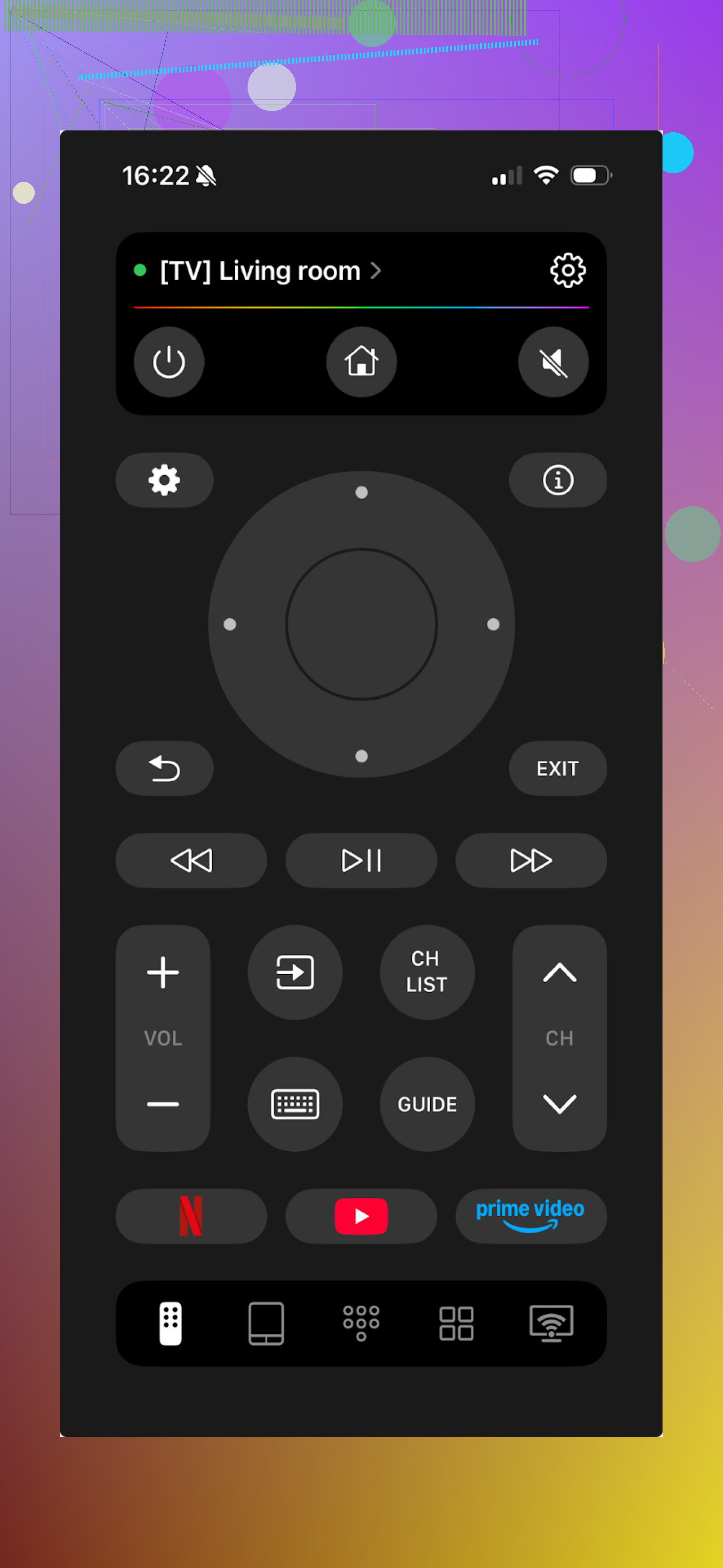
I started with TVRem because a friend sent it to me and said “this one does not try to charge you every tap”.
It works with a bunch of brands: LG, Samsung, Sony, Android TV, Roku, etc. I tried it with Samsung and LG, both paired without any drama as long as they were on the same Wi‑Fi.
Here is what ended up mattering for me:
- Touchpad feels smooth enough for app navigation
- Voice control hooks into Google Assistant or Alexa on supported models
- Normal keyboard input instead of pecking letters on the TV
- Channel switching and basic playback
The weird part, in a good way, is that it is fully free. I dug around looking for a paywall, subscription, or “pro” screen and did not hit one.

Pros
- Easy to connect to TVs
- Interface is simple to figure out without guessing
- No paywalls, no “start free trial” screen
- Supports a lot of brands and platforms
- Covers what a standard remote does
Cons
- No support for Vizio TVs
Price: free
Link: TVRem Universal TV Remote App App - App Store
Verdict:
If your TV brand is supported, this is the one I would install first. It feels like a normal remote on your phone, without the usual “subscribe to use the OK button” nonsense.
There is also a pretty detailed Reddit thread comparing universal TV remote apps vs real remotes here:
https://www.reddit.com/r/DataRecoveryHelp/comments/1qqa2bh/best_universal_tv_remote/
Product page:
TV Remote – Universal Control
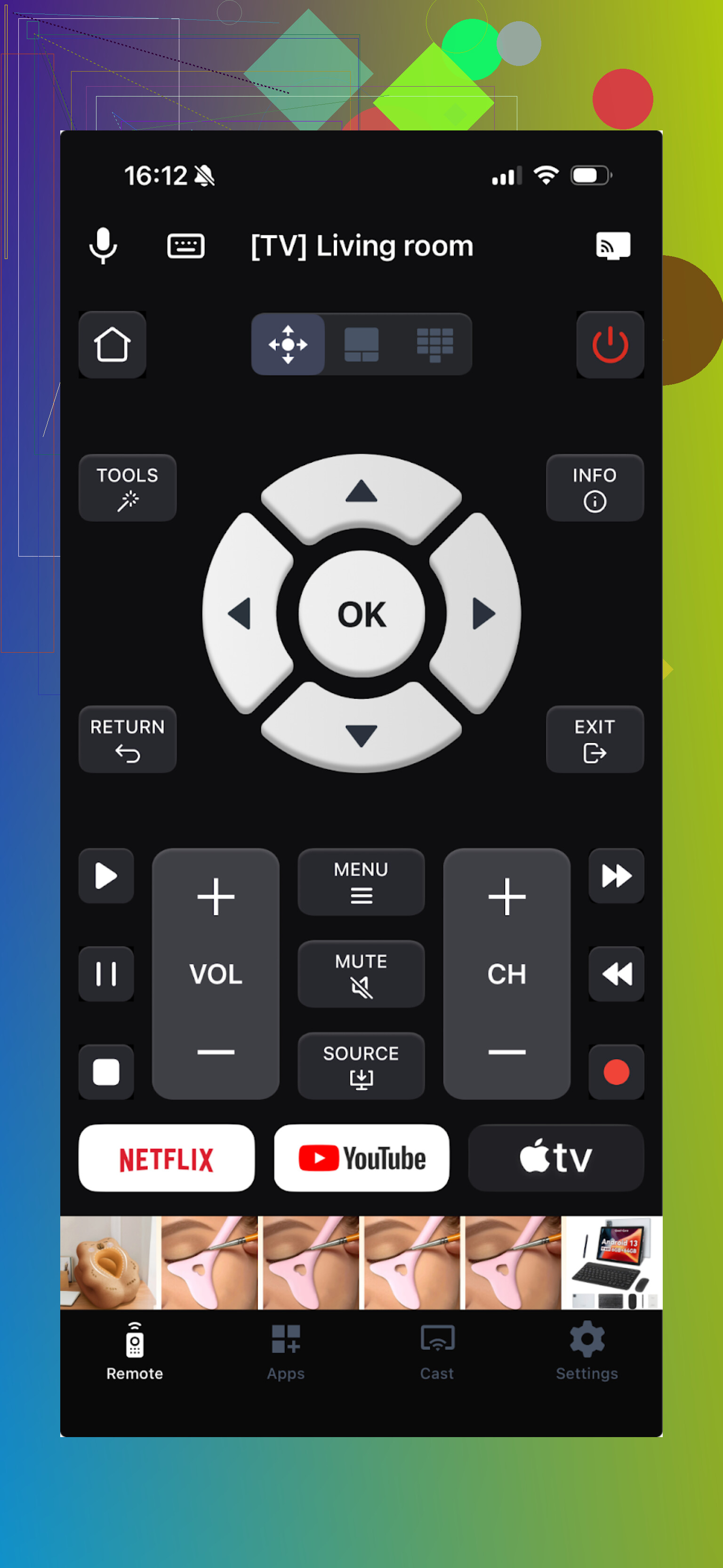
This one also aims to be a universal remote and connects over Wi‑Fi. If your router is flaky, your experience will be flaky. Mine was ok.
Useful bits for me:
- Touchpad
- Voice control
- Channel launcher
- Built‑in keyboard
There is media casting in there too, but I did not care much about that part for daily use.
The catch: almost everything is locked. I had to start a free trial to test the full thing, and most regular buttons like keyboard or some navigation options triggered a “start trial” screen.
Pros
- Features you want from a remote are present
- Works with most big TV brands
Cons
- Ads inside the app
- A lot of basic features are behind paywalls
- I had a couple of app crashes when opening the menu
Price: from $4.99 and up
Link: TV Remote - Universal Control App - App Store
Verdict:
Usable, but you hit some paywall or offer screen constantly. If you hate tapping something and getting a subscription popup, this will bother you. I skipped paying and moved on.
Universal Remote TV Smart
Out of the four iOS apps, this one felt the worst to use.
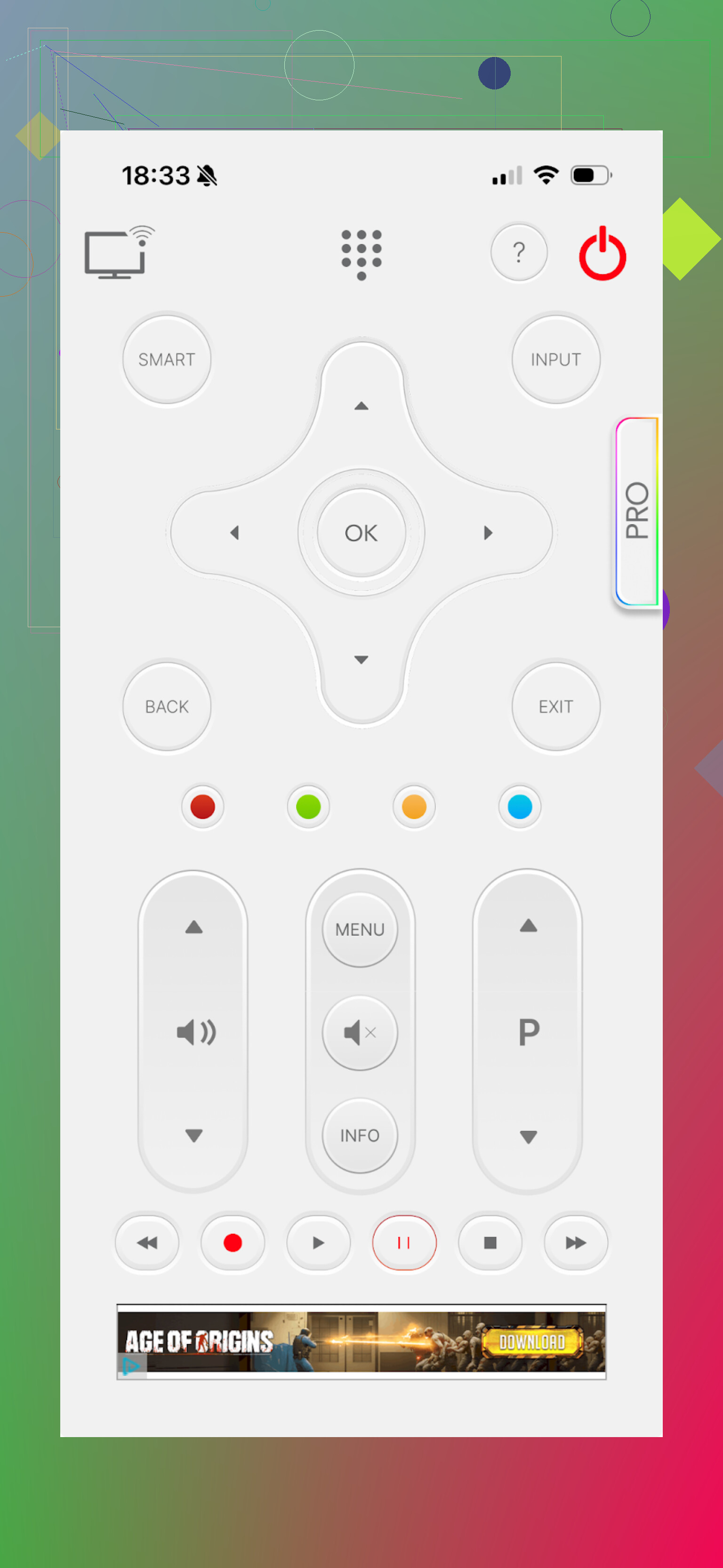
Interface first: the layout did not match how my brain expects a remote to look. Buttons feel scattered and it never felt like a physical remote replacement. It still has the basics though:
- Keyboard
- App navigation
- Volume control
- Channel switching
Pros
- Works with many TV brands
Cons
- Awkward interface, hard to use by feel
- No voice control
- Intrusive ads, including forced video ads
- Many actions trigger paid offers. For example, I moved to the YouTube app and hit OK, and got an offer screen instead of YouTube
Price: from $7.99 and up
Link: Universal remote tv smart App - App Store
Verdict:
There are better ways to spend money. I did not like the interface, the ads, or the way every second tap led to a payment prompt.
TV Remote – Universal
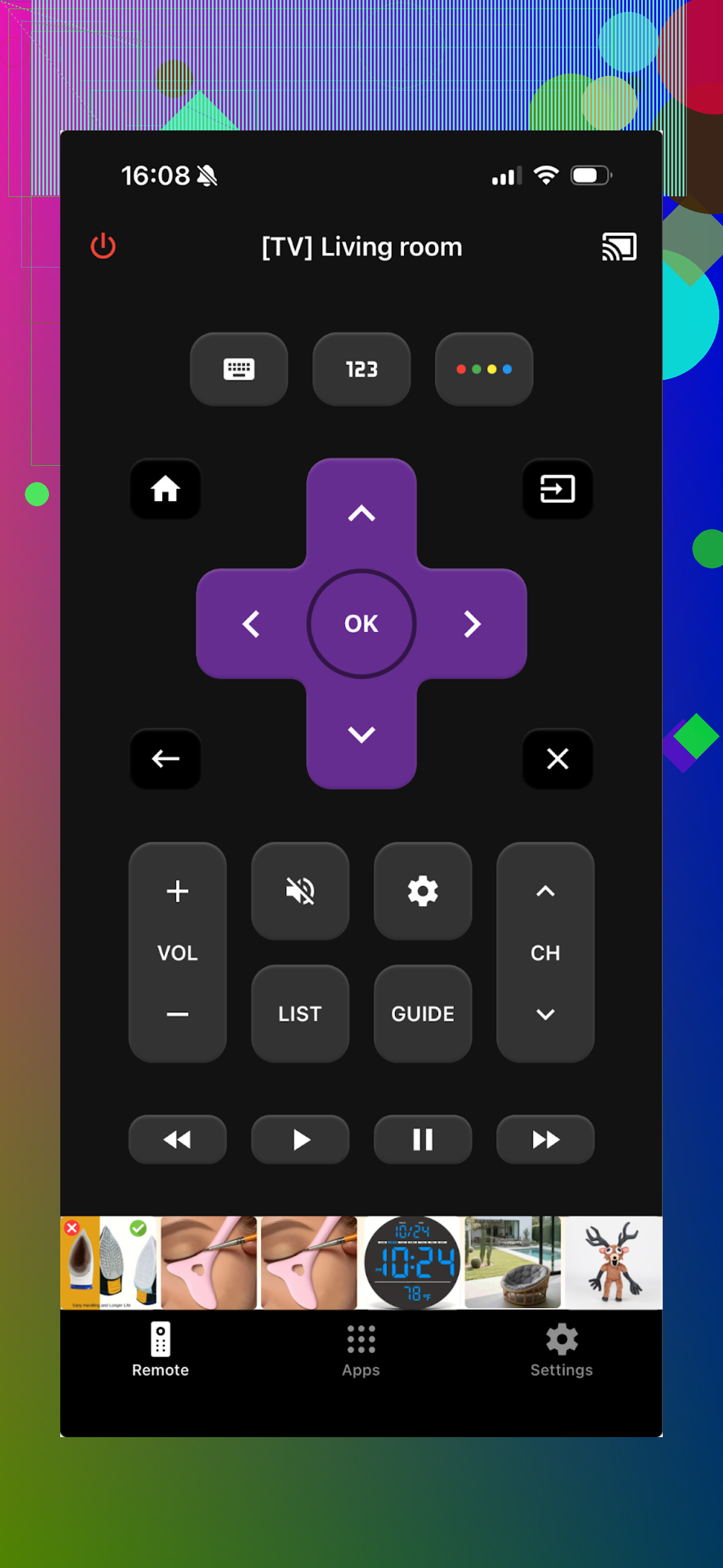
This one turns your iPhone or iPad into a remote and supports LG, Samsung, Sony, Vizio, Android TV and others. So it technically covers more brands than TVRem.
It connects over Wi‑Fi, so again, TV and phone have to sit on the same network.
Features:
- Channel and app switching
- Keyboard input
- Rewind, pause, play and other basics
Pros
- Finding and connecting to TVs was straightforward
- Interface is clear
- Basic functions work without hunting in menus
- Free trial exists
Cons
- Ads in the free version, removable with payment
- Most advanced stuff is paywalled and many buttons trigger upsells
Price: from $4.99 and up
Link: TV Remote - Universal App - App Store
Verdict:
I used the free trial. The app did its job, but the main screen lagged occasionally. It is fine if you are ok paying and you do not mind the initial ad and upsell wall. I still preferred TVRem because I did not have to think about any of that.
Part 2: Android TV remote apps I tested
My wife is on Android, so we tried several apps to see what she could live with every day.
Universal TV Remote Control
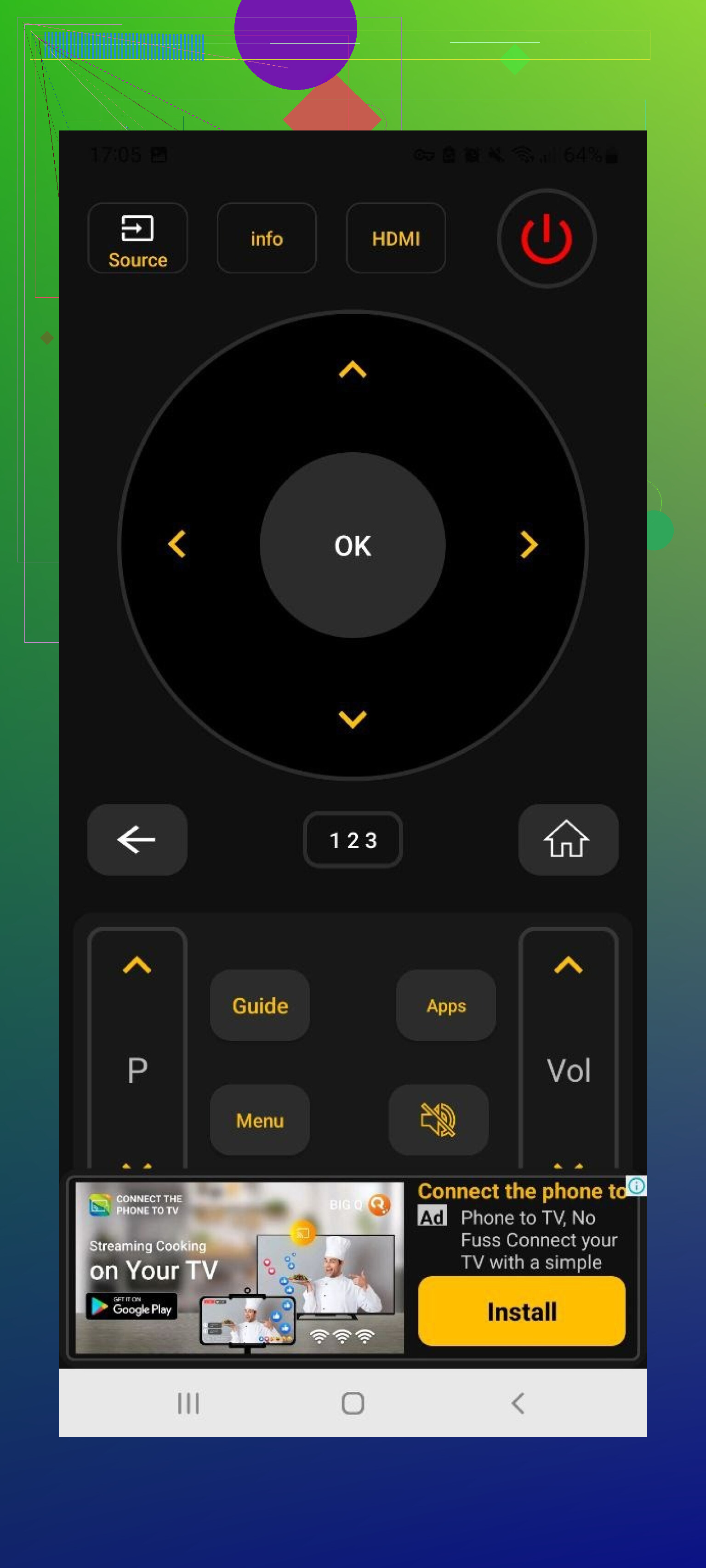
This one tries to be the “one remote to rule all TVs” for Android. It supports Sony, Samsung, LG, Philips, TCL, Hisense, Panasonic, and more.
Nice part:
- Works over Wi‑Fi
- Also works as an IR remote if your phone has an IR blaster
Features that mattered:
- Trackpad navigation
- Voice search
- App control
- Keyboard
All of that is free.
Then the ads hit.
Pros
- Supports many TV models
- Works both as an IR remote and Wi‑Fi remote
- Essential functions are not behind a paywall
Cons
- Too many ads. Some were hard to close, one or two did not show a close button right away
- The app crashed often, and I had to reconnect to the TV
Price: free
Link: https://play.google.com/store/apps/details?id=codematics.universal.tv.remote.control&hl=en
Verdict:
I liked the feature set at first. Then after a few ad interruptions during simple tasks, it became annoying. My wife tolerated it longer than I did, but even she complained after a while.
Remote Control For All TV | AI
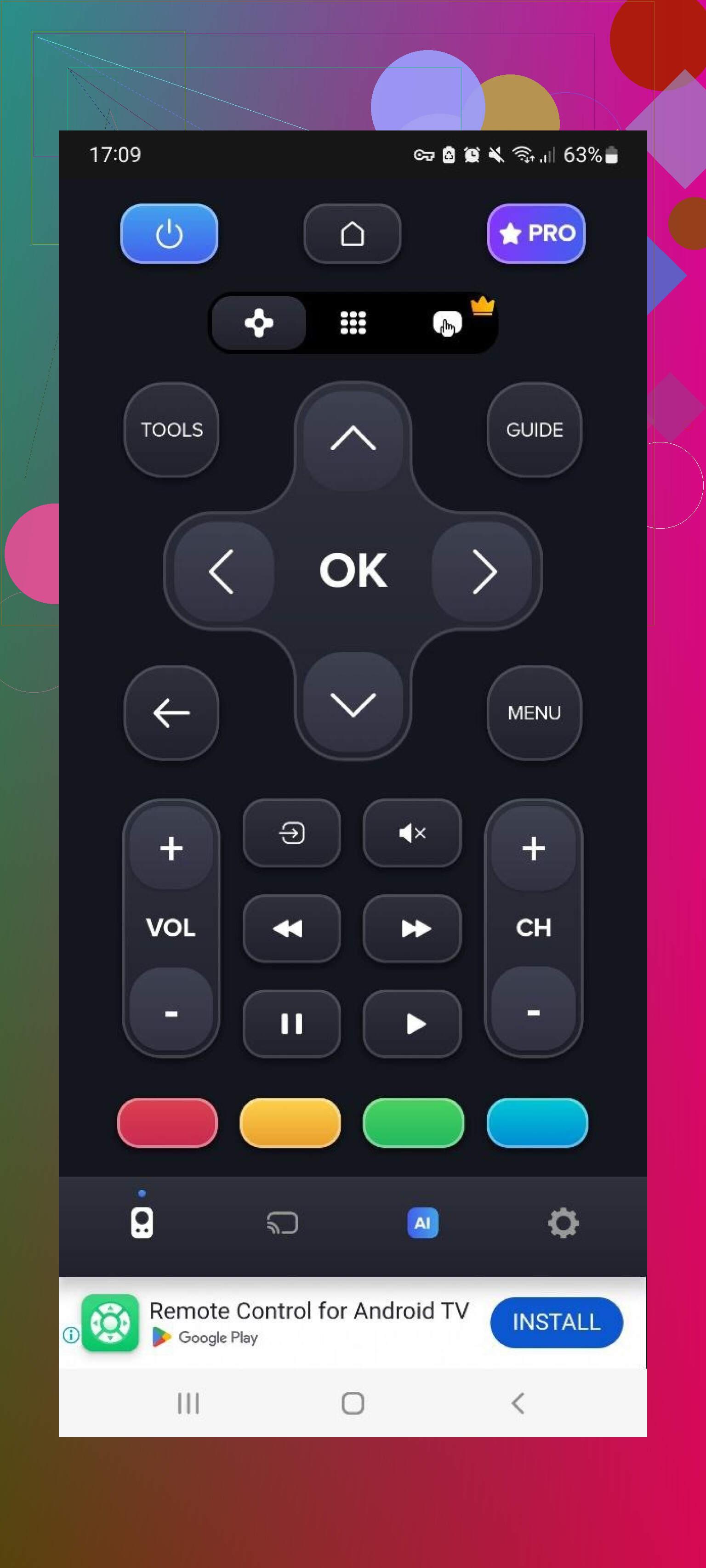
Works over Wi‑Fi with many TV brands. The free version gives you basic remote functions, which is fine for power, volume, and basic navigation.
The pain points:
- Lots of ads in the free tier
- TV detection and connection took longer than the other apps on the same network
Paid version unlocks:
- Ad removal
- AI assistant
- Built‑in keyboard with voice input
- Screen mirroring
Pros
- Wide brand support
- Basic controls available for free
Cons
- Heavy ad load in the free version
- Slow to detect and connect to TVs in my testing
- Useful features are locked behind paid plans
Price: from $4.99 and up
Link: https://play.google.com/store/apps/details?id=com.sensustech.universal.remote.control.ai
Verdict:
If you only need volume and power and do not mind ads, it works. For everyday use where you open the app often, the lag and ads start to feel tiring.
Universal TV Remote Control (Unimote)
This app tries to cover both Smart TVs (Wi‑Fi) and older TVs via IR if your phone supports it.
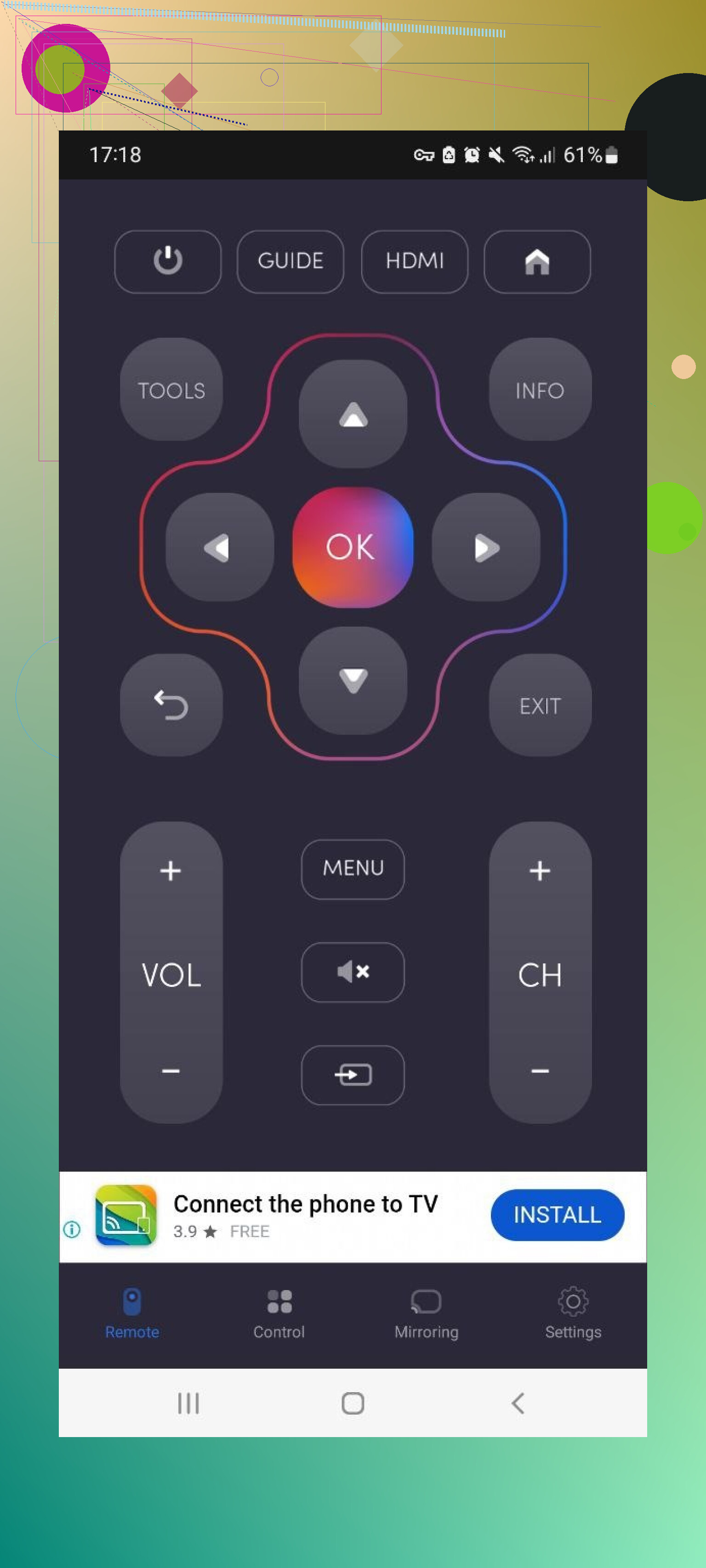
It found my TV quickly. Connecting took a few attempts though. Every time I thought “ok, now I can use it”, another full‑screen ad appeared.
Pros
- Simple layout for basic navigation
- Supports both IR and Wi‑Fi modes
Cons
- Full‑screen ads pop up often, including video ads
- Many features locked as in‑app purchases
- Connection dropped sometimes and I had to reconnect
Price: from $5.99 and up
Verdict:
Ok as a backup solution if you need to quickly control a TV that supports it. For daily use, the connection drops and ad spam got in the way.
Universal TV Remote Control (different developer)
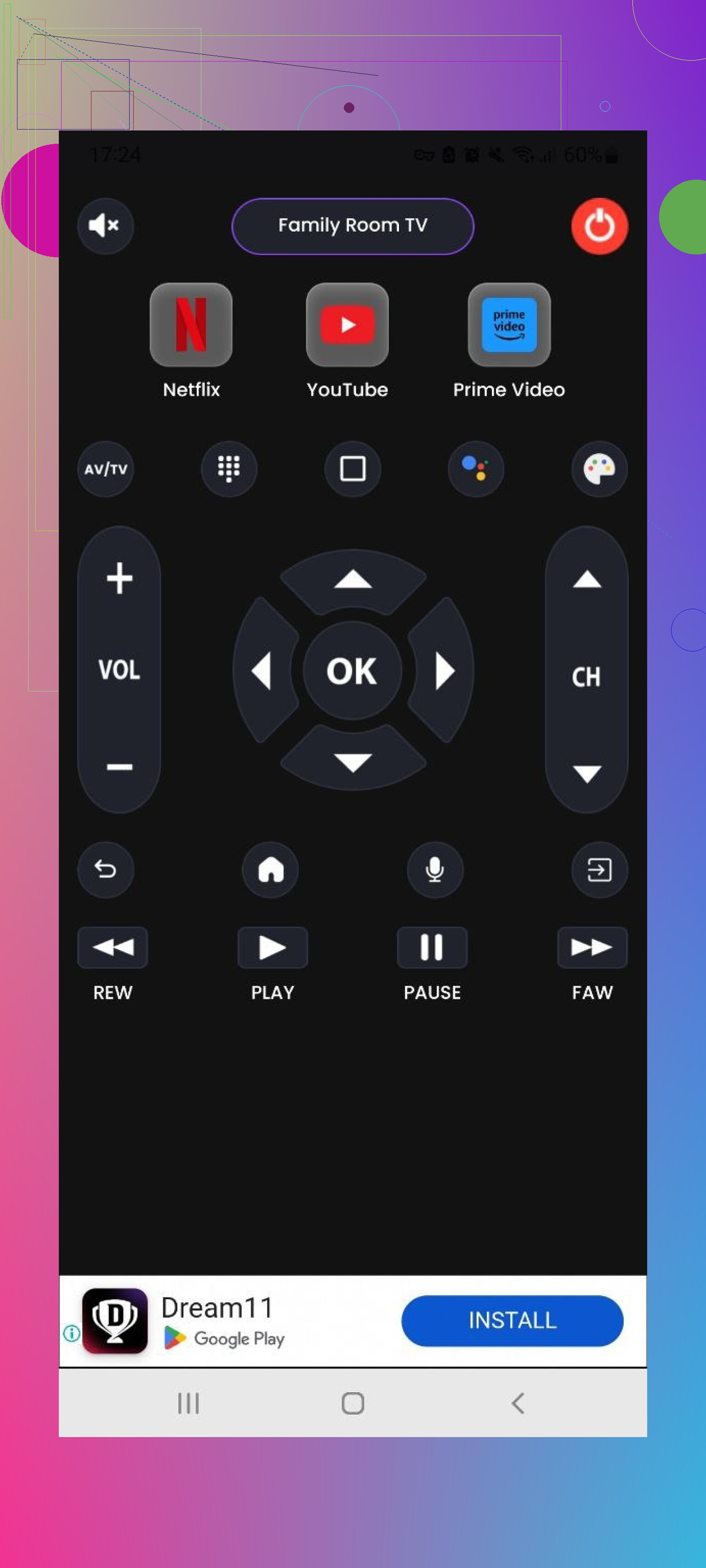
Last Android app I tried in this batch. Works with LG, Samsung, Sony, TCL and others. It tries to keep one main control screen and then adds basic TV functions:
- Power on / off
- Home / Menu
- Play / Stop / Back / Forward
It supports both Wi‑Fi and IR phones.
Pros
- All basic remote features are present
- Free trial offered
Cons
- Large amount of ads
- Most useful functions are in paid tiers
Price: from $3.99 and up
Link: https://play.google.com/store/apps/details?id=com.uzeegar.universal.smart.tv.remote.control&hl=uk
Verdict:
Works, but it feels like a demo with ads attached. If you are sensitive to ad interruptions, this will bother you fast.
Part 3: Controlling your TV from a Mac
This part surprised me. I did not expect to use my Mac as a TV remote much, but it turned out handy when I already had the laptop open on the couch.
TVRem Universal TV Remote (Mac)
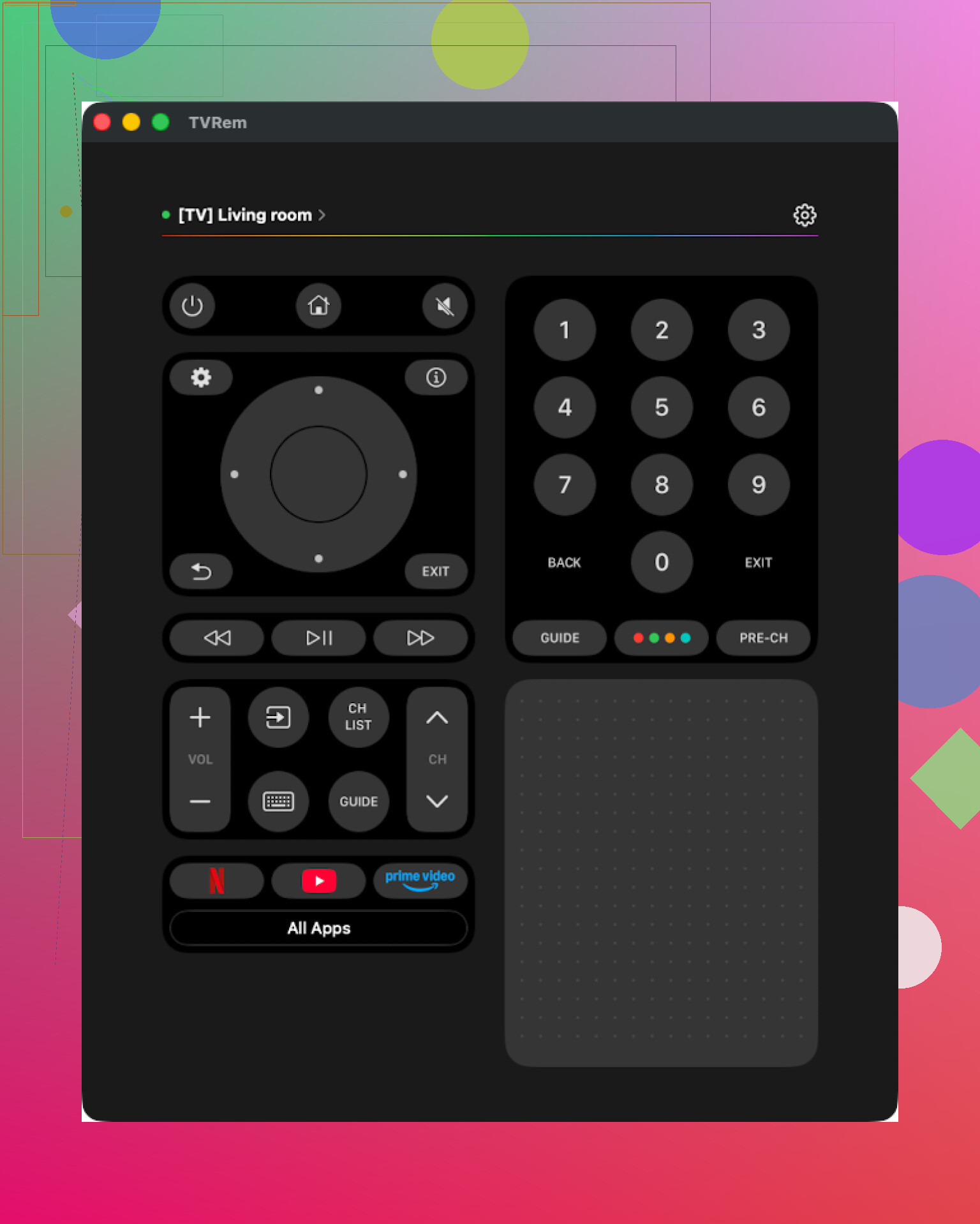
This is the Mac version of TVRem, downloaded from the Mac App Store. I tried it with a Samsung TV.
Setup:
- Install
- Ensure Mac and TV are on the same Wi‑Fi
- Select TV from the list
That was it. No accounts or signups.
Interface is minimal:
- Touchpad for navigation
- Keyboard
- App launcher
- Basic controls
Same as the iPhone version, I did not hit any paid screens.
Pros
- Interface is simple enough for anyone to understand
- No ads and no surprise paywalls
- Works with many popular brands
- Has everything you need for daily control
Cons
- No Vizio support
Price: free
Link: TVRem Universal TV Remote App App - App Store
Verdict:
If you use your Mac near your TV a lot, it is a solid free tool. I ended up leaving it installed.
TV Remote, Universal Remote (Mac)
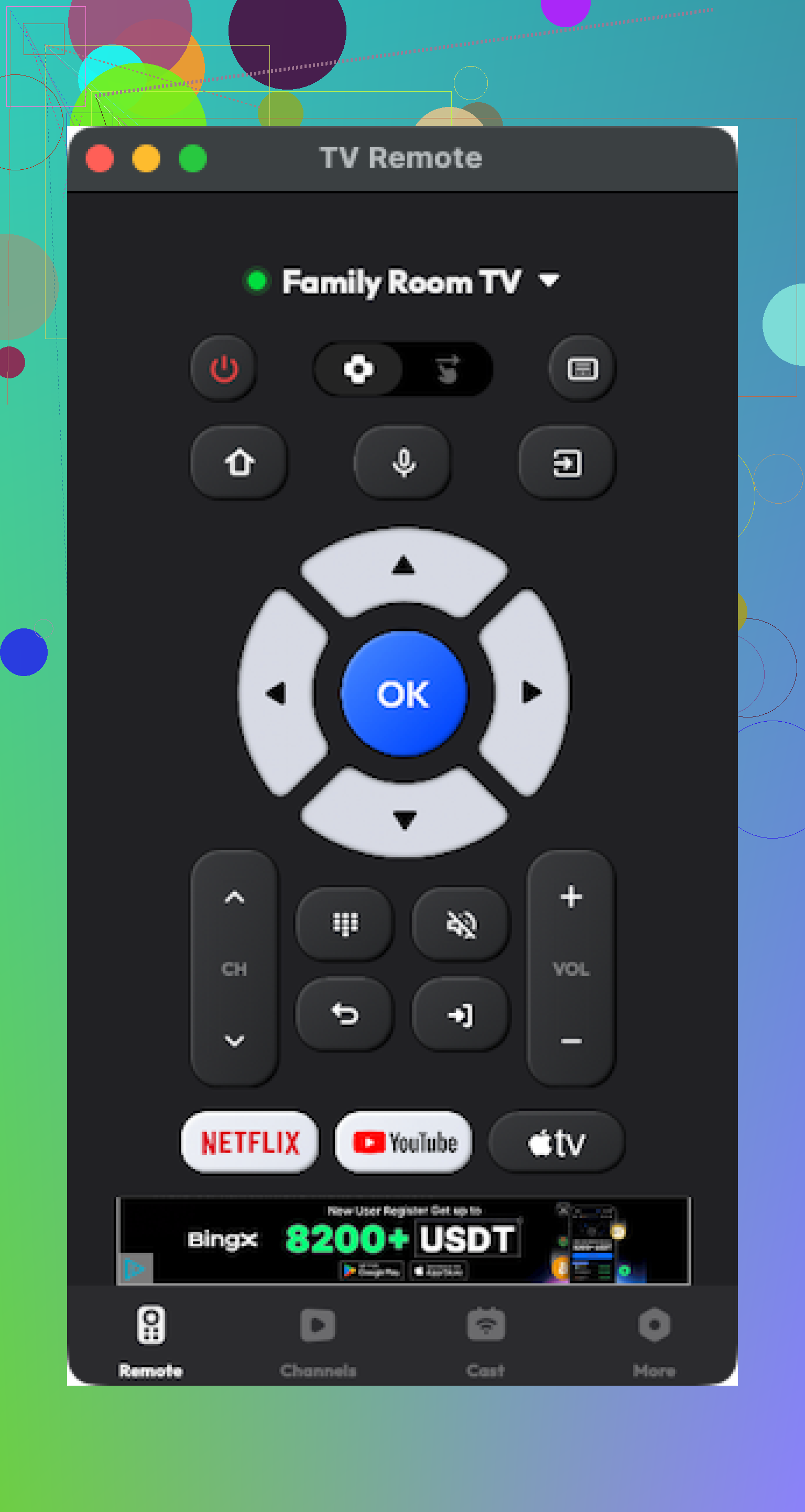
This one is also on the Mac App Store as a universal TV remote.
It connected to my Samsung without issue at first. Interface is ok. It supports many brands.
The friction points:
- A lot of features I wanted to use triggered paywalls
- It crashed a few times while I was testing menus
Pros
- Reasonable interface layout
- Supports many major TV brands, basic controls included
Cons
- Many functions locked behind payment
- Occasional crashes
Price: from $4.99 and up
Link: TV Remote, Universal Remote App - App Store
Verdict:
Usable if you plan to pay and the crashes get fixed in future updates. I personally did not feel like investing more time into it after running into a couple of app exits.
Part 4: Physical TV remote vs phone / Mac remote apps
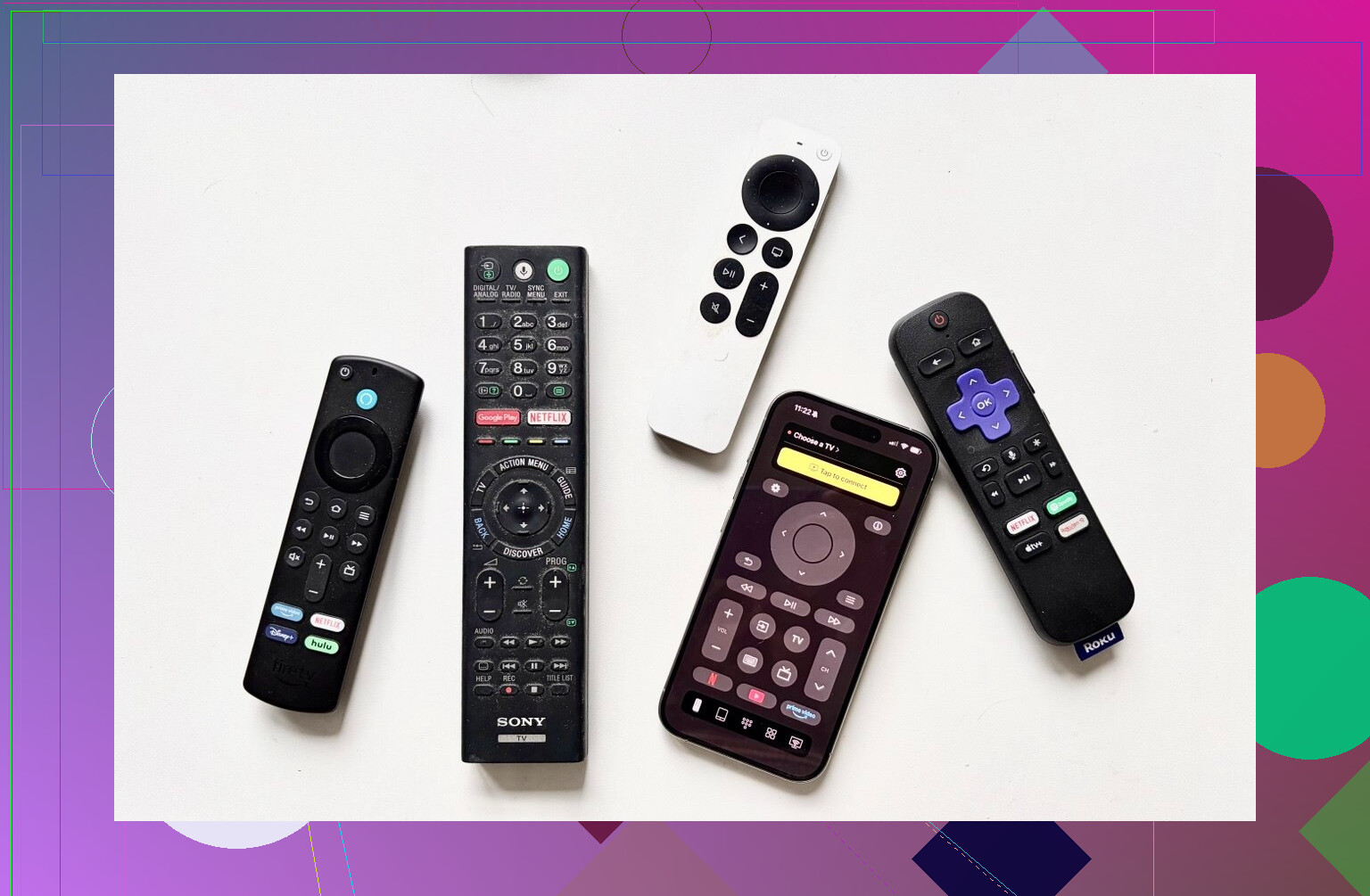
Quick definitions
Physical remote
The plastic thing that comes in the TV box or you order separately.
Remote app
Software on your phone or computer that connects to your TV over Wi‑Fi, Bluetooth, or IR.
Where a remote app wins
-
Less chance of losing it
I drop my phone, but I rarely lose it for days. Remotes disappear into random rooms, kids’ beds, the kitchen, etc. Phone stays with you, which means the remote app is where you are. -
Typing is not painful
Text input on a TV with arrow keys is slow. With an app, you get:
- Full keyboard
- Sometimes voice input
Logging into streaming services and typing Wi‑Fi passwords becomes much faster.
- Cost
Replacement remotes are not free.
At the time I checked:
- Samsung TV replacement remotes for models around 2019 to 2025 on Amazon sit roughly in the 15 to 20 dollar range
- LG remotes were around 13 to 35 dollars depending on model and features
A free app, when it works well, saves that money. Even a paid app at 5 to 8 dollars undercuts many hardware remotes.
-
Multiple TVs in one place
Most universal apps let you add more than one TV or device. If you have one TV in the living room and one in the bedroom, you switch inside the app instead of hunting a second remote. -
Interface
A lot of TV apps use clear labels and layouts that feel closer to phone UI. That made Netflix and YouTube navigation easier compared with some clunky stock remotes.
Where remote apps fall short
-
Wi‑Fi or Bluetooth required
If your TV is offline, or the Wi‑Fi is down, many apps will not connect. Some IR options avoid this but only if your phone has an IR blaster, which fewer modern phones have. -
You depend on your phone or Mac
If your battery is low or your phone is in another room, you are stuck. A physical remote always sits near the TV, at least in theory. -
Limited support per TV model
Some TVs allow only basic controls from third‑party apps. On those, you get power and volume, but not advanced app or input management.
Final thoughts from my tests
After running through all these apps, I ended up using software remotes more than the physical ones. Not because they are perfect, but because they are always with me.
Since I am on an iPhone, my ranking there is:
- TVRem Universal TV Remote
- TV Remote – Universal
TVRem stayed installed because:
- It is fully free
- No ads hit me while I was testing
- Touchpad and keyboard were enough to forget my original remotes most of the time
The only drawback is the lack of Vizio support. If you own only Vizio, it will not help.
TV Remote – Universal is decent once you pay, based on my trial. If you do not care about a few dollars for a smoother interface and your brand is supported, you might be fine with it.
My wife on Android ended up choosing Universal TV Remote Control from Play Store, mostly because:
- It worked with our TV models
- It had both IR and Wi‑Fi support
I still roll my eyes at the ad volume there, but it covers what she needs.
If you are tired of chasing remotes around the house, one of these should work for you. I would start with the free ones and only pay if you feel you need the extra features or an ad‑free setup.
You are fighting two separate problems here: sync/programming issues and too many devices. I’d stop chasing “universal” codes and pick a setup that solves both in one go.
Given what you want to control (TV + soundbar + streaming box), you have three solid paths:
- Physical universal remote that does activities
- Use your streaming box remote as the “hub”
- Phone app as a backup, not the main remote
I know @mikeappsreviewer is big on phone and Mac apps. Those help, but for “sit down and watch” use, a good physical remote is still less annoying than digging for a phone, unlocking, opening app, waiting for Wi‑Fi, etc.
- Best physical universal options
a) Sofabaton X1
• Controls IR, Bluetooth, and some Wi‑Fi gear
• Has “Activities” like “Watch TV” that turn on TV, switch input, set soundbar input
• Works with Roku, Apple TV, Fire TV, Shield, soundbars, AVRs
• Uses a hub near your TV, so the remote does not need direct line of sight
Why it fits you:
Your “losing sync” problem often comes from macros timed poorly in cheap remotes. X1 uses a hub and device specific commands. Less guessing, more reliable sequences.
Downside: setup app is a bit clunky. Take your time once, then stop touching it.
b) Inteset INT‑422 / UEI style remotes (cheap but solid)
• Program codes for each device
• You can teach volume keys to always control the soundbar
• Input macros on a single button
Works best if your devices use IR only and you do not need Bluetooth control for streaming. If your box is Roku Ultra, cable box, or similar IR model, this is enough. If it is Fire TV Stick or Apple TV, this will be more limited.
- Let the streaming box remote do the work
If you own one of these, check this path first, before buying a universal remote:
• Roku Voice Remote Pro
Controls: TV power, TV volume, sometimes soundbar via HDMI‑CEC or IR.
• Apple TV remote (latest USB‑C version)
Controls: TV power and volume via HDMI‑CEC or IR.
• Fire TV remote
Controls: TV power and volume, some soundbars, via CEC or IR.
If your TV and soundbar are both HDMI‑CEC friendly, you can do:
Streaming remote → TV → soundbar, through HDMI.
Turn on streaming box, TV wakes, TV tells soundbar to wake and switch input.
Check your TV settings menu:
• Samsung: Anynet+
• LG: Simplink
• Sony: Bravia Sync
Turn CEC on for TV and soundbar. Use HDMI ARC/eARC between TV and soundbar.
Your programming problems drop a lot once CEC is enabled correctly.
- Use phone apps, but only as backup
I slightly disagree with leaning fully into apps like @mikeappsreviewer. Great as a spare when the remote is in the kitchen, not great as “main remote for family”. Battery, Wi‑Fi, and “where is my phone” all get in the way.
Still, I would do this:
• If you have a Samsung or LG TV, install the official app
Samsung SmartThings
LG ThinQ
These do stable pairing and do not spam you with ads.
• For cross‑brand on iPhone, TVRem that he mentioned is fine, but treat it more like a backup “oh no where is my real remote” solution.
Concrete setups that work well
Scenario A
TV: HDMI‑CEC capable
Soundbar: HDMI ARC/eARC
Streaming box: Roku / Fire TV / Apple TV
Plan:
- Use the streaming box remote as your main remote.
- Enable CEC on TV and soundbar.
- Use TV remote only for rare input or picture settings.
- Keep one phone remote app installed for emergencies.
Scenario B
Older TV or flaky CEC
Soundbar and streaming box in mix
Plan:
- Get Sofabaton X1.
- Add TV, soundbar, streaming box in app.
- Create an “Watch Streaming” activity:
TV on, right HDMI input, soundbar on, correct input, streaming box wake. - Map volume to soundbar only, channel keys to streaming box where possible.
Scenario C
You want cheap, simple, no hub
Plan:
- Get an Inteset INT‑422 or similar UEI remote.
- Program TV, soundbar, box with codes.
- Use volume punch‑through to soundbar.
- Create a macro button for “Watch TV” that powers on TV and soundbar and sets input.
Quick checks before you buy anything
- Confirm what your streaming box is and if its remote already supports TV and audio devices.
- Check if your TV and soundbar are linked through HDMI ARC/eARC.
- Check if you need Bluetooth control, not only IR. Fire TV Stick and Apple TV need Bluetooth for full control.
If you post your exact models for TV, soundbar, and streaming box, people can tell you “go with X1” or “a 25 dollar UEI remote is enough” with more precision.
You’re not crazy, “universal” remotes are way more annoying than they should be.
Since @mikeappsreviewer already covered the phone/Mac app angle and @viaggiatoresolare laid out solid X1 / UEI options, I’d tackle it a bit differently and aim for minimum tinkering + maximum reliability:
1. First try to stop needing a universal at all
Check what streaming box you have:
- Roku: Newer Voice Remotes can control TV power/volume and some soundbars via HDMI CEC or IR.
- Apple TV: The USB‑C/Siri remote controls TV power and volume and can learn IR for a soundbar.
- Fire TV: Fire TV Stick / Cube remotes can handle TV power/volume and some soundbars.
If your TV and soundbar are on HDMI ARC/eARC and CEC is enabled:
- TV setting names:
- Samsung: Anynet+
- LG: Simplink
- Sony: Bravia Sync
- Plug soundbar into the TV’s ARC/eARC HDMI port.
- Turn on CEC on both TV and soundbar.
Result when it works right:
- Hit Home on the streaming remote → TV and soundbar wake, input is correct, volume keys go to soundbar.
For a lot of people this quietly solves the “3 remotes” mess with only 1 remote, no universal needed.
2. If that fails: pick one proper universal remote
I slightly disagree with how app‑heavy the discussion has gotten. Phone remotes are a nice backup, not the main daily driver, especially if other people in the house use the TV.
For your setup (TV + soundbar + streaming box), I’d go:
A. If you want “it just works” and are ok spending more
Sofabaton X1
- Controls IR + Bluetooth devices and some Wi‑Fi ones.
- Hub sits by the TV, so it is not line‑of‑sight sensitive.
- Activities like “Watch Streaming”:
- Turn on TV
- Set TV to correct HDMI
- Turn on soundbar, set right input
- Wake streaming box
- Much more reliable than the cheap “macro” remotes that just spam IR in a fixed sequence.
Caveats:
- Setup app UI is a little clumsy. Do it once carefully and then leave it alone.
- If all your stuff is IR only and pretty basic, X1 can feel overkill.
B. If you want cheap but still solid
UEI‑style remotes like Inteset INT‑422
- Great when everything uses IR:
- Typical cable box, Roku Ultra (IR version), older streamers, most TVs, most soundbars.
- You can:
- Set one device mode for TV, one for soundbar, one for box.
- Use “volume punch‑through” so volume keys always control soundbar no matter what mode you’re in.
- Make a macro button that powers TV + soundbar and switches inputs in one press.
This avoids the flaky “learning every key by pointing remotes at each other” that often leads to sync failures.
3. Where apps actually make sense for you
I would ignore most “universal remote” apps that spam ads and subscriptions. I know @mikeappsreviewer liked TVRem and I actually agree it is one of the few that does not feel like a slot machine. But:
- Use them as backup tools, not the primary remote.
- Good for:
- When the physical remote has vanished into the couch abyss.
- Logging into Netflix/Prime with a keyboard.
- Bad for:
- Fast “pick up and click” channel surfing.
- Other family members who do not want to dig out a phone, unlock, open app, wait for Wi‑Fi, etc.
So: keep one decent app installed (an official TV app or TVRem if your brand is supported), but solve your daily frustration with a physical remote or streaming remote + CEC.
If you drop your exact models for TV, soundbar, and streaming box, it’s possible to say “X1 is worth it” or “just get a 25 dollar UEI and you’re done” instead of guessing. Right now, the cleanest hierarchy is:
- Try to let the streaming box remote run the show via HDMI CEC.
- If that’s flaky or your gear is older, get a real universal: Sofabaton X1 if you want full flexibility, Inteset/UEI if you want simple, cheap, and reliable IR control.
- Keep a phone remote app as a last‑resort backup, not the main solution.