I accidentally permanently deleted important files on my Windows 11 PC, and they’re not in the Recycle Bin. I may have used Shift + Delete, and now I need help finding the best way to recover them before they’re overwritten. I’m looking for safe Windows 11 file recovery steps or tools that actually work.
I’ve been in this spot before, and yeah, it sucks. You hit Shift+Delete or empty the Recycle Bin, then the file is gone and your stomach drops. The part worth knowing is simple. A file marked as permanently deleted in Windows is not always wiped out right away. A lot of the time, Windows removes the file’s record and flags the storage space as free. If nothing else writes into that space, the old data might still be sitting there.
First thing I’d do, stop using the drive. Seriously, leave it alone as much as you can. Don’t install stuff on it. Don’t move files around. Don’t download junk. Don’t keep poking at it for no reason. Every write lowers your odds because new data can overwrite the deleted file. On SSDs this gets worse because of TRIM. TRIM helps SSDs stay fast by clearing blocks from deleted files. Once that cleanup happens, recovery gets a lot harder, sometiems flat out dead.
Before you scan anything, I’d check the boring places people forget about:
OneDrive
File History
Previous Versions
Other cloud storage accounts
External drives
NAS boxes
Any backup app you set up once and forgot about
I’ve seen “lost” files turn up there more than once. It feels dumb when it happens, but dumb is better than gone.
If backups come up empty, then I’d move to recovery software.
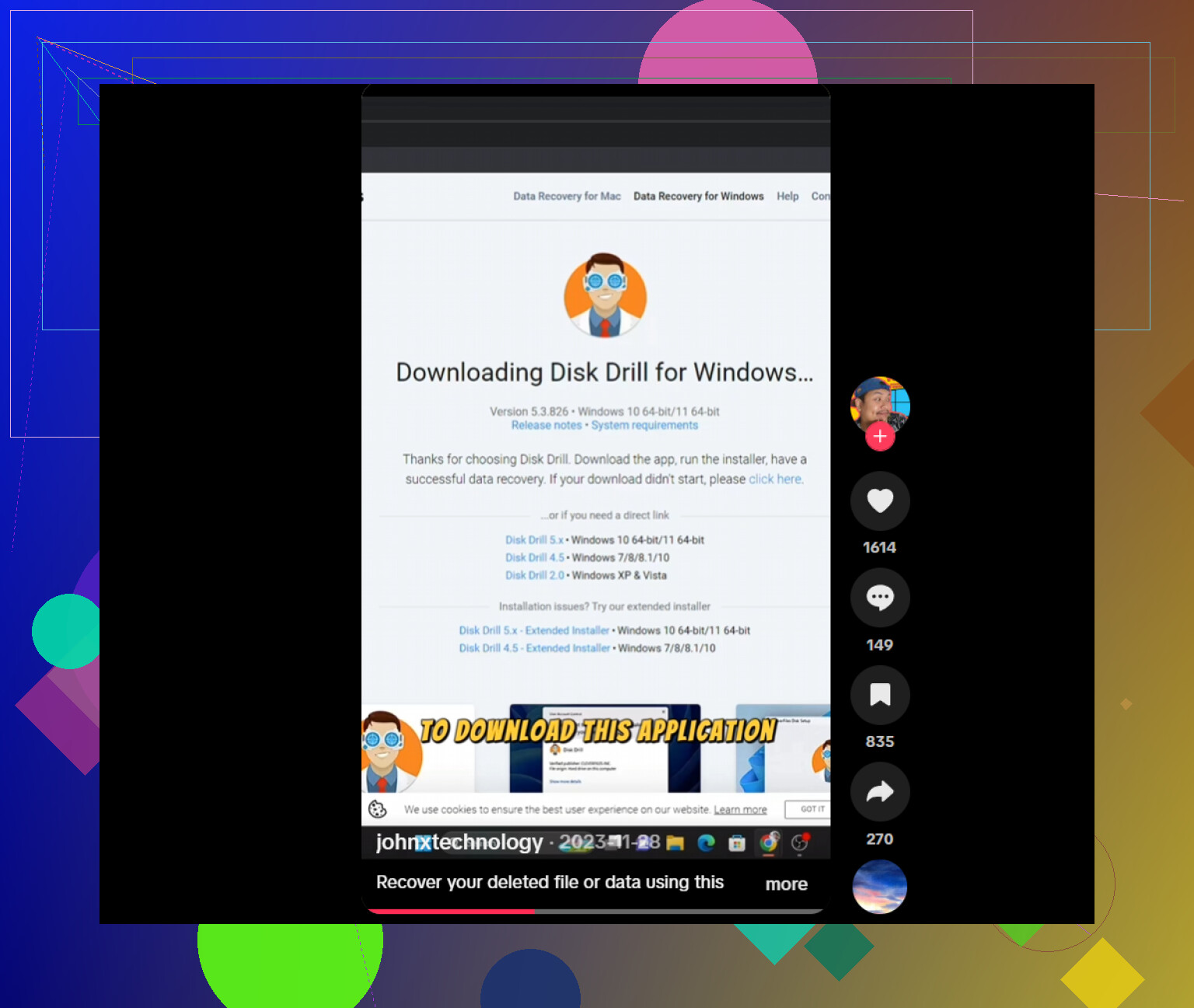
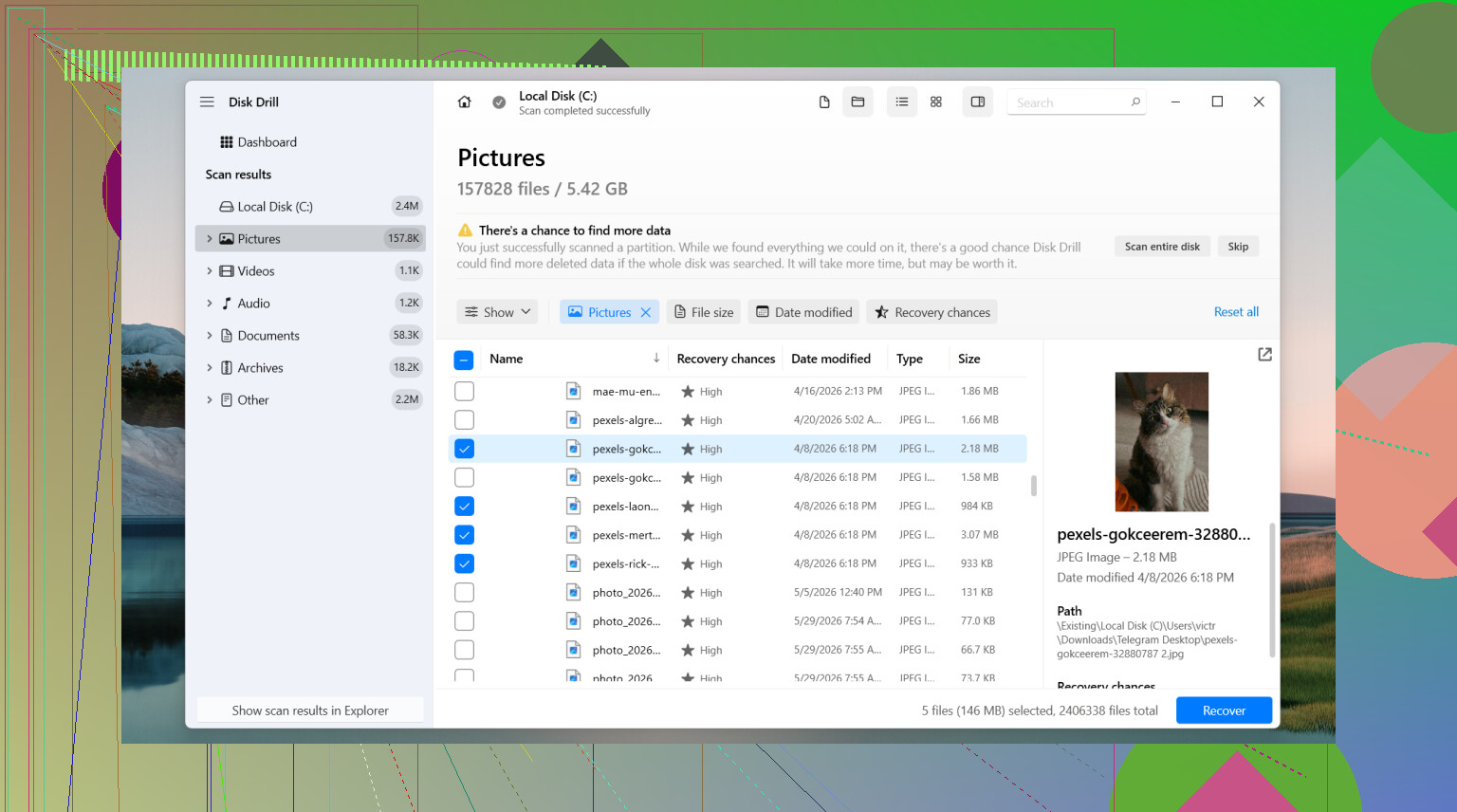
The one I’d start with is Disk Drill. I liked it because it didn’t fight me. The scan flow is easy to follow, and when the file system info is still intact, it often keeps original filenames and folders instead of dumping everything into a giant mess. Preview helps too. You can check many file types before recovering, so you’re not restoring a pile of random junk and hoping one of them is yours.
The usual flow looks like this:
Install Disk Drill to a different drive if you have one.
Pick the drive where the file got deleted.
Run the scan.
Use search and filters to narrow results.
Preview the file if preview is available.
Recover to a different drive, not the original one.
On Windows, it lets you scan and preview without limits, and the free recovery cap is 100 MB.
If Disk Drill doesn’t fit what you need, there are a couple other options people lean on a lot.
PhotoRec is free and pulls back a lot of data. The catch is how it works. It leans hard on file signatures instead of full file system details, so recovered files often come back with generic names and no folder structure. If you recover a lot at once, expect a long sorting session. Good tool, messy output.
DiskGenius is worth a look when the issue is bigger than one deleted file. I’d put it higher on the list for lost partitions, damaged partitions, RAW drives, and file system problems. When a drive looks logically broken, it sometimes finds stuff simpler tools skip.
One more thing. Recovery software is not always the right move. If the drive clicks, drops offline, vanishes from Windows, throws hardware errors, or holds data you can’t afford to risk, I’d stop and look at a professional recovery service instead. Software helps when the drive still reads cleanly enough. Physical damage is a different mess.
If this was a plain delete event and the drive hasn’t been used much since, your odds are usually better. Move fast, keep writes to a minimum, and recover anything you find to another drive.
1 Like
If the deletion happened today, I’d check one thing before running big scans. Search Windows 11 for the file name with wildcards, then sort by date modified. Apps often leave temp copies, autosaves, or export caches in AppData, Documents, or their own project folders. Office, Adobe apps, Notepad++, and some DAWs do this. People miss those all the time.
I partly disagree with @mikeappsreviewer on one point. Jumping straight into a full deep scan is not always the best first move. On a big drive, it takes forever and returns tons of junk. Start narrow. Scan the affected folder path or file type first if the tool supports it. Disk Drill is decent for this because search, preview, and file type filters are easy to use. If you know the extension, like DOCX, PSD, XLSX, filter early. It saves time.
Also check this if the files came from an app:
C:\Users\YourName\AppData\Roaming
C:\Users\YourName\AppData\Local
Win + R, type %temp%
Win + R, type recent
If your drive is an SSD and TRIM ran, odds drop fast. On many systems, deleted blocks get cleared within minutes or after idle time. If it was an HDD, recovery odds are better.
If you want a simple Windows 11 file recovery walkthrough, this helps: easy Windows 11 deleted file recovery tutorial
One more thing, save recovered files to another drive. Same drive is how people make a bad sitaution worse.
If it was Shift + Delete on Windows 11, I’d add one thing that @mikeappsreviewer and @waldgeist only touched on indirectly: try Windows File Recovery before going too far down the app rabbit hole.
It’s Microsoft’s own command line tool from the Store, and yeah, it’s not exactly fun to use, but for a straight accidental deletion it can work surprsingly well. Especially if you know the file type or folder. It’s less “pretty” than Disk Drill, but sometimes that’s not the point.
Example idea:
winfr C: D: /regular /n \Users\YourName\Documents\*.docx
That tells it to scan C: and restore matching files to D:. You need a second drive or partition for output. If regular mode finds nothing, there’s extensive mode too. I honestly think people skip this too often just because it looks nerdy.
Also, if the deleted files were photos/videos/docs from a phone, camera, SD card, or USB stick, pull that device out and connect it read-only if possible. Recovery odds there are often better than on a busy Windows system drive.
I slightly disagree with the “check temp folders first” advice if time matters and the file was deleted from the main system SSD. Every extra boot, app launch, and folder crawl can mean more writes. On an HDD, sure, poke around more. On an SSD, I’d be quicker and more surgical.
If you want a GUI tool, Disk Drill for Windows is still one of the easier options because preview and filtering are less annoying than a lot of competitors. Just don’t install it onto the same drive you’re trying to recover from if you can help it. That part matters more than people think.
Also worth checking:
- your app’s own recent/open history
- email attachments if the file was ever mailed
- printer/scanner software caches
- shared folders on another PC in the house
- Windows Search index weirdly surfacing copies
And if the file is truly irreplaceable, stop DIY stuff before you make it worse. One bad “recover back to same drive” move and it’s gg.
For anyone else landing here from search, this covers how to recover permanently deleted files on Windows 11 without File History or backups pretty well: Windows 11 deleted file recovery options after Shift+Delete
One angle I think @waldgeist, @vrijheidsvogel, and @mikeappsreviewer didn’t stress enough is checking whether the deleted file still exists in the app’s own metadata trail. Not temp files, actual traces. Open the app you used and inspect Recent, Open Recent, Recover Unsaved, AutoRecover, session history, and pinned paths. Sometimes the file itself is gone, but the last-used path tells you there was a duplicate export, renamed copy, or versioned save nearby.
I’d also check:
- OneNote cache if it was pasted there
- browser download history for older copies
- Teams, Slack, Discord, or email attachments
- printer spool/export folders for PDFs
%appdata%\Microsoft\Windows\Recent\AutomaticDestinations
Small disagreement with the “move straight to command line tools” crowd: if you are stressed and likely to make mistakes, a GUI is safer. That is where Disk Drill makes sense.
Disk Drill pros
- easy preview/search/filtering
- less chance of restoring wrong stuff
- good for quick triage
Disk Drill cons
- free recovery limit on Windows
- not ideal if the drive has physical issues
- deep scans can still return lots of raw files
If nothing shows and the file matters a lot, stop DIY before overwrite or SSD TRIM finishes the job.