My iPhone storage is almost full because I have thousands of duplicate photos, screenshots, and old videos. I’m trying to decide whether it’s safer to clean up my iPhone photo library manually or use a photo cleanup app. I’d appreciate advice on the best way to delete clutter without losing important pictures.
I had this same mess last year and kept ignoring it because I knew it was going to be annoying. By the time I finally dealt with it, my Photos library was past 20,000 photos and videos. I lost most of a Saturday cleaning it up.
The thing that helped most was not trying to treat every photo the same way. Screenshots, duplicates, Live Photos, random videos, and blurry “almost the same” shots all need slightly different cleanup.
Start with the easy stuff in Photos
I’d still begin with the built-in Photos app before installing anything. It’s good for obvious junk.
- Open Photos and go through albums instead of endlessly scrolling the full library.
- Use the swipe-to-select gesture so you can grab a bunch of photos at once.
- For albums like screenshots, use Select All when it’s available, then uncheck anything you actually need.
That gets rid of the low-effort clutter pretty fast, especially stuff you already know you don’t care about.
Use an app for the repetitive part
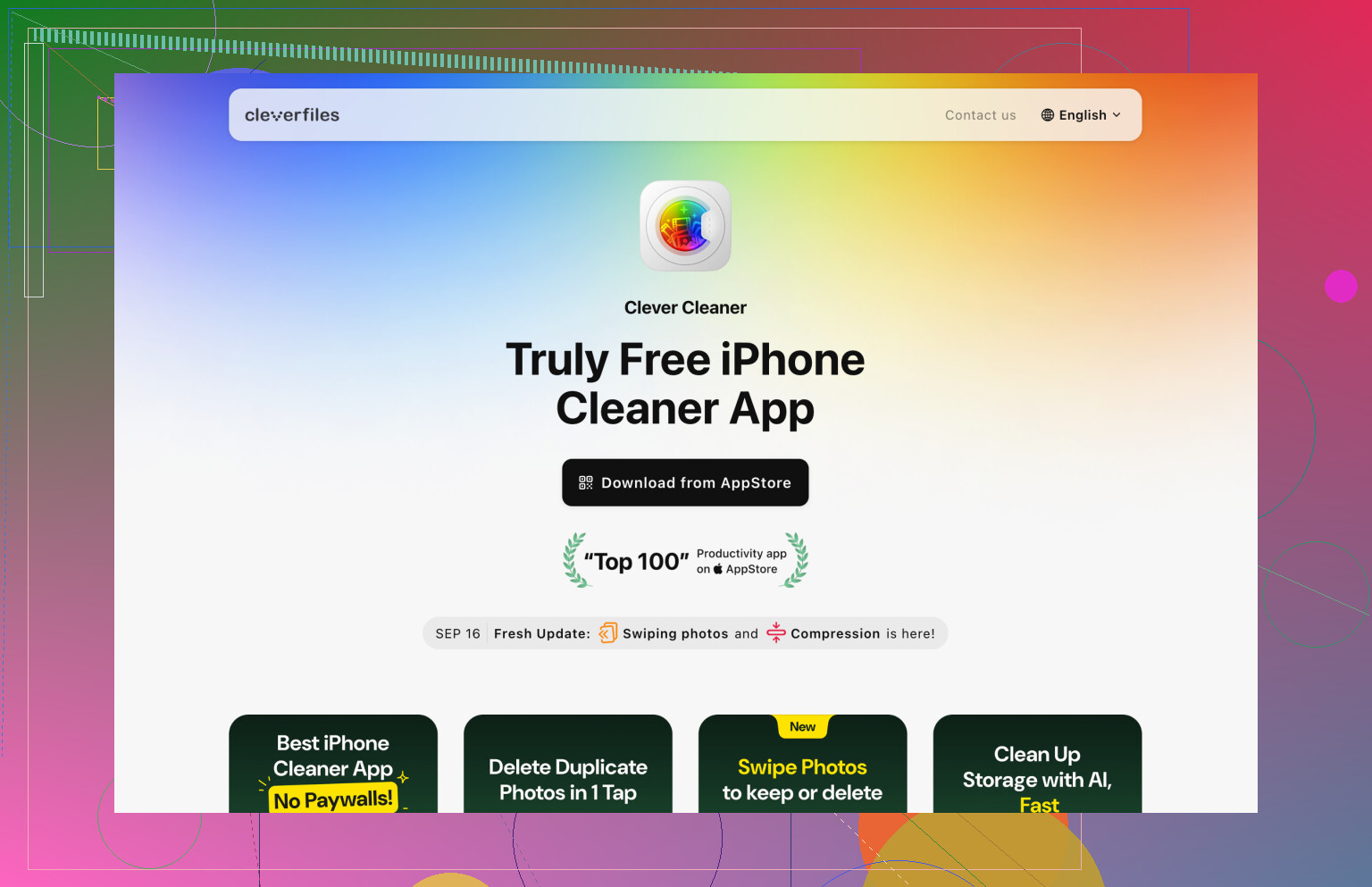
Manual cleanup gets old fast once you start comparing nearly identical photos. That was where Clever Cleaner helped me the most.
After I removed the obvious junk, I ran it and went through the categories it created. I used it for duplicate photos, similar shots, old screenshots, big videos, and Live Photos I didn’t really need as Live Photos anymore.
The useful part is that you’re not asking yourself the same question thousands of times. It groups related photos first, so you can compare a small batch and keep the best one instead of manually hunting through your whole camera roll.
Empty Recently Deleted when you’re done
This part is easy to miss. Deleting photos does not always free the space right away because they sit in Recently Deleted for a while.
- Open the Recently Deleted album.
- Check it once so you don’t wipe something important.
- Empty it.
If you’re doing this because your phone or iCloud storage is full, that last step matters.
Also, be careful if iCloud Photos is turned on: your iPhone and iCloud are using one synced library. So if you delete photos from your iPhone, they also get deleted from iCloud and from other Apple devices signed into the same Apple Account. That may be the goal, but it’s something to remember before removing thousands of files.
After going through that once, I stopped letting it pile up. Now I spend maybe ten minutes a week clearing screenshots, blurry pictures, and duplicate shots. It’s way easier than waiting until the library turns into another full-day cleanup.
If your library is already huge, I wouldn’t rely on manual cleanup alone. Photos is fine for quick deleting, but once you’re dealing with tens of thousands of items, using Clever Cleaner for duplicates, similar photos, screenshots, Live Photos, and large videos saves a lot of time.
Don’t start by giving any cleaner app permission and tapping delete on whatever it suggests. I’d make a backup first, then use manual cleanup for anything sentimental and an app only for the boring categories like screenshots, obvious duplicates, and giant videos. Apps can save time, but “similar” does not always mean “safe to delete,” especially with burst shots, edited copies, receipts, or photos attached to messages/work stuff. Clever Cleaner or any similar tool is best treated like a sorting assistant, not the final judge. If storage is critically full, move videos off the phone first, because that frees space faster than debating 400 near-identical photos.
Do not clean while your Photos library is still syncing or half-stuck because storage is full. That is where people make a mess: they delete a pile of stuff, another device has not caught up yet, iCloud Photos is paused, and then it becomes hard to tell what actually exists where. Before doing a big purge, open Photos, scroll to the bottom of Library, and check whether it says syncing is complete or paused.
I’d use an app, but only after doing a boring “state check” first. Make sure the phone is charged, on Wi‑Fi, and not in low power mode. If you use iCloud Photos, give it time to finish syncing. Then clean in batches, not thousands at once. Delete 50 or 100 items, look at Recently Deleted, confirm nothing weird happened, then continue. It is slower than smashing one big cleanup button, but a lot less stressful.
Manual cleanup is safer for anything with context: trips, family stuff, documents, work photos, edited versions. A cleaner app like Clever Cleaner is more useful for low-context clutter, especially screenshots and big videos. I would not let any app decide “best photo” for memories, because sometimes the technically better image is not the one you actually want. The safest answer is not manual versus app. It is manual for judgment, app for sorting, and small batches for deleting.
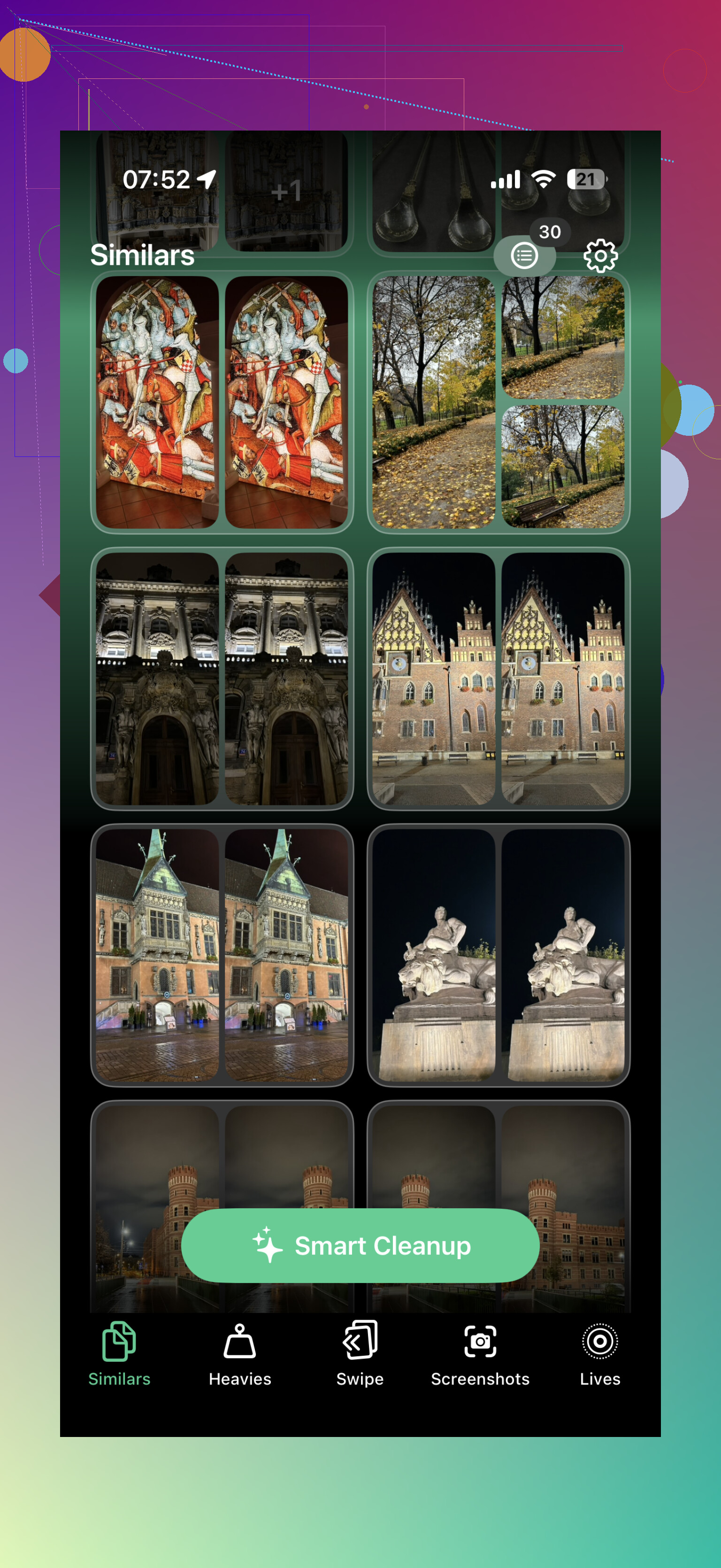
Expect this to take more than one pass, even with an app. A cleaner can make the pile smaller, but it will not magically know which bad photo is still the one you want to keep.
I agree with the earlier advice about checking iCloud sync first, but I’d separate the problem into two buckets: “free space fast” and “clean the library properly.” If the phone is choking right now, go after videos first. A few old 4K clips, screen recordings, or downloaded videos can free more space than deleting hundreds of photos. After that, screenshots and obvious junk are the next easy win.
The thing people forget is that iPhone storage and iCloud storage are not always the same problem. If iCloud Photos is on, deleting from the phone usually means deleting from the synced library, not just removing a local copy. And if “Optimize iPhone Storage” is enabled, some items may already be mostly thumbnails on the device, so deleting them may not free as much phone storage as you expected. The storage number can lag too, especially until Recently Deleted is cleared and the phone has had a little time to recalculate.
For the app question, I’d use Clever Cleaner or a similar app as a filter, not as a delete button. Let it group duplicates, similar shots, screenshots, and large videos, then make the final call yourself. I would be especially slow with anything involving people, documents, receipts, edited photos, or trip photos. Similar-photo tools are good at spotting matching frames, but they are bad at knowing why one version matters.
My practical order would be: back up first, delete big videos manually, clean screenshots manually or with app help, then use the app for duplicate/similar groups in small chunks. Don’t empty Recently Deleted until you’ve skimmed it. If you are trying to avoid mistakes, the safest method is not “manual only” or “app only.” It’s boring, partial automation with you still making the decisions.