Has anyone here used OpenMTP lately? I’m looking for a simple way to move files without crashing, and I’m curious how it holds up.
 OpenMTP — Moving Files Between Android and Mac
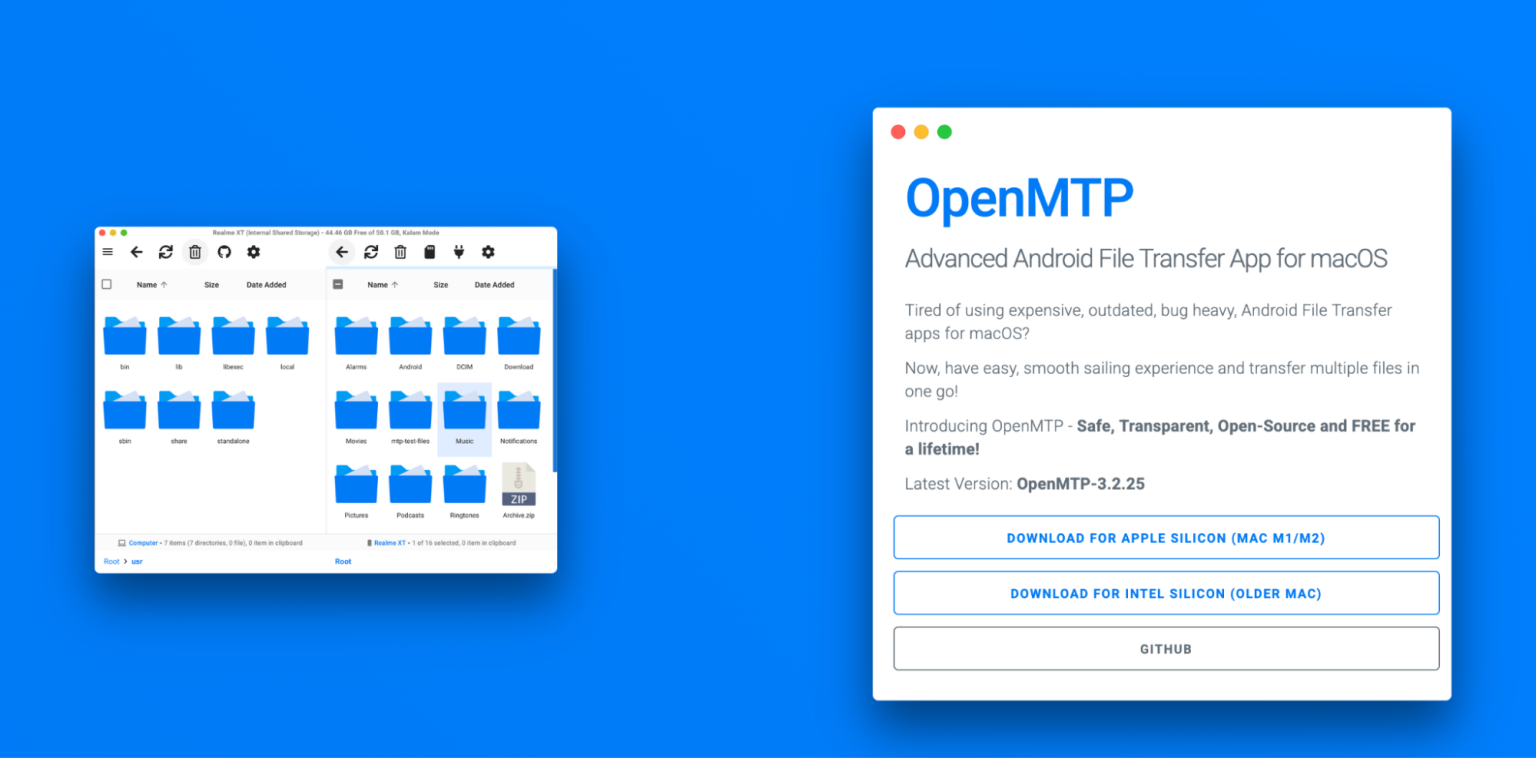
If you use an Android phone with a Mac, you’ve probably noticed that macOS doesn’t really handle Android storage on its own. That’s where OpenMTP comes in. It’s a free, open-source app designed to let you browse your Android device and move files back and forth over USB.
I’ve been using it for a while, mostly for photos, videos, and the occasional folder dump, and I’ve also followed a few Reddit threads about it. The general tone from users is positive, but there are some things worth knowing.
 What I Like About It
The layout is straightforward. You get a dual-pane window — your Mac on one side, your Android device on the other. It feels familiar if you’ve used any kind of file manager before. Drag and drop works the way you’d expect, and you can move entire folders without jumping through extra steps.
Compared to the old Android File Transfer app, which a lot of people found buggy or unreliable, OpenMTP feels more stable in day-to-day use. Large files, including multi-gigabyte videos, usually transfer without crashing the app. In my experience, it’s been reasonably fast over USB.
Another thing people often mention — and I agree — is that it’s free and open-source. There’s no locked feature tier. The developer has been clear that it’s meant to stay free, and that’s something many users appreciate.
Compatibility has also improved over time. It supports macOS Catalina and newer versions, and more recent releases (like 3.0) added better support for Samsung devices. I’ve seen fewer complaints about Samsung connections lately compared to older threads.
 Where It Can Be Frustrating
The main issue I’ve run into is transfers freezing partway through. It doesn’t happen constantly, but it does happen. Sometimes it’s with larger files, and other times it seems tied to specific file names.
There’s been discussion about special characters causing problems — especially forward slashes in file names. The frustrating part is that when it freezes, the app doesn’t always clearly explain why. The transfer just stops, and you’re left guessing whether it’s the cable, the phone, or the file itself.
It’s not a dealbreaker for me, but it’s something to keep in mind if you’re moving a lot of data at once.
 Tips That Helped
A couple of small things that seem to help, based on both my experience and what others have shared:
-
Turning on USB Debugging can improve connection reliability. You can enable it by going to Settings → About Device and tapping the Build Number seven times to unlock Developer Options.
-
Keep file names simple. Avoid special characters — especially forward slashes — since they can cause transfers to hang unexpectedly.
These aren’t official fixes, just practical habits that seem to reduce problems.
 Alternatives People Mention
If OpenMTP doesn’t cooperate, there are other options.
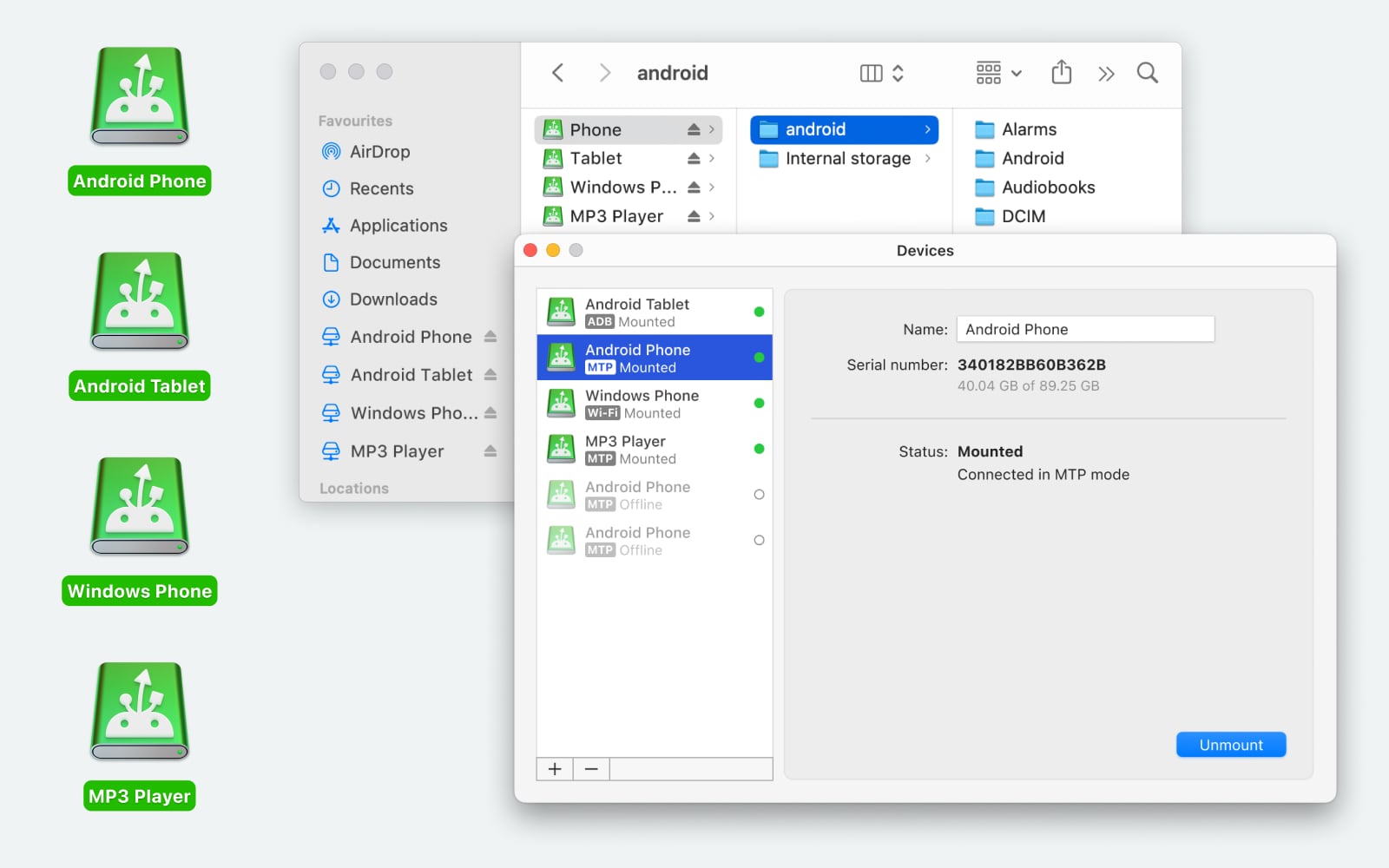
One is MacDroid. It works differently by mounting your Android device directly in Finder as if it were an external drive. That means you browse it like any other disk on your Mac. It supports USB and Wi-Fi connections, and bidirectional transfers are available in the Pro version. It’s a paid tool (with a free tier), and some people prefer it because it feels more integrated into macOS.
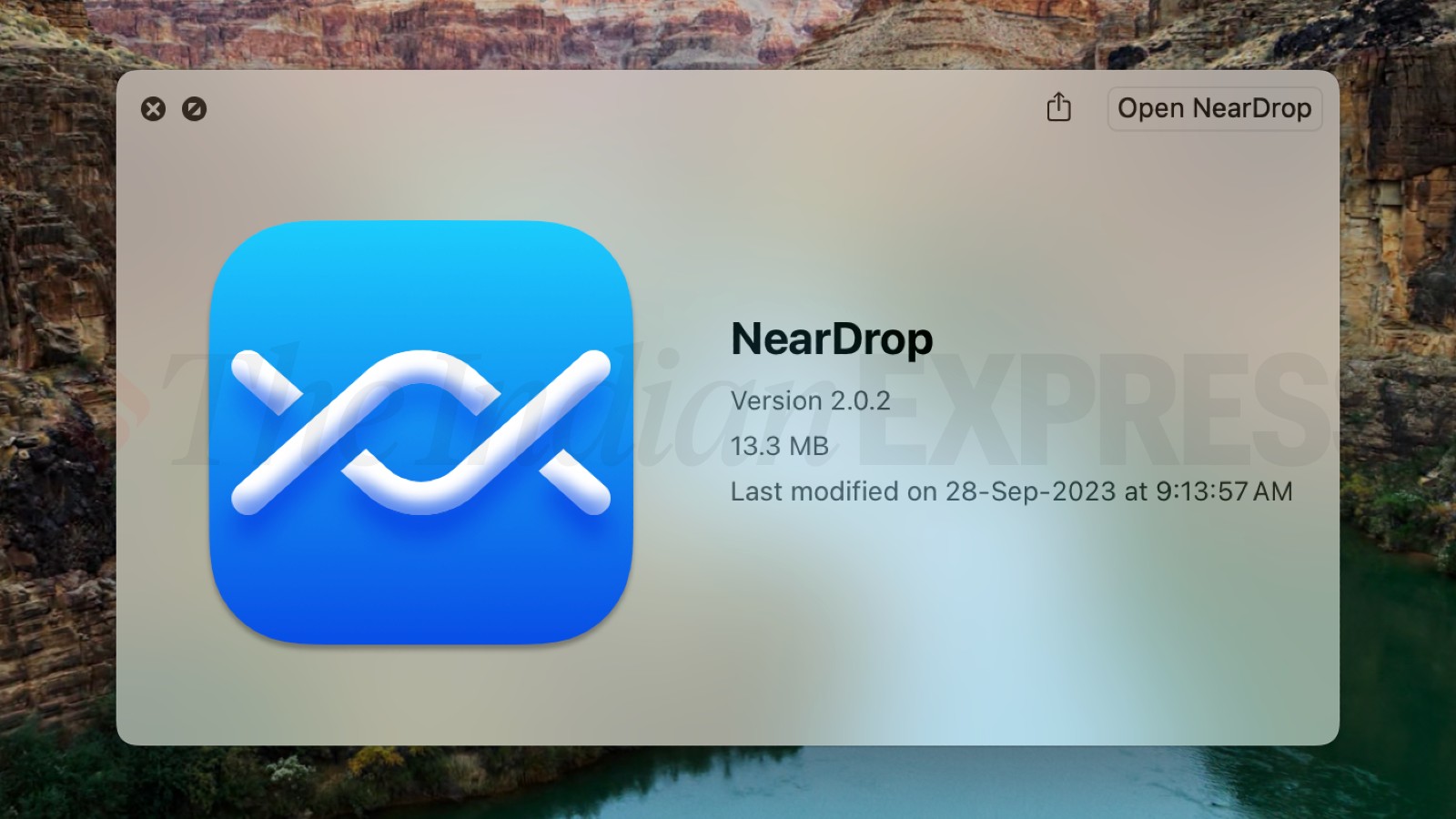
Another option is NearDrop, which is open-source and uses Android’s Nearby Share for wireless transfers. It only sends files from Android to Mac (not the other way around), but for quick, cable-free transfers, it’s convenient.
 Overall Thoughts
OpenMTP does what it’s meant to do: it gives Mac users a way to manage Android files without relying on outdated tools. In regular use, it’s simple and functional. At the same time, occasional transfer freezes and file-name quirks are real issues that some users run into.
If you’re aware of those limitations and mostly need straightforward USB file transfers, it can fit the job. If it doesn’t work well with your setup, there are other tools to explore.
3 Likes
I use OpenMTP a lot too, and my experience overlaps with @mikeappsreviewer in some spots, but I’d do a few things differently from the start.
Short version: OpenMTP is decent for USB transfers, but I would not trust it as your only “big backup” tool. Treat it like a manual file manager, not a backup system.
Here is what I suggest.
- Decide what you want OpenMTP to do
Use OpenMTP for:
- Copying DCIM / Camera photos and videos to your Mac or external drive
- Moving a few GB of stuff you can easily recopy if something fails
- Grabbing WhatsApp / Telegram / Downloads folders in batches
Avoid using it for:
- A single 100 GB “move everything at once and delete from phone” job
- The only copy of irreplaceable files
For irreplaceable stuff, always keep at least one other backup path.
- Use a second method as a safety net
This is where I slightly disagree with relying on OpenMTP as “good enough” by itself.
I would set up one more transfer path along with it:
Option A: MacDroid
- Mounts your Android storage in Finder.
- You drag files like a normal external drive.
- The paid version of MacDroid handles full two way transfers and large folders more predictably in my tests.
- It feels less fragile than OpenMTP when you do long copy jobs, since Finder’s copy queue handles errors better.
Option B: Cloud backup for photos
- Google Photos or OneDrive or similar.
- Let the phone upload in the background.
- Use OpenMTP or MacDroid only for “bulk export” or keeping a local archive.
My pattern now:
- Daily or weekly: photos auto backup to cloud.
- Monthly: connect phone to Mac, use MacDroid or OpenMTP to pull DCIM to external SSD.
- Make OpenMTP behave better without repeating every step
On top of what was already said, a few extra tricks that helped me:
-
Turn off “sleep” on the Mac and phone during long copies
If the phone screen locks aggressively, some OEM ROMs throttle or drop the MTP connection.
I put both on charge and set screen timeout to something higher or keep the screen on with a simple app. -
Avoid copying from weird system areas
Stick to:- DCIM
- Pictures
- Movies
- Music
- Downloads
I saw more random hangs when touching app‑specific “Android/data” folders.
-
Copy to a fast destination
When I wrote to an old spinning HDD over a USB hub, OpenMTP stalled more often.
Direct to an internal SSD or a decent external SSD was smoother.
- Strategy for large exports
For a big camera dump, say 50 GB of photos and 4K video:
- Sort by year or month on the phone using a file manager first, if possible.
For example:- DCIM/Camera/2023
- DCIM/Camera/2024
- In OpenMTP, move one year at a time.
- After each batch:
- Compare file count on phone vs Mac folder.
- Spot check a few videos by playing them from the Mac.
If something looks off, redo that chunk before you delete anything from the phone.
- When to switch to MacDroid instead
If you keep seeing:
- Progress stuck with no error
- Device disconnects mid transfer even after cable and port changes
- Whole queues stopping on mixed file sets
At that point I would stop fighting OpenMTP and move heavy work to MacDroid.
It integrates with Finder, so you reuse a system you already know.
“MacDroid” as a name is easy to search later if you forget it.
Use OpenMTP for:
- Quick, manual pulls when it detects the phone right away.
Use MacDroid for:
- Regular full photo and video exports.
- When you want Finder copy behavior, including pause and resume across folders.
- Minimal “default setup” I would recommend
If I were setting you up from scratch:
- USB debugging on.
- Good USB‑C data cable plugged directly in the Mac.
- OpenMTP installed for manual transfers, tested with a 2 or 3 GB batch.
- MacDroid installed and tested on a trial with the same batch.
- One cloud service backing up your camera roll in the background.
After that, you pick what feels smoother on your machine.
For me, MacDroid plus Finder became the main path. OpenMTP stayed as a backup tool, not the other way around.
Android File Transfer is… trash, so you are on the right track looking elsewhere.
Since @mikeappsreviewer and @shizuka already covered the “how to use OpenMTP” angle pretty deeply, I will skip repeating the same checklists and focus on how I’d actually fit OpenMTP into a sane workflow and where I disagree a bit with them.
1. Treat OpenMTP as a tool, not your whole workflow
I don’t fully buy the “OpenMTP is good enough if you baby it” idea. It’s fine, but MTP on macOS is inherently flaky. Even if OpenMTP were perfect, the protocol still sucks.
I’d use OpenMTP only for:
- Quick, wired copies when you need folder-level control
- Pulling a few specific folders where you care about structure
- Occasional “I need this off my phone right now” moments
I would not rely on it as your main archival path for multi‑year photo libraries. If a 60 GB copy hangs at 54 GB, you get to play “which files made it?” for an hour. No thx.
2. Make MacDroid your “heavy lifter” for USB
Both of them mentioned MacDroid, but I’d actually flip the priority:
- MacDroid as primary for big transfers and regular exports
- OpenMTP as backup / secondary tool
Reason: MacDroid integrates with Finder. That means:
- You get normal macOS copy behavior
- You can use Finder’s built‑in features like copy progress, overwrite prompts, and easier verification
- You do not have to learn some half‑baked custom UI every time
If you are doing large photo / video moves from Android to Mac, MacDroid tends to feel less fragile than fighting with an MTP front‑end that occasionally freezes with no message.
Yes, MacDroid is paid if you want full bidirectional transfers, but compared to the time you waste nursing OpenMTP through a huge copy, the price is not crazy. Very SEO‑friendly soundbite here: MacDroid is probably the smoothest Android to Mac file transfer solution if you like working directly from Finder.
3. Wireless is underrated for your use case
Both answers touched on NearDrop, but I’d lean harder into wireless for the stuff that actually matters to you: photos and random files, and keep USB tools for bulk dumps.
What I’d do in practice:
-
Turn on automatic cloud backup on your phone for photos/videos
- Google Photos, OneDrive, Syncthing, whatever you trust
- That gives you a baseline backup that does not care if a cable is loose
-
Use wireless for ad‑hoc transfers:
- NearDrop for quick Android to Mac sends
- Or KDE Connect / Warp / Snapdrop style tools if you want something cross‑platform
Result: You only need OpenMTP or MacDroid when you want to:
- Clear space on the phone fast
- Maintain a local archive on an external SSD
- Grab odd folders like Downloads, ROMs, or specific app directories
4. One practical flow that avoids most headaches
If I were in your spot, annoyed with Android File Transfer constantly disconnecting, here’s how I’d structure it:
-
Install MacDroid
Use it for the big, boring jobs:- Monthly: plug phone into Mac
- In Finder, drag
DCIM/Cameraand maybeMoviesto your archive drive - Let Finder handle the copy and error reporting
-
Keep OpenMTP installed
Use it when:- MacDroid randomly misbehaves with a specific device
- You want a two‑pane view to compare folder trees visually
- You just want to yank one app’s folder quickly
-
Wireless / cloud for convenience and safety
- Cloud backup for “I never want to lose this photo”
- Something NearDrop‑like for quick one‑offs
With that, Android File Transfer goes in the trash, OpenMTP is the “utility knife” you pull out sometimes, and MacDroid + Finder becomes your main Android to Mac transfer lane, which is honestly what macOS should have supported out of the box.
You can absolutely get by with only OpenMTP if you are patient and follow all the little rituals people described, but if your time and sanity matter at all, I’d switch the roles and let OpenMTP be the sidekick instead of the hero.
If Android File Transfer keeps cutting out, you are on the right track looking at OpenMTP, but I would frame it as part of a mixed setup, not the centerpiece.
Where I slightly disagree with @shizuka / @codecrafter / @mikeappsreviewer: I would not over‑optimize OpenMTP itself. Past a point, the bottleneck is MTP and macOS, not which frontend you use. Tweaking cables, chunk sizes, and folder structure helps, but only so far.
For day‑to‑day use, I would split it like this:
1. Use OpenMTP for “surgical” work, not whole‑phone drains
- Great for:
- Grabbing DCIM / Camera, WhatsApp, Downloads in clearly scoped chunks
- Situations where you like seeing both trees side by side
- Weak for:
- Monster transfers like “everything since 2019 in one drag”
- Any job where verifying success manually would be a pain
Think of it as a manual file browser. Once it behaves for a few 2–5 GB moves, stop tuning and accept its limits.
2. Let MacDroid handle the boring heavy lifting
All three replies mentioned MacDroid, but I lean harder on it when reliability matters.
Pros of MacDroid:
- Integrates with Finder so your phone looks like a mounted volume
- Uses familiar copy dialogs, progress, and overwrite prompts
- Better for long running jobs such as entire camera roll exports
- Easier to script around, since Finder + normal paths are involved
Cons of MacDroid:
- Paid for full two‑way transfers
- Not open source
- Occasional weirdness with some OEM skins, so first run might need a bit of USB mode toggling
For your use case (photos, videos, big folders), I would rather have one paid tool that behaves predictably than keep nursing a free one at the edge of its comfort zone.
3. Do not skip a non‑USB safety net
Here I agree strongly with the others: never trust a single USB path as “the backup.”
Minimal setup I would aim for:
- One cloud service backing up your camera roll automatically
- MacDroid as the main “local archive / offload space” path
- OpenMTP in reserve for:
- Odd folders
- Times when MacDroid or Finder decides to be stubborn
If OpenMTP starts freezing or silently skipping files, do not fight it for hours. At that point, it is cheaper in time and nerves to push the same batch through MacDroid and let Finder handle the error reporting.
So, keep OpenMTP, but put it in the toolbox next to MacDroid rather than trying to turn it into something it is not: a robust, one‑click, whole‑phone backup system.