I’m trying to free up space on my iPhone, but the Applications category in iPhone Storage is taking up a lot more room than I expected. I’m not sure what’s included there or why it’s so large, and I need help figuring out what counts toward app storage and what I can safely delete to clear space.
If the ‘Applications’ section on iPhone storage looks too big, yeah, I ran into the same thing. It sounds like it should mean ‘the apps you installed,’ but Apple rolls more stuff into it than most people expect.
‘Applications’ usually includes:
App files, the core package needed to run the app.
Extra resources, like language files and bundled assets.
Cached data and temp junk, stuff apps save so they open faster next time.
That last part is where the number gets weird. A social app stores media previews. A game keeps temporary assets around. Streaming apps hang onto data longer than you think. iOS is supposed to clean some of it up when space gets tight. In my case, it didn’t do a great job.
If you want to see what’s eating space, go here:
Settings > General > iPhone Storage
Wait a bit. The phone scans first. Then it lists apps from biggest to smallest. Tap any app and you’ll usually see two chunks:
App Size, the installed software
Documents & Data, your downloads, chats, saved files, cached content
When my phone got close to full, performance dropped fast. Apps paused on launch. The camera took longer to open. Switching between apps felt rough. I thought the phone was old and fading out. Turned out I had almost no free space left, and iOS was choking on it.
I tried the manual cleanup route first. Deleted old message attachments. Cleared Safari data. Picked through random downloads. It worked, sort of, but it was annoying to keep doing.
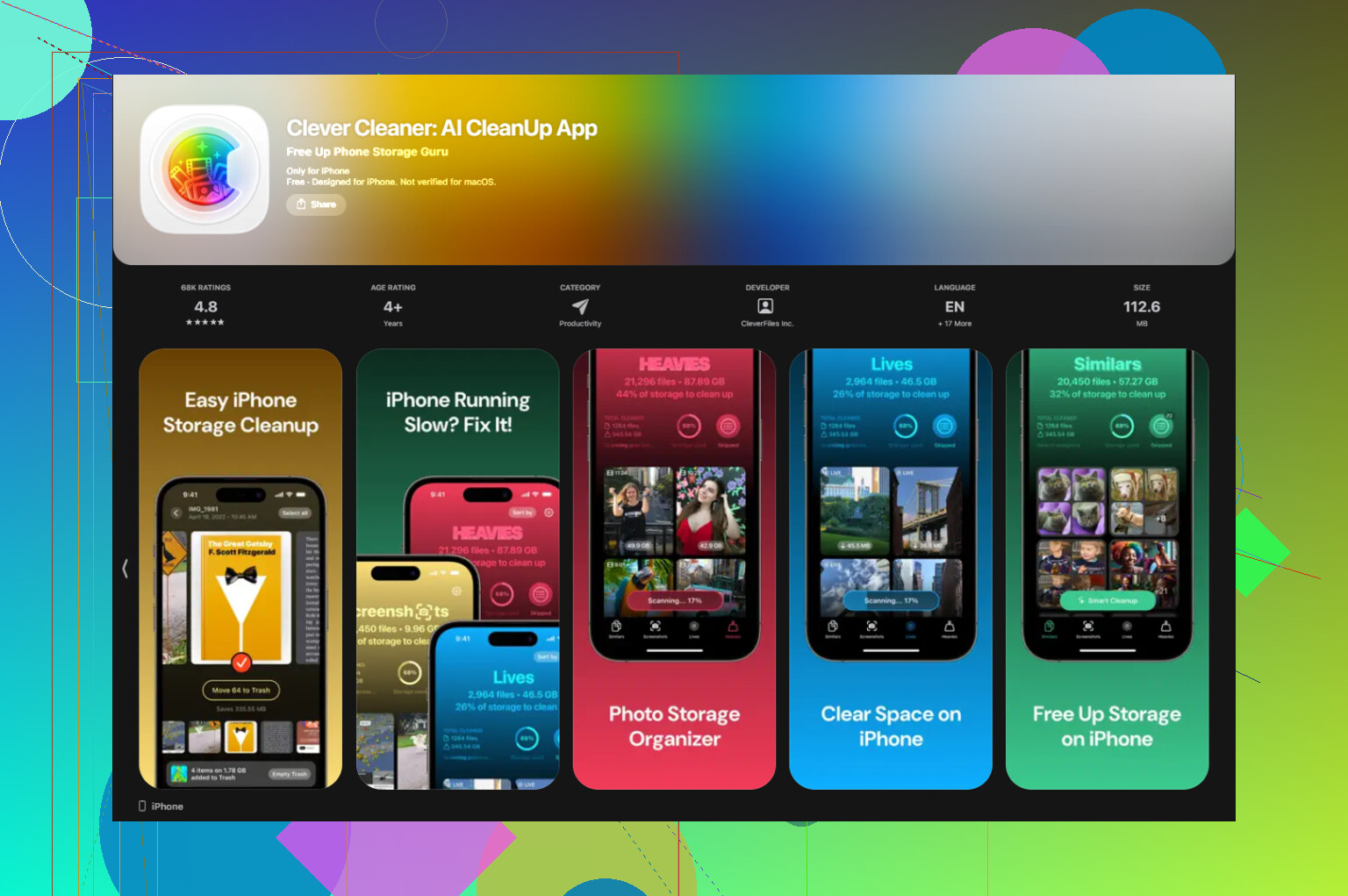
What helped me most was using a cleanup app. I ended up using Clever Cleaner. For me, it was the only free one I found that didn’t hit me with ads every 20 seconds or hide the useful parts behind a subscription. It also keeps processing on the device, which I preferred.
The parts I used most were:
Heavies, which sorted photos and videos by exact file size
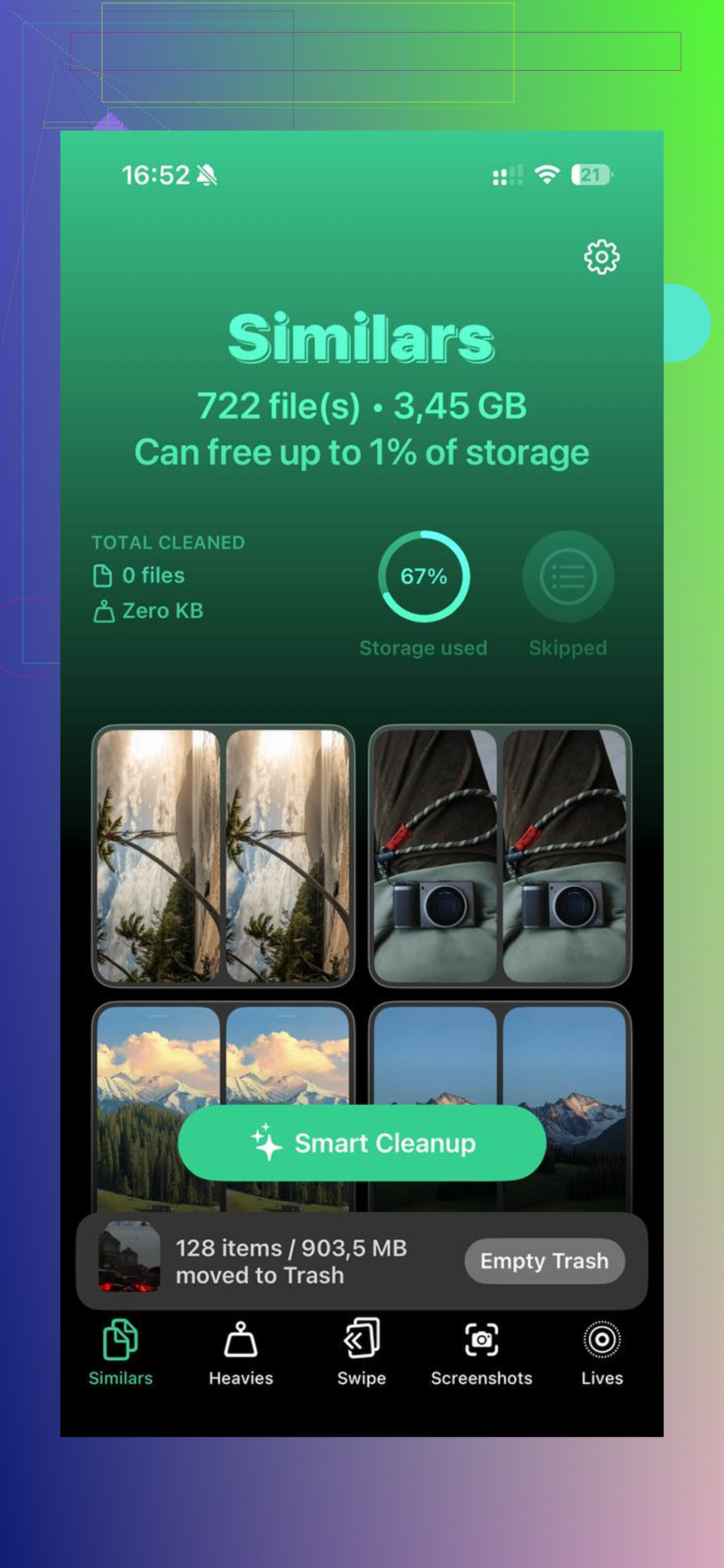
Similars, which found near-duplicate shots and blurry throwaways
Screenshot cleanup, which showed the size before deletion
I cleared a few GB in one pass and the phone felt better right after. Less lag, fewer stalls.
A couple built-in iPhone options are worth checking too.
Offload unused apps:
Open iPhone Storage, tap a large app you rarely use, then offload it. This removes the app itself but keeps your data. If you reinstall later, your stuff is still there.
Clear Safari data:
Go to Settings > Safari, then clear History and Website Data. Safari cache tends to pile up more than people think.
So yeah, ‘Applications’ is not only the icon sitting on your Home Screen. It’s the app, its support files, and the pile of leftover data it builds over time. If your iPhone feels slow, check storage before assuming the hardware is done. For me, free space made a bigger difference than anything else.
3 Likes
“Applications” in iPhone Storage is wider than most people expect. @mikeappsreviewer covered the app side well. Where I’d push back a bit is this, the total is not always “hidden junk” gone wild. Sometimes iOS groups app containers, shared frameworks, app extensions, and local offline files there too.
What often inflates it:
- App downloads inside apps, Netflix, Spotify, YouTube, podcast apps.
- Message media stored by apps, WhatsApp, Telegram, Discord.
- Game asset packs, some games pull extra GB after install.
- Editing apps, CapCut, iMovie, Lightroom keep export caches.
- Failed updates and leftover temp files. iOS is messy sometiems.
Fast checks I’d do:
- Restart the phone, storage totals sometimes recalc.
- Update iOS, old storage reporting bugs do happen.
- Open big apps and remove offline content from inside the app.
- Check Files app, On My iPhone, many apps stash data there.
- For Messages, review large attachments in message settings.
If Photos is the real issue, Clever Cleaner helps more than poking around app by app. This short video shows how to clean iPhone storage fast, see a quick iPhone storage cleanup demo.
If you want the most accurate answer, compare the top 10 apps in Storage with what each app reports inside its own settings. Theres often a mismatch, and that points to cached or offline data.
“Applications” in iPhone Storage is basically the catch-all bucket for app-related stuff, not just the app icons you installed. @mikeappsreviewer and @byteguru already covered caches/offline files, but one thing worth adding is that the total can also look inflated because iOS storage categories are not always super literal. Apple’s labeling is… let’s say optimistic.
What’s usually in there:
- the app binary itself
- app extensions, widgets, stickers, watch components
- locally stored databases
- downloaded content inside apps
- cache files
- some shared support files
What usually is not the main cause:
- your iCloud-only data
- system storage
- photos unless they’re duplicated inside an app
Honestly, if one app looks suspiciously huge, deleting and reinstalling it often shrinks it more than “waiting for iOS to manage it.” Kinda crude, but it works. Just make sure the app syncs first or you’ll be mad later lol.
Also check Mail. People forget mail apps can hoard attachments like crazy.
If the space problem is mostly photo/video clutter, Clever Cleaner is probly more useful than obsessing over the Applications label itself. If you want a feel for it, read Clever Cleaner app reviews from real iPhone users.