Files suddenly disappeared from my external hard drive after I plugged it into my PC, and now important folders are missing even though the drive still shows used space. I need help figuring out whether this is file corruption, accidental deletion, or a drive issue, and what the safest way is to recover the lost data without making it worse.
First thing I did in a case like this, I stopped touching the drive. No new copies to it. No repair pass. No format retry. When files vanish, the data often stays put for a while and the file system loses track of it. The bad part is simple, every write to the drive raises the odds of overwriting what you want back.
Start With the Obvious Stuff
Before running recovery tools, I’d check the easy failures first.
- Turn on Hidden items in File Explorer. I’ve seen folders look gone when they were only hidden.
- Look at used space on the drive. If the drive still shows most space as occupied while the folders look empty, I’d take tht as a decent sign.
- Swap the USB cable, then try a different USB port.
- If the drive was plugged into another PC recently, connect it to the original machine again. I’ve had weird permission and OS quirks make files appear missing.
Watch What the Drive Does
The drive’s behavior tells you a lot.
If it mounts fine and opens like normal, but your files are gone, I’d lean toward a logical issue. Those often recover better.
If File Explorer hangs, the drive drops off mid-use, folder loading crawls, or the whole thing feels slow for no reason, I’d start worrying about failure.
If you hear clicking, grinding, or beeping, stop. I mean it. Repeated power-ons in ths state can make later recovery much harder.
Recover First, Repair Later
If the drive still shows up and you don’t have a backup, I’d go for recovery before any repair attempt.
Disk Drill comes up a lot for this, and I get why. It’s often listed among the best recovery tools here:
It’s easy to get through, supports most common file systems, recognizes a lot of file types, gives previews before recovery, and includes a few things tht help when the drive is acting shaky.
The part I like most is disk imaging. Instead of hammering the original drive with repeated scans, Disk Drill can make a full image of the disk. It copies the whole thing, deleted data, file system info, all of it. If the drive is unstable, working from the image is safer because you stop stressing the original hardware.
How I’d Do It With Disk Drill
- Install Disk Drill on your internal drive or another healthy disk. Do not put it on the problem drive.
- Plug in the external drive and open Disk Drill.
- If the drive looks unstable, make a disk image first, then scan the image instead of the physical device.
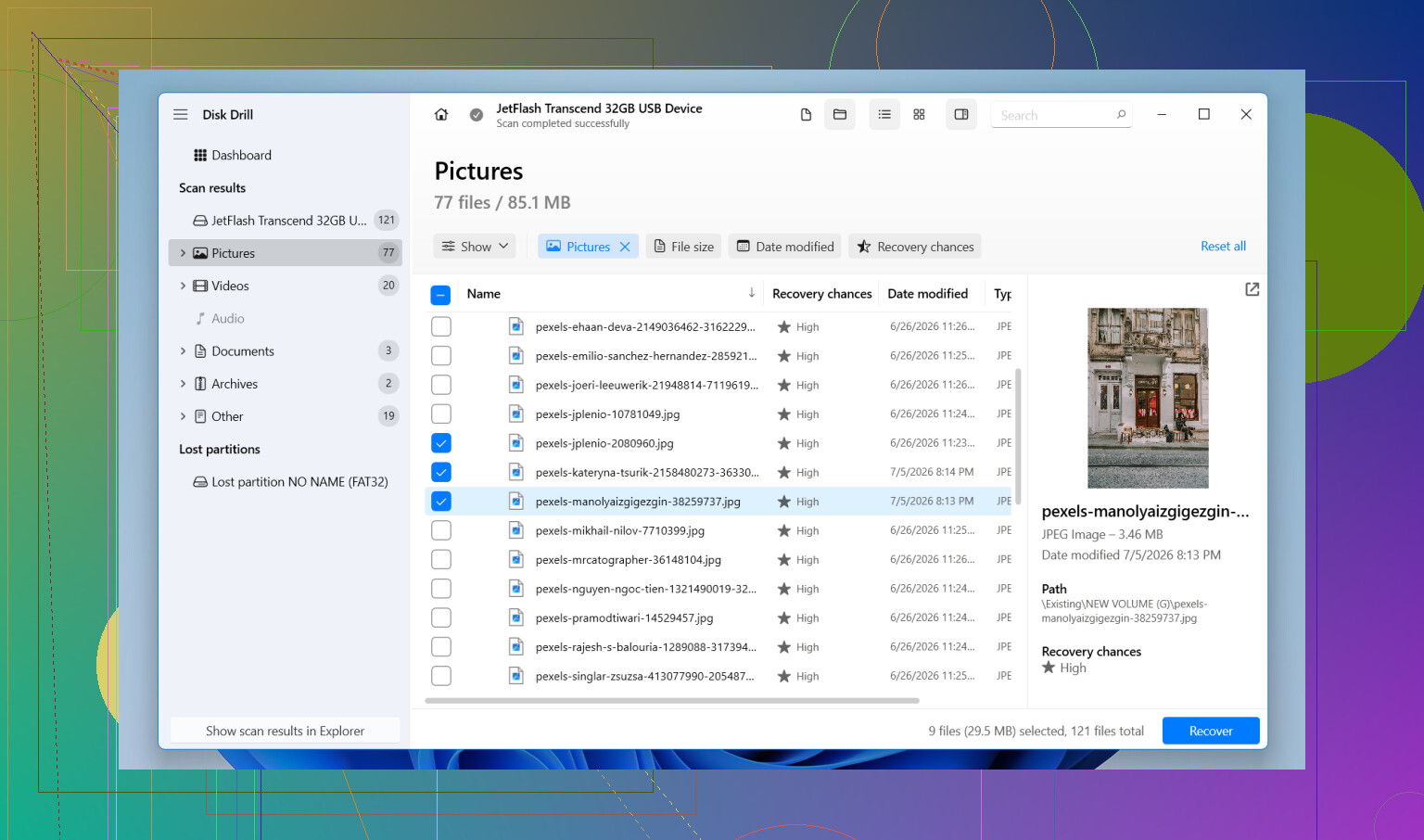
- If it seems stable enough, pick the external drive and click Search for lost data.
- When it asks for scan type, choose Universal Scan. I’ve had the best results there because it runs the full set in one pass. It checks deleted files, damaged file system records, lost partitions, and file signatures it recognizes.
- Let the scan finish. Big drives take time. I know it’s annoying, but more files often show up later in the scan.
- Go through the results, preview the important stuff, and mark what you want back.
- Hit Recover and save everything to a different drive. Do not restore back onto the same external disk.
On Windows, Disk Drill lets you recover up to 100 MB free. I liked tht because you can confirm the missing files are recoverable before paying for anything.
When I’d Stop and Use a Lab
Software is not always the right move.
If the drive no longer gets detected, disconnects during scans, or makes mechanical noise, I’d stop there and contact a recovery service.
Same thing if the missing data is the kind you can’t replace, family photos, work records, research, stuff like that. Recovery labs have hardware tools for damaged drives. Software does not.
How I’d Avoid Repeating This
- Keep one more backup of anything important.
- Eject the drive safely before unplugging it.
- Do not disconnect it while files are still copying.
- Check SMART health once in a while if your tools show it.
- Replace the drive if it starts vanishing from Windows, grows bad sectors, or keeps throwing file system errors. Even if it seems fine again, I wouldn’t trust it after tht.
If this is only file system corruption, your odds are a lot better. I’d recover the files first and leave repairs for later. That order matters more than people think.
https://www.youtube.com/watch?v=uhWmNUgIJTw

2 Likes
If the drive still shows used space, I would not jump straight to “the files are gone.” A lot of times the file table gets damaged, or the folders get flagged in a way Explorer stops showing them.
I agree with @mikeappsreviewer on one big point, recover first. I disagree a bit on one part though. I would not spend too long swapping PCs and ports if the folders vanished right after plug-in. If space is still occupied, your next move should be verification, then recovery.
My order would be:
-
Check Disk Management.
See if the partition size looks normal and the file system still shows as NTFS, exFAT, etc. If Windows shows RAW, that points to file system damage. -
Run this in Command Prompt:
attrib -h -r -s /s /d X:*.*
Replace X with your drive letter.
I’ve seen malware and bad USB disconnects set files as hidden and system. This brings them back fast if tht is the issue. -
Check Event Viewer.
Look under Windows Logs, System. Search for disk, ntfs, or volmgr errors around the time the files disappeared. Repeated I/O errors usually mean the problem is bigger than folder corruption. -
If the drive is stable, scan it with Disk Drill.
Not for repair. For recovery. Preview your missing folders first. Recover to another disk only. If the scan finds proper folder names and original structure, odds are decent your file system metadata is partly intact. -
Skip CHKDSK at first.
A lot of people rush to chkdsk /f. I would not. CHKDSK is fine for repair, but it modifies the file system. On a weak or corrupted drive, it sometmes “fixes” things by orphaning files into FOUND.000. That is not where I’d start if the data matters. -
If SMART health looks bad, stop.
Use CrystalDiskInfo or another SMART reader. Reallocated sectors, pending sectors, CRC errors, or a bad health flag are bad signs. Then imaging the drive before more scans makes more sense.
For SEO and readable phrasing, this topic fits better as external hard drive file recovery advice for missing folders and hidden data.
Also, this thread has a related case here:
external hard drive recovery tips for missing files
Short version, if the drive mounts and shows used space, your data is often still there. Hidden attributes, damaged indexes, or a broken file table are common. Test visibility first. Then use Disk Drill to recover files before you let Windows “repair” anything. If the drive starts freezing, disconnecting, or clicking, stop messng with it and move to imaging or a lab.
If the drive still shows used space, I’d also check whether the folders were turned into a different file system namespace, not just hidden or deleted. That part gets missed a lot.
@mikeappsreviewer and @chasseurdetoiles are right about not writing anything new to the drive, but I’d push one extra check before a full recovery scan: try a file manager that is not Explorer. Seriously. Total Commander, FreeCommander, even Linux live USB if you’re comfortable. I’ve seen Windows Explorer act dumb with broken permissions, bad indexing, or weird characters in folder names while the data was still browsable elsewhere.
A couple things I’d do that haven’t been covered much:
-
Check folder permissions and ownership
Sometimes the files are there, but your current Windows account lost access after plugging into a diffrent PC. Right click the drive, Properties, Security. If it suddenly says you don’t have permission, that’s not the same as deleted. -
Search by file type from the root of the drive
Use*.jpgor*.docxor whatever matters. If results appear but the folders don’t, the directory structure may be damaged while files still exist. -
Test on a Linux live USB
Windows can be picky. Linux sometimes mounts the same external drive and shows the “missing” folders instantly. If it does, copy the important stuff off first and ask questions later. -
Check for a corrupted USB bridge, not just the disk
External drives fail in annoying ways. Sometimes the SATA-to-USB adapter inside the enclosure is the real problem, not the actual hard drive. If the drive is easy to remove from the enclosure and warranty is irrelevant, connecting it directly by SATA or a known-good adapter can change everything. Obviously don’t do this if it’s a sealed portable SSD or you’re not comfy opening it.
If none of that works, then yeah, I’d move to recovery software, and Disk Drill is a reasonable pick for external hard drive file recovery because it can preview found data and recover to another disk. I just wouldn’t let recovery software be the first thing if there’s a chance this is permissions or enclosure weirdness.
Also, absolutely do not trust “used space” as proof the files are healthy. Sometimes it just means orphaned data is still sitting there. Better than zero, but not a guarantee.
For a clearer explainer, think of it as a simple external hard drive file recovery walkthrough. That matches your situation way better than just “a guide on a hard drive recovery.”
If the drive starts clicking, disconnecting, or taking forever to read folders, stop messing with it. That’s the point where DIY turns into “whoops, made it worse.”
I’d add one check none of the others really pushed: look at the drive in a hex or partition viewer before “fixing” anything. If the partition boot sector or MFT mirror is damaged, Windows can still report used space while the directory tree is half invisible. That is why I slightly disagree with spending much time on Explorer tricks once basic visibility checks fail.
What I’d do next:
- Check whether the drive letter changed and whether your missing folders are actually in
found.000or a lost directory root. - Use a tool that can read the partition structure directly, not just browse files.
- If the drive is physically healthy, clone it first if the data matters more than the hardware.
Where I agree with @chasseurdetoiles, @cazadordeestrellas, and @mikeappsreviewer is the big rule: do recovery before repair.
About Disk Drill for external hard drive file recovery:
Pros
- Good previews
- Usually finds both folder-based and signature-based results
- Can scan whole disks, not just visible folders
- Easier than a lot of older recovery tools
Cons
- Deep scans can return messy filenames if metadata is damaged
- Not ideal if the drive is dropping offline constantly
- Free recovery on Windows is limited
If Disk Drill shows the original folder structure, that’s a very good sign. If it only finds raw files by type, recovery is still possible, just less organized. If SMART is bad or reads are timing out, stop DIY and image or send it out.