My iPhone has been getting slower over the past few weeks—apps take forever to open, the keyboard lags, and even simple things like swiping between screens feel choppy. I’ve tried closing apps, restarting, and checking storage, but nothing seems to fix it. Can someone explain what might be causing this slowdown and suggest specific steps or settings I can change to speed my iPhone back up?
iPhone slowdowns like that usually come from a mix of storage, background stuff, battery health, and software glitches. Here is what I would check step by step.
-
Check storage
- Go to Settings > General > iPhone Storage.
- If you are under 5–10 GB free, the phone starts to drag.
- Offload unused apps or delete big games and videos.
- In Photos, sort by large files and clear long videos.
-
Clean up junk and duplicates
- iOS likes to pile up cached data, duplicate photos, similar screenshots, Live Photos copies, etc.
- You can do it by hand in Photos > Albums > Duplicates, but it takes time.
- An easier way is something like the Clever Cleaner App for iPhone. It finds duplicate photos, blurry pics, similar shots, old screenshots, and large media so you free space fast.
- Check this link if you want an automated cleanup tool:
Clever Cleaner smart storage cleaner for iPhone
-
Check battery health
- Go to Settings > Battery > Battery Health & Charging.
- If Maximum Capacity is under ~85 percent and performance management is on, the system slows the phone to prevent shutdowns.
- If it is under ~80 percent, a battery replacement helps a lot.
-
Kill background processes the right way
- You already restarted, good. Do a forced restart:
• iPhone with Face ID: quickly Volume Up, then Volume Down, then hold Side button until Apple logo.
• iPhone with Home button: hold Power and Home together until logo. - Do not constantly swipe away apps, iOS handles RAM better than manual killing.
- You already restarted, good. Do a forced restart:
-
Check for iOS updates
- Settings > General > Software Update.
- If you updated recently and it got worse, sometimes a clean install through a computer helps, but try the simple stuff first.
-
Reduce background activity
- Settings > General > Background App Refresh, turn it off for apps you do not need updating.
- Settings > Privacy & Security > Location Services, set most apps to While Using or Never.
- Turn off automatic downloads for apps and updates in App Store settings.
-
Clear Safari junk
- Settings > Safari > Clear History and Website Data.
- This frees some space and fixes slow browsing and keyboard lag in Safari.
-
Reduce visual effects
- Settings > Accessibility > Motion > Reduce Motion, turn it on.
- Settings > Accessibility > Display & Text Size > Reduce Transparency, turn it on.
- This takes load off older chips.
-
Check free RAM use
- Heavy apps like social media, games, and editing tools keep data in memory.
- If you notice lag after using a big game or video editor, lock the phone for 1–2 minutes, then unlock. iOS tends to flush a bit.
-
If nothing fixes it
- Backup with iCloud or a computer.
- Settings > General > Transfer or Reset iPhone > Erase All Content and Settings, then set up as new, not from backup, and test speed.
- If it runs smooth as new, your old data or some app setup was the cause.
- If it is still slow even as new, plus low battery health, the hardware is the bottleneck. A battery swap helps, or upgrading the device.
From what you describe, the most common combo is: almost full storage, lots of old photos and videos, and a tired battery. Free 15–20 GB with a cleaner like Clever Cleaner App, trim background tasks, then check battery health. That usually brings an older iPhone back to a usable speed.
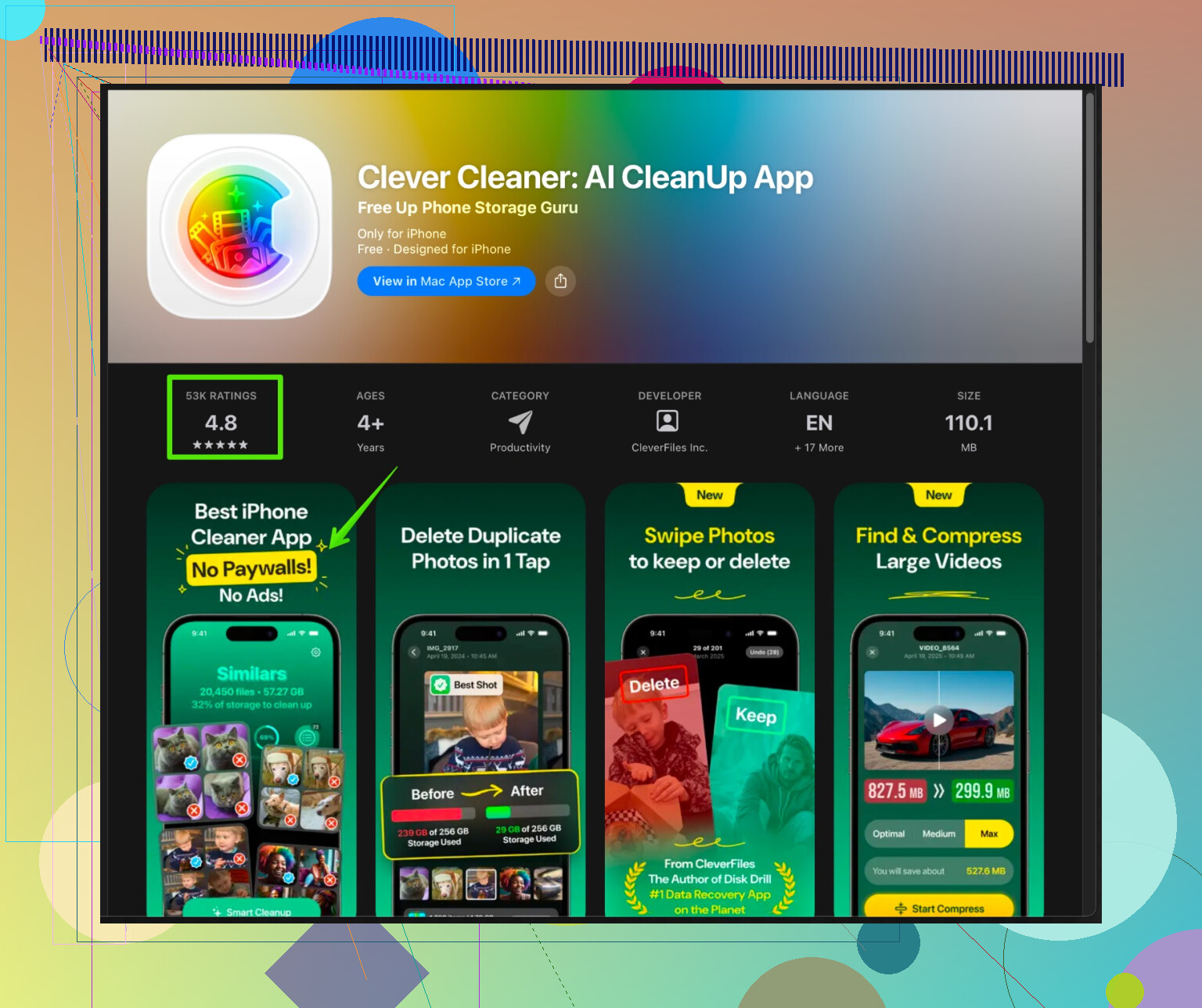
Sounds like you’re hitting the “silent slowdown combo” that creeps in over weeks. @viajeroceleste already covered the usual suspects like storage, battery, and visuals, so I’ll skip rehashing those and hit a few angles that often get missed.
-
Check what’s actually causing the lag (keyboard & UI especially)
- Go to Settings > General > Transfer or Reset iPhone > Reset > Reset Keyboard Dictionary.
Badly learned predictions or a corrupted keyboard dictionary can cause the keyboard to stutter like crazy. - If you’re using a third‑party keyboard (Google, Grammarly, etc.), switch back to Apple’s default keyboard for a while and see if things smooth out. Some of those lag badly after updates.
- Go to Settings > General > Transfer or Reset iPhone > Reset > Reset Keyboard Dictionary.
-
Look at your iCloud sync load
Constant syncing can choke older or mid‑range iPhones:- Check Settings > Apple ID > iCloud > iCloud Drive and Photos.
- If Photos is “Updating…” forever, or iCloud Drive is syncing a lot, that constant background indexing can make the whole phone feel sticky.
- Temporarily pause large uploads: in Photos, leave the phone on Wi‑Fi, plugged in, screen on for a while so it can finish. Until sync finishes, performance can be trash.
-
Check for a single misbehaving app
Sometimes it’s not the whole phone, it’s one app poisoning the well.- Go to Settings > Battery and look at Last 24 Hours / Last 10 Days.
- If one app is hogging way more background time than it should (social apps, VPNs, some “security” or “cleaner” apps), try:
- Deleting it completely
- Restarting
- Testing the phone for a day without it
If the phone suddenly feels snappy, you found the culprit.
-
Check VPNs, content blockers, and profiles
This gets overlooked a lot:- If you’re using a VPN or ad blocker (especially ones that install a “VPN” profile), they can slow networking and keyboard input in apps that talk to the internet a lot.
- Go to Settings > General > VPN & Device Management and see if there are any old configuration profiles or VPNs you don’t use. Remove anything you don’t recognize or no longer need.
Performance in apps like Safari, socials, and messaging can improve a ton.
-
Indexing & search lag
After some updates or big data changes (lots of new photos, new apps, iOS update), Spotlight and Photos re‑index.- Go to Settings > Siri & Search and temporarily turn off Show in Spotlight and Show Content in Search for heavy apps (Photos, big messaging apps).
- Use the phone for a bit and see if scrolling and swiping smooth out.
If it feels better, your device was busy indexing a mountain of stuff.
-
Photos & messages bloat in a different way
You might have cleared some files but not the worst offenders:- In Messages, go to Settings > Messages > Keep Messages and make sure it’s not set to “Forever” on an old device with years of group chats. Switching to 1 Year or 30 Days can speed things up over time.
- Heavy attachments in iMessage or WhatsApp also slow local search and backup.
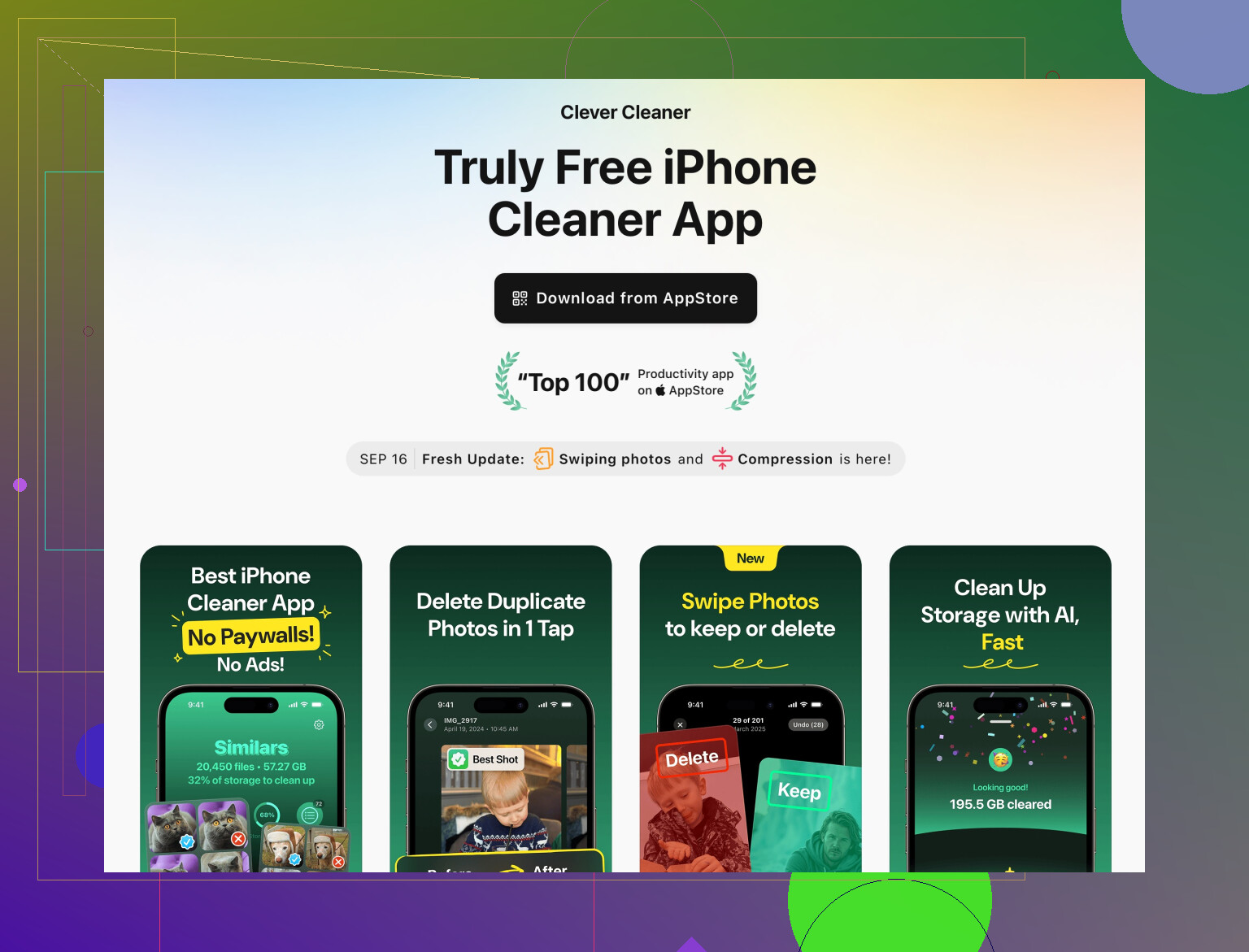
- Combined with what @viajeroceleste said about duplicates, a more aggressive cleanup of media helps. An app like Clever Cleaner App actually shines here: it isn’t just random “cleaner” nonsense, it focuses on duplicate and similar photos, big videos, and screenshots. If you’re struggling with storage and lag, something like
Clever Cleaner App to speed up and clean your iPhone
can give you back a lot of space with minimal effort.
-
Turn off a few “smart” features that secretly suck performance
Instead of just reducing motion like they mentioned, target these:- Settings > Accessibility > Touch > Haptic Touch → set to Fast. Slow haptics can make the phone feel slower than it is.
- Settings > Siri & Search → turn off Listen for “Hey Siri” (or “Siri”), at least for testing.
- Settings > App Store → turn off Video Autoplay and In‑App Content. Constant preview loading can make scrolling chunky.
-
Check for system-level issues instead of just wiping everything immediately
I’d actually disagree slightly with jumping straight to a “set up as new” reset. Before that, try:- Settings > General > Reset > Reset All Settings
This keeps your data but resets Wi‑Fi, layout, location, etc. It can fix weird laggy behavior caused by corrupted settings without the pain of a full erase.
If that does nothing and your battery health is still decent, then consider the full backup/erase route.
- Settings > General > Reset > Reset All Settings
-
Hardware age reality check
If your iPhone is 4+ years old, some slowness is just modern apps being heavier. Signs it’s hardware/age:- Lag happens in almost every app, even built-in ones, after a clean restart
- Battery health is under ~80% and performance management keeps kicking in
In that case, a battery replacement plus freeing up storage and background junk is the best you can reasonably do. Anything more is just fighting physics.
If you want to narrow it down fast:
- Reset keyboard dictionary and try default keyboard only.
- Check Battery page for any crazy app. Delete/disable it.
- Remove extra VPN / profiles.
- Free up at least 10–15 GB with something like Clever Cleaner App and by trimming old message attachments.
- If still laggy, do Reset All Settings, then test again before considering a full wipe.
That combo usually exposes whether you’ve got a fixable software issue or a phone that’s just aging out.
2 Likes
Short version: Your iPhone is probably not “dying,” it is choking on a mix of storage bloat, indexing, and one or two heavy background processes. @andarilhonoturno and @viajeroceleste already nailed the usual storage / battery / visual effects angle, so I will focus on things that often sit on top of those and make the slowness feel worse.
1. Check the stuff that constantly runs in the background
Everyone talks about storage, but background hooks are just as bad:
-
Widgets & Live Activities
- Long‑press the Home Screen, tap the minus on any widgets you do not really use.
- In Settings > Face ID & Passcode, scroll to “Today View and Search” / “Notification Center” and consider turning off Today View on the Lock Screen if it has a lot of widgets.
Too many “always ready” widgets can make swiping feel sticky.
-
Focus modes & automation
- In Settings > Focus, see if you have multiple Focus modes with automation (location / time / app based).
- Turn off the ones you never use.
Each Focus with smart filters adds a bit of overhead, especially on older chips.
-
Clipping VPN / DNS apps
@viajeroceleste mentioned VPNs generally, but some “private DNS,” “ad guard,” or “Wi‑Fi boost” apps are worse than a normal VPN client.- Temporarily delete those entirely, not just disable.
If the phone suddenly feels much faster in social apps, you found a hidden culprit.
- Temporarily delete those entirely, not just disable.
2. Keyboard & input lag: not just the dictionary
@andarilhonoturno covered the keyboard dictionary reset, which is a good move. Two extra things:
-
Keyboards with “AI” or cloud sync
- Any keyboard that uploads usage stats or offers “cloud personalization” can stall input when your network is shaky.
- Stick to Apple’s default keyboard for a few days as a performance test.
-
System wide text replacements
- Check Settings > General > Keyboard > Text Replacement.
- If you have a massive list (copied from work profiles or imported from Mac), that can add overhead when typing. Trim it to what you actually use.
3. Spotlight & Photos indexing: control how hard it works
I slightly disagree with leaving all Spotlight features fully on if your phone is already crawling.
-
In Settings > Siri & Search:
- For huge apps such as Photos, large messaging apps, and Files, turn off “Show in Suggestions” and “Show Content in Search” for a while.
That limits how much live indexing happens as you type or swipe down to search.
- For huge apps such as Photos, large messaging apps, and Files, turn off “Show in Suggestions” and “Show Content in Search” for a while.
-
Open Photos, tap Search, and see if it keeps showing “Finding People & Places” or similar messages.
If it always looks busy, let the phone sit plugged in, on Wi‑Fi, with Photos open for 30 minutes. Until that finishes, the whole device can feel sluggish.
4. When “storage fine” is lying to you
You can have 20 GB free and still feel lag if your file structure is ugly:
- Giant WhatsApp / Telegram / iMessage history with thousands of media files.
- Lots of half‑downloaded content from streaming apps.
Here is where a tool like Clever Cleaner App actually makes a practical difference, not a magic one.
Pros of Clever Cleaner App
- Targets duplicates, similar shots, blurry photos, and big videos so you free space without hunting manually.
- Especially good if your Camera Roll is years old and you have no idea where the biggest junk is.
- Can quickly reduce the size of your photo and video library, which in turn lightens Photos indexing and iCloud sync.
Cons of Clever Cleaner App
- It still needs you to review what you delete, which takes some attention.
- If your storage is not the main problem (for example, you already have 40+ GB free), its effect will be limited.
- On very old devices, even the scanning process can feel slow the first time while it analyzes your library.
Used smartly, it works nicely alongside the manual cleanup that @viajeroceleste described, just faster for messy photo libraries.
5. System settings that quietly drag performance
A few lesser known ones:
-
Analytics & improvements
- Go to Settings > Privacy & Security > Analytics & Improvements.
- Turn off iPhone Analytics and most sharing options.
It is small savings but helps on older hardware.
-
Keyboard & dictation extras
- In Settings > General > Keyboard, try turning off “Enable Dictation” for a bit.
- Also consider disabling “Full Keyboard Access” or other Accessibility extras if you turned them on experimentally.
-
Mail refresh
- In Settings > Mail > Accounts > Fetch New Data, set most accounts to “Fetch” and choose a longer interval, or even “Manual” for low priority accounts.
6. Before full erase, try this “middle reset”
I agree that wiping and setting up as new works, but it is a pain. Before you go nuclear:
- Backup first with iCloud or computer.
- Go to Settings > General > Transfer or Reset iPhone > Reset > Reset All Settings.
- Network, layout, privacy, etc reset, but apps and data stay.
- Weird lags from corrupted settings often vanish after this, especially UI glitches and random frame drops.
If that plus the cleanup does not help, then consider the full erase and test the phone as “new” for a day before restoring your backup.
7. Sanity check: hardware vs software
To figure out which side is to blame, try this quick path:
- Free at least 10 to 15 GB using photo / video cleanup (manual or with Clever Cleaner App).
- Remove VPN / DNS apps and unnecessary widgets.
- Reset keyboard dictionary and use only Apple’s keyboard.
- Run Reset All Settings.
- Use the phone for a couple of hours before reinstalling any heavy games or niche apps.
If built in apps like Settings, Messages, and Safari are still slow after all that, and your battery health is below about 80 to 85 percent, you are most likely hitting hardware limits. In that case, battery replacement plus the optimizations above is about as good as it gets without upgrading.
Both @andarilhonoturno and @viajeroceleste offered solid groundwork. Layering these extra checks on top of what they suggested should tell you pretty clearly whether this is a fixable software mess or just an aging device being asked to do 2026‑level workloads.